n8n is a developer-friendly automation platform with a dedicated Tallyfy connector offering 55 operations across 10 resources that lets you visually build workflows connecting Tallyfy to hundreds of business apps while supporting self-hosting and AI-powered automation patterns like intelligent process launching and cross-system orchestration.
Connecting n8n
Connecting n8n to Tallyfy takes about 5 minutes. You’ve got two options: use the community-built Tallyfy node for quick setup, or use HTTP Request nodes for full flexibility. Both work with Tallyfy’s Open API and handle authentication automatically.
This diagram shows the two connection methods and the bidirectional flow between n8n and Tallyfy.

What to notice:
- The Tallyfy node handles most use cases. HTTP Request nodes give you complete flexibility for custom integrations.
- Both methods converge at the authentication test - if it fails, check your API token and permissions first.
- After connecting, you get access to 60+ operations across multiple resources.
- An active Tallyfy account with API access
- n8n installed (self-hosted, cloud, or local)
- Your Tallyfy API token and Organization ID
- For HTTP Request method: basic REST API knowledge
-
Log into Tallyfy and go to Settings > Integrations > REST API.
-
Create a Personal Access Token and give it a descriptive name like “n8n Integration”.
-
Copy your API token right away - you won’t see it again after closing the dialog.
-
Find your Organization ID in your Tallyfy URL:
https://app.tallyfy.com/org/YOUR_ORG_ID. -
Note the base URL for all API calls:
https://go.tallyfy.com/api.
API token security
Treat your API token like a password. Never share it publicly or commit it to version control. In n8n, always use the Credentials feature to store it securely.
Using the Tallyfy node (recommended)
-
Install the Tallyfy community node:
- Self-hosted:
npm install n8n-nodes-tallyfy - n8n Cloud: Request community node installation through support
- Manual: Download from GitHub ↗
- Self-hosted:
-
In n8n, go to Credentials and create a Tallyfy API credential:
- Access Token: Your Personal Access Token from Step 1
- Organization ID: From your Tallyfy URL
- Base URL:
https://go.tallyfy.com/api(pre-filled by default)
-
Test the connection with the built-in credential test. It calls the
/meendpoint to verify your token works.
Alternative: HTTP Request method
-
For custom integrations, create an HTTP Request credential:
- Authentication: Header Auth
- Name: Authorization
- Value:
Bearer YOUR_ACCESS_TOKEN
-
Add these headers:
X-Tallyfy-Client: n8n,Accept: application/json
-
Create a new workflow in n8n.
-
Add a Tallyfy node from the node palette.
-
Configure it:
- Credential: Select your Tallyfy API credential
- Resource: User
- Operation: Get Current
-
Click Test step to verify the connection.
-
You should see your user details, confirming authentication works.
Alternative test with HTTP Request:
- Method: GET, URL:
https://go.tallyfy.com/api/me
| Resource | Operations | Use cases |
|---|---|---|
| Blueprint | Get, Get Many, Create, Update, Delete | Template management |
| Process | Launch, Get, Get Many, Update, Archive, Get Tasks | Process lifecycle |
| Task | Create One-Off, Complete, Get, Get Many, Update Properties, Delete, Clone | Task management |
| Form Field | Get Fields, Update Value | Data collection |
| Comment | Create, Create Bot, Report Problem, Resolve Issue, Update, Delete | Communication |
| User | Get Current, Get, Get Many, Invite, Update Role, Enable, Disable, Convert to Guest | Team management |
| Guest | Create, Get, Get Many, Update, Delete, Convert to Member | External participants |
| Group | Create, Get, Get Many, Update, Delete | Team organization |
| Search | Global, Tasks, Processes, Blueprints | Finding resources |
| ID Finder | Find Process/Task/Blueprint/Form Field/User/Group IDs | Resource lookup |
Key features:
- Built-in pagination with a “Return All” toggle
- Automatic error handling and retry logic
- Field validation and type checking
- Dynamic field values through n8n expressions
-
Add a Tallyfy node and configure:
- Resource: Process
- Operation: Launch
- Blueprint ID: Your template ID (e.g.,
blueprint_abc123)
-
Set the Process Name: “Process launched from n8n -
{{$json.customer_name}}” -
Configure Launch Data (kickoff fields):
{"customer_name": "{{$json.customer_name}}","project_value": "{{$json.amount}}","priority": "High"} -
Optional: Set assignees, due dates, or visibility as needed.
-
The node returns the launched process details including its ID and status.
Tips:
- Field names must match your blueprint’s kickoff form fields exactly
- Use n8n expressions to map data from previous nodes
- Leave optional fields empty - the node handles undefined values gracefully
-
Add a Webhook node as your workflow trigger:
- HTTP Method: POST
- Path:
/tallyfy-events(or any custom path) - Response Mode: Last Node
-
Copy the generated webhook URL from n8n.
-
In Tallyfy, configure a webhook to point at your n8n URL. Select the event types you want to receive (e.g., task completed, process launched).
-
Test the webhook, then activate your n8n workflow to start receiving events.
This diagram shows how events flow from Tallyfy to n8n.

What to notice:
- Events queue immediately when triggered, so nothing gets lost during high load
- Retries use exponential backoff to handle temporary network issues without overwhelming your n8n instance
n8n records every workflow execution with full input/output data at each node. This makes debugging straightforward.
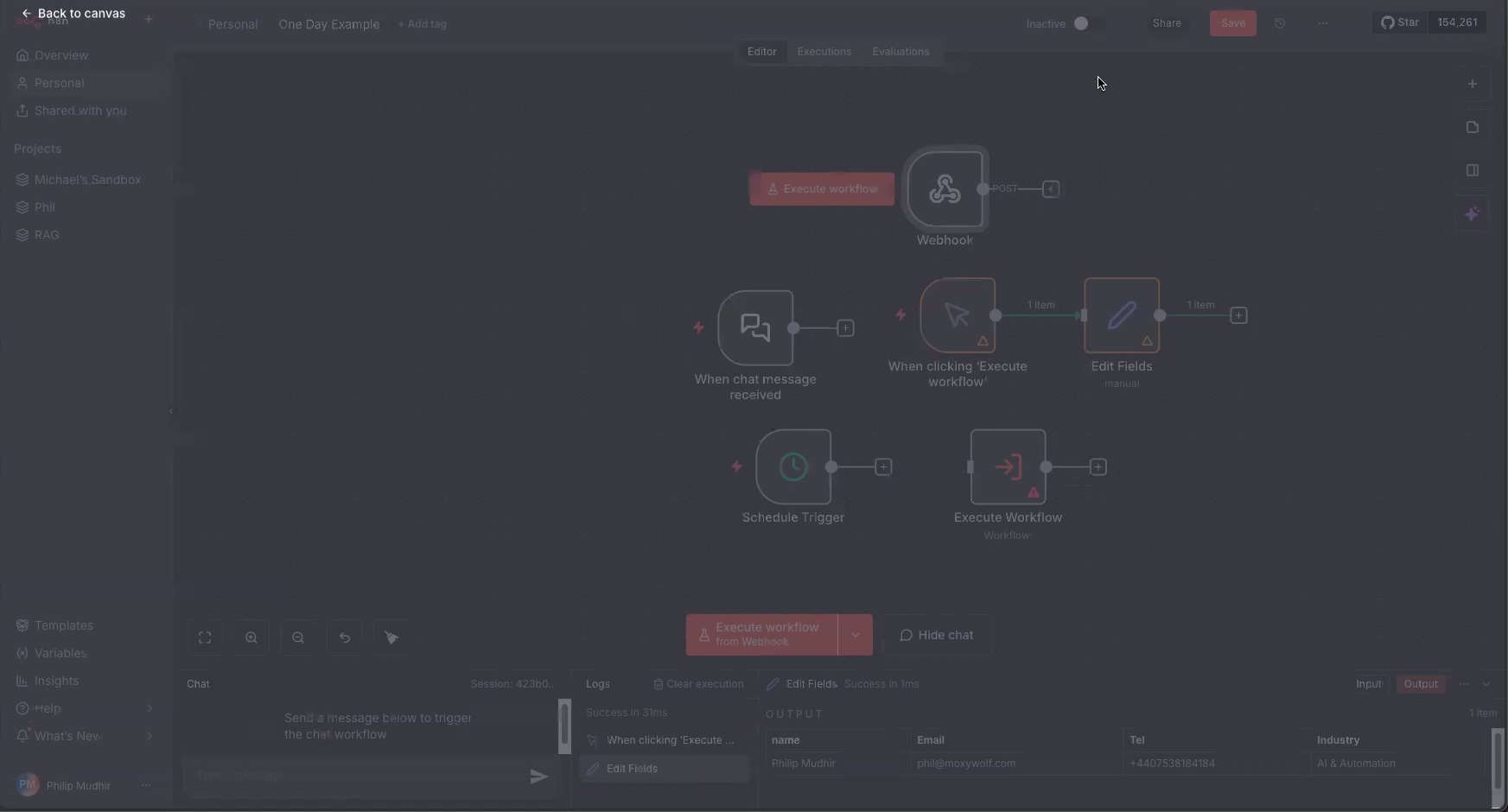
Viewing execution history:
- Click Executions at the top of the workflow editor
- Each entry shows status (success/error), timing, and trigger source
- Click any execution to inspect the data flowing through each node
- Filter by date or status to find specific runs
Data pinning - skip expensive operations during testing:
When building workflows with AI agents or external API calls, re-running every node on each test is slow and costly. Data Pinning freezes a node’s output so it’s reused in subsequent test runs.
- Run your workflow to get real data through the nodes
- Click on any node with output data
- Click the Pin icon to lock that output
- On future tests, n8n skips that node and uses the pinned data
This is especially useful for AI agent workflows, slow API calls, or rate-limited services.
Copy execution to editor:
If a production execution fails, you can reload it into the editor for debugging:
- Find the execution in the Executions panel
- Click the three-dot menu and select Copy to Editor
- The workflow opens with all the original input data
- Test individual nodes or modify and re-run
| Issue | Cause | Fix |
|---|---|---|
| 401 Unauthorized | Invalid or expired token | Regenerate your API token in Tallyfy |
| 403 Forbidden | Insufficient permissions | Check that your user role allows API access |
| 404 Not Found | Wrong endpoint or resource ID | Verify your Organization ID and resource IDs |
| 422 Unprocessable Entity | Invalid data format | Check required fields and data types |
| 429 Rate limiting | Too many requests | Add 1-2 second delays between calls |
| Connection timeout | Network or server issues | Enable retry logic with exponential backoff |
| Webhook not firing | URL or events misconfigured | Double-check the webhook URL and selected events |
| Webhook works in test only | Using Test URL in production | Swap to the Production URL after activating the workflow |
| AI node timeouts | Re-running expensive operations | Use Data Pinning to cache outputs while building |
Advanced debugging:
- Enable Retry on Failure in node settings
- Use Split in Batches for large datasets
- Add Function nodes to log request/response data
- Test authentication with the
/meendpoint first
Security:
- Store API tokens in n8n credentials, never in code
- Use webhook secrets to verify payload authenticity
- Rotate API tokens quarterly or after team changes
Performance:
- Use Split in Batches for processing 50+ items
- Add 500ms delays between API calls to avoid rate limits
- Enable Retry on Failure with exponential backoff
Data handling:
- Use pagination for large datasets (Tallyfy defaults to 10 items per page)
- Validate required fields before sending API requests
- Handle edge cases like missing users or archived processes
Once connected, you can build automations like:
- AI-enhanced workflows - Analyze form responses with AI, generate summaries, or auto-categorize incoming requests
- Multi-system orchestration - Launch Tallyfy processes from CRM deals, sync tasks to project tools, or build cross-platform approvals
- Real-time dashboards - Stream process metrics to BI tools or send alerts when SLAs are at risk
N8N > Common n8n workflow examples
n8n workflows can automate Tallyfy processes by connecting CRM deal wins to onboarding launches and routing form submissions to multiple systems simultaneously and using AI-powered classification for intelligent task assignment and human-in-the-loop approvals and scheduled data collection with built-in error handling and retry logic.
Tallyfy offers twelve distinct ways to connect with your existing business software—from a full REST API and webhooks for developers to no-code middleware platforms like Zapier and Make.com to email and chat integrations for non-technical teams—so you can automatically sync data and trigger actions across all your tools without manual copy-pasting.
Open Api > API integration guide
Tallyfy’s REST API enables you to connect workflow features to external systems using OAuth 2.0 authentication with required Bearer tokens and X-Tallyfy-Client headers while mapping API terminology like Checklists and Runs to their UI equivalents of Templates and Processes and handling token refresh and multi-organization context for reliable integrations.
Was this helpful?
About Tallyfy
- 2025 Tallyfy, Inc.
- Privacy Policy
- Terms of Use
- Report Issue
- Trademarks