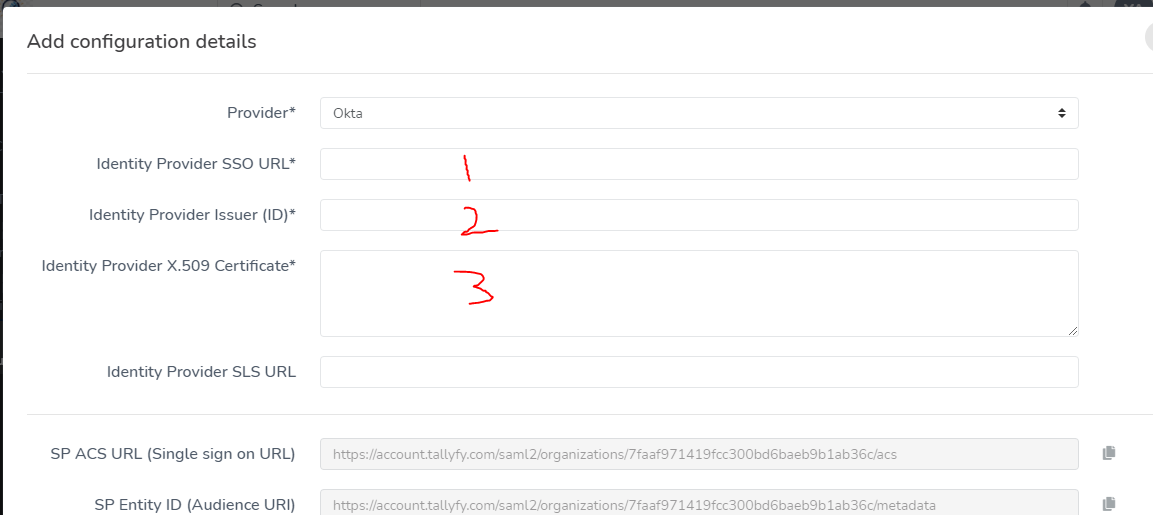
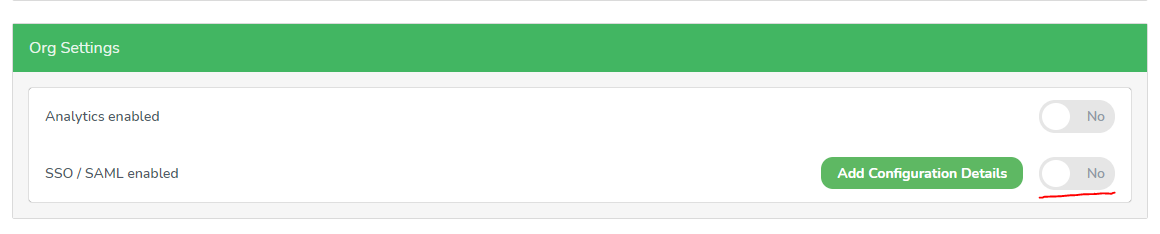
Connect Google Workspace (formerly G Suite) with Tallyfy using SAML-based Single Sign-On. Your users authenticate with their Google credentials - no separate Tallyfy passwords needed.
Requirements
Google Workspace admin account with super-administrator privileges
Tallyfy Pro or Enterprise plan
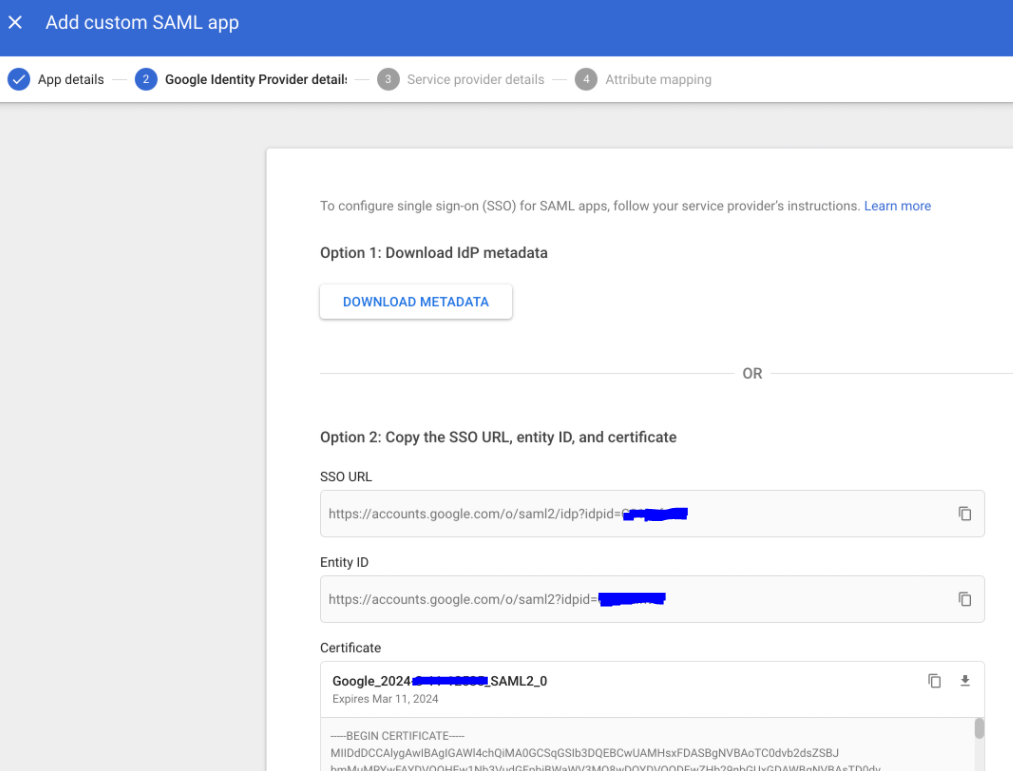
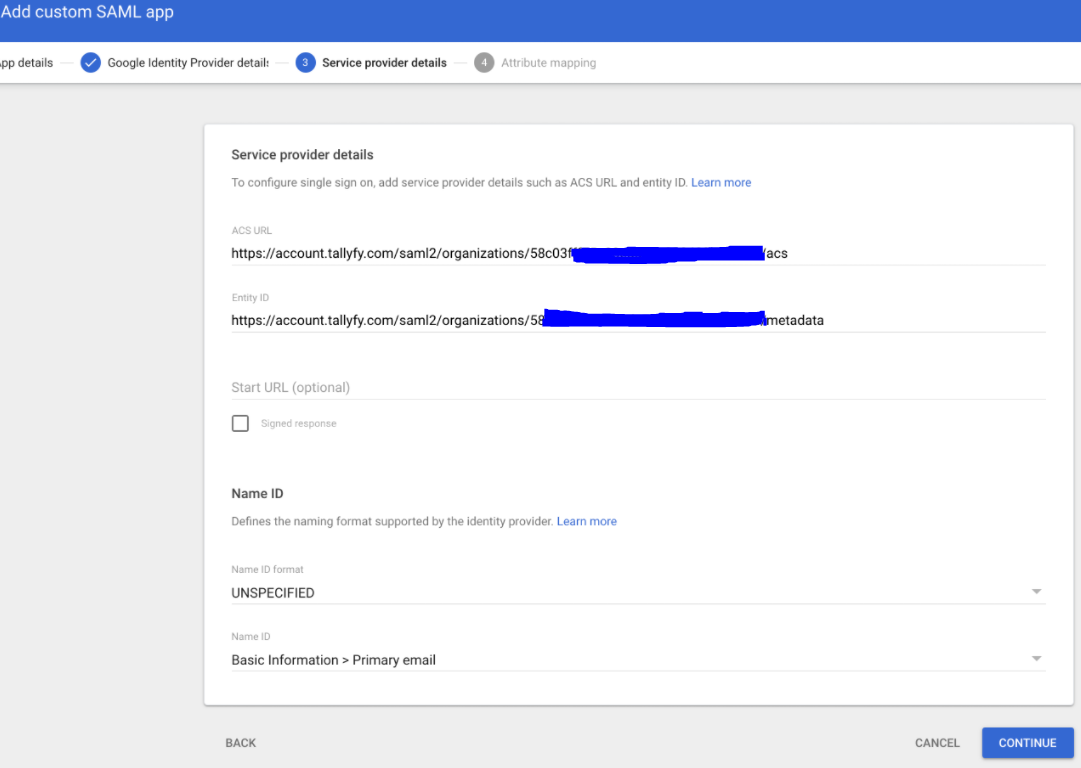
SAML configuration values from Tallyfy Support
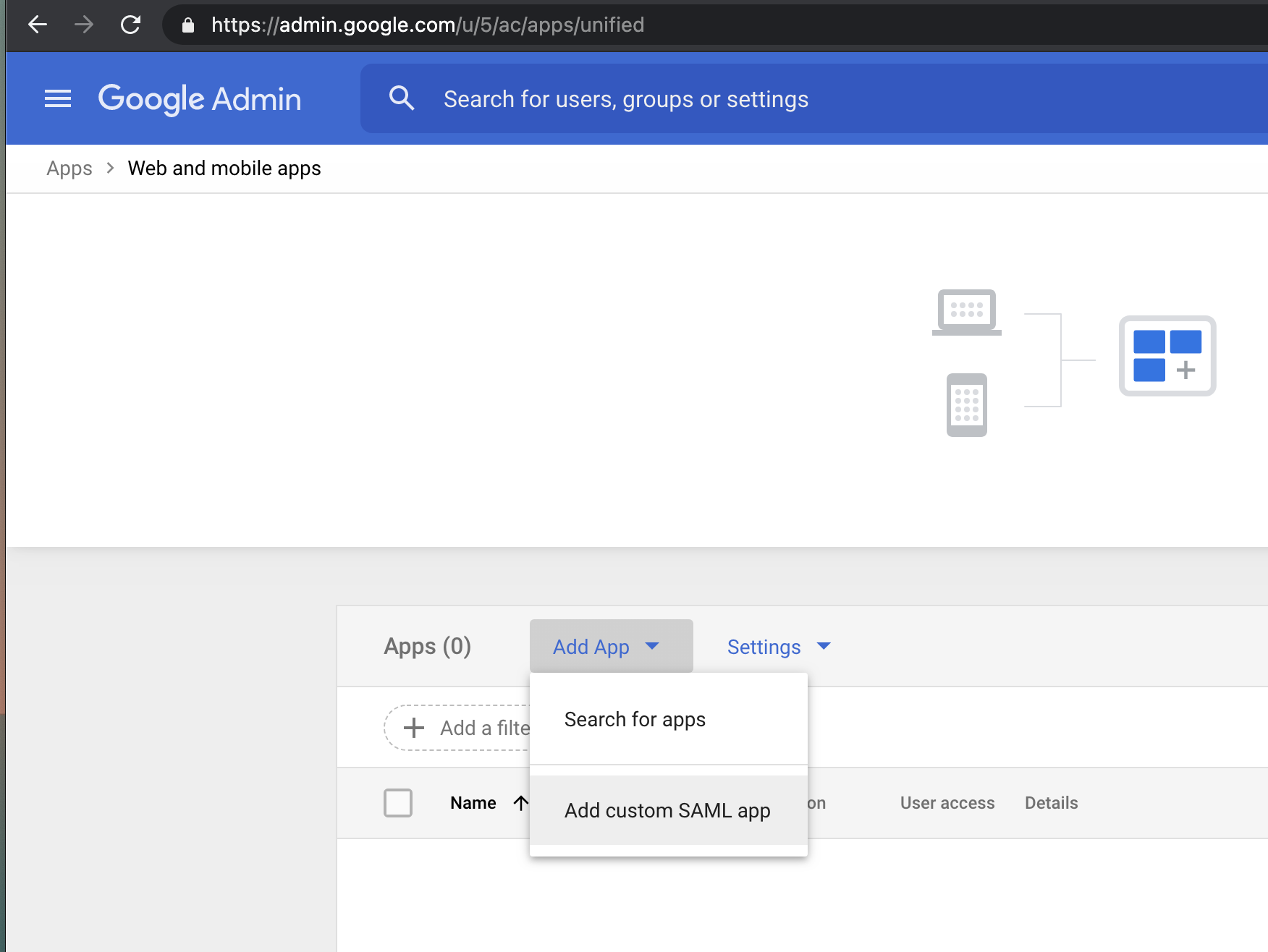
Phase 1 - Create a custom SAML app in Google Workspace
Tallyfy integrates with OneLogin through SAML-based Single Sign-On by having an admin create a custom SAML connector in OneLogin and exchange configuration values like ACS URLs and X.509 certificates with Tallyfy Support so that team members can authenticate through a special SSO login URL with automatic provisioning for new users on first access.
Tallyfy integrates with Okta through SAML 2.0 SSO by creating an Okta SAML app and exchanging configuration details with Tallyfy Support so users can authenticate automatically and get accounts provisioned on first login in about 30 minutes.
Tallyfy offers free SSO on all paid plans with support for Microsoft Entra ID and Google Workspace and Okta and OneLogin and JumpCloud and any SAML 2.0 provider — letting teams log in with existing corporate credentials while also enabling SSO-based approval audit trails that can replace costly e-signature tools for internal use cases like purchase orders and policy acknowledgments.
Tallyfy integrates with JumpCloud through SAML-based SSO by creating a custom SAML app in JumpCloud and exchanging identity provider metadata and service provider configuration with Tallyfy Support to enable automatic login and just-in-time user account creation for assigned users.