Connect Microsoft Entra ID (formerly Azure Active Directory) to Tallyfy in about 30 minutes. Your users get automatic login and account creation - no separate passwords needed.
Requirements
Microsoft Entra ID administrator access
Tallyfy Professional or Enterprise plan
SAML config values from Tallyfy Support
What you’ll do
Create a Microsoft Entra ID enterprise application
Configure SAML settings in both systems
Test the connection
How SSO setup works
You, Tallyfy Support, and Microsoft Entra ID work together through a three-party setup.
Key points:
Steps 1-10 are one-time setup between you and Tallyfy Support
Steps 11-15 happen every time someone logs in
You can’t skip the support ticket (step 1)
Phase 1: Create enterprise application
Access enterprise applications
Sign in to the Azure Portal ↗ with administrator credentials
Go to the Microsoft Entra ID service (may still show as Azure Active Directory in some interfaces)
Select Enterprise Applications from the Manage section
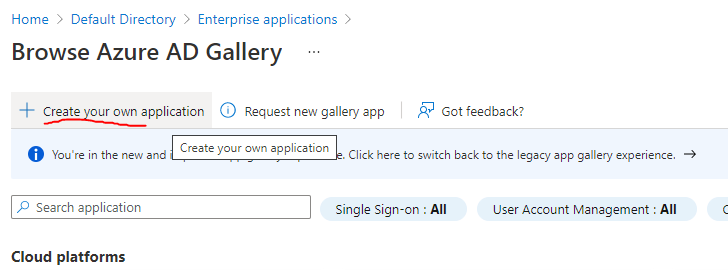
Click +New application
Choose Create your own application
Define application properties
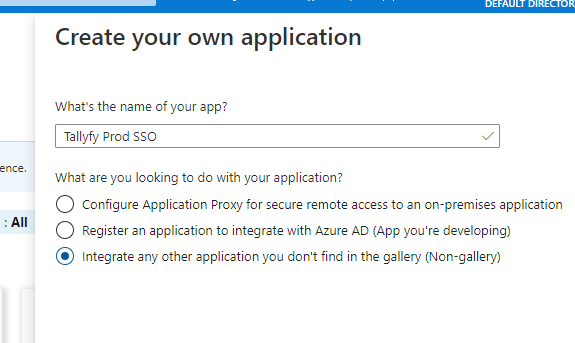
Enter “Tallyfy” as the application name
Select Integrate any other application you don’t find in the gallery (Non-gallery)
Click Create
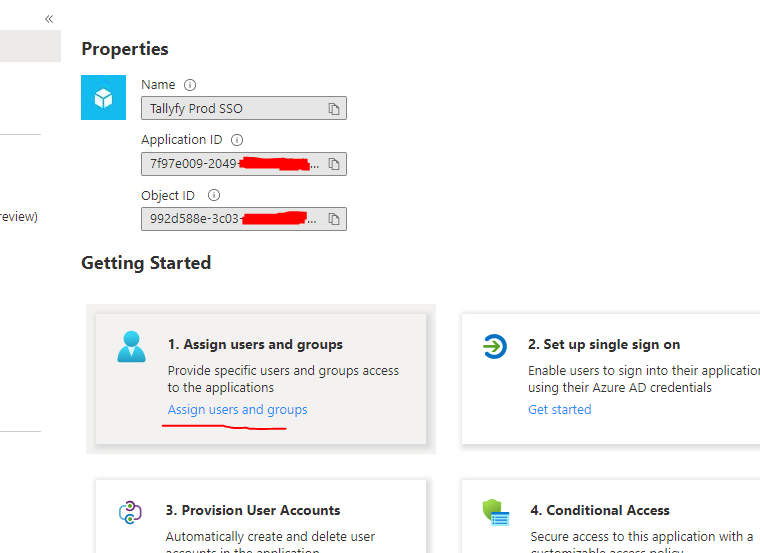
Assign users (optional)
Assign users now or after setup - your choice:
Phase 2: Configure SAML settings
Access SAML configuration
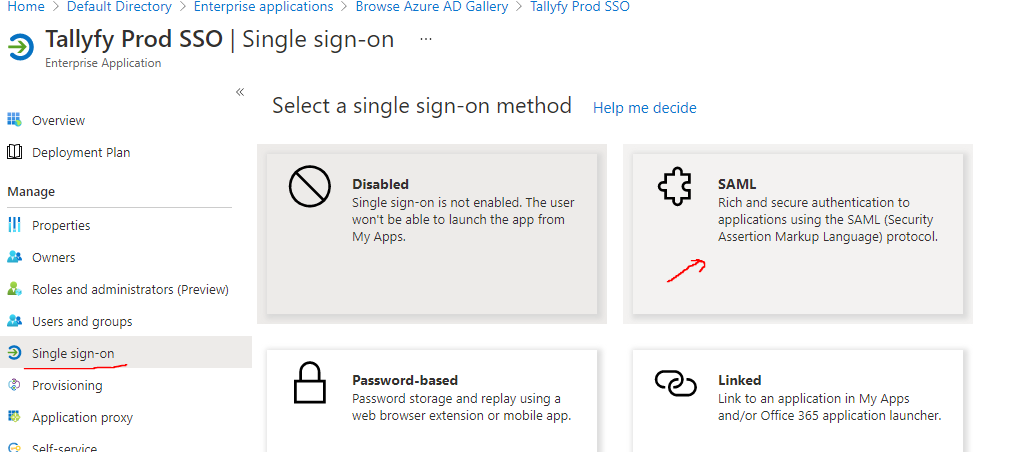
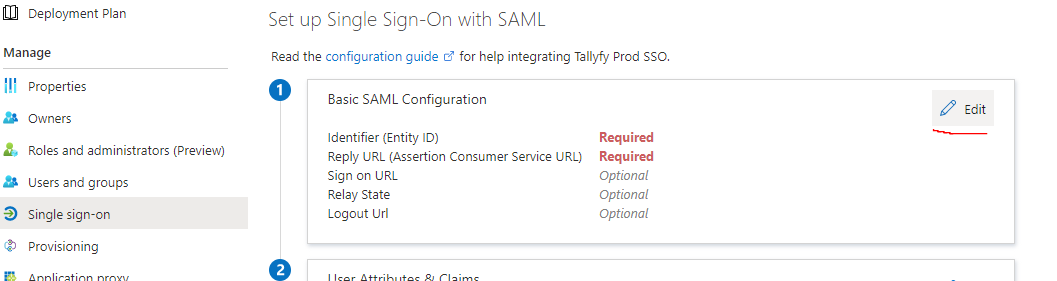
In the application’s sidebar under Manage, select Single sign-on
Choose SAML as the sign-on method
Configure basic SAML settings
Click Edit in the Basic SAML Configuration section.
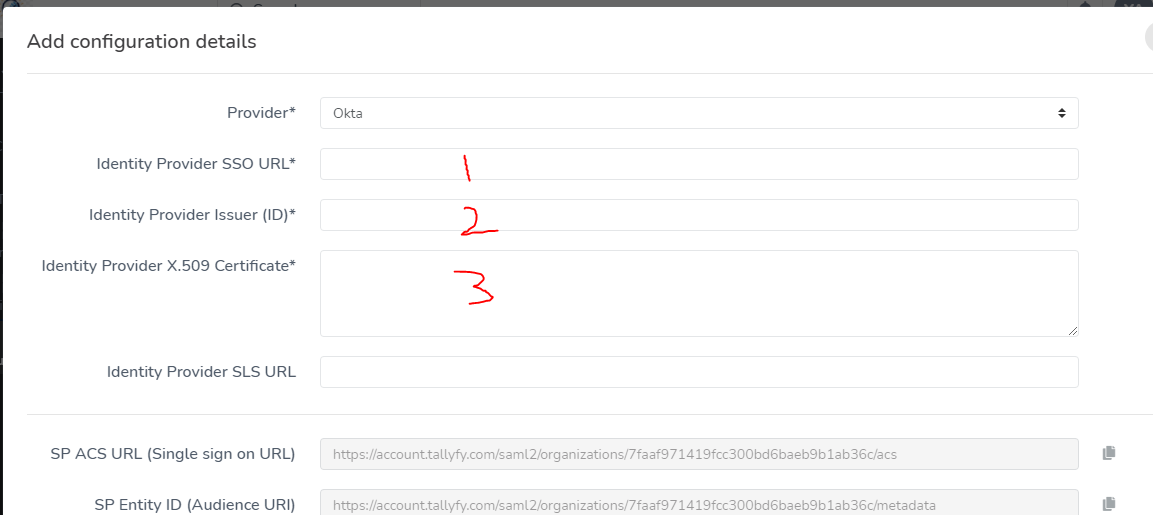
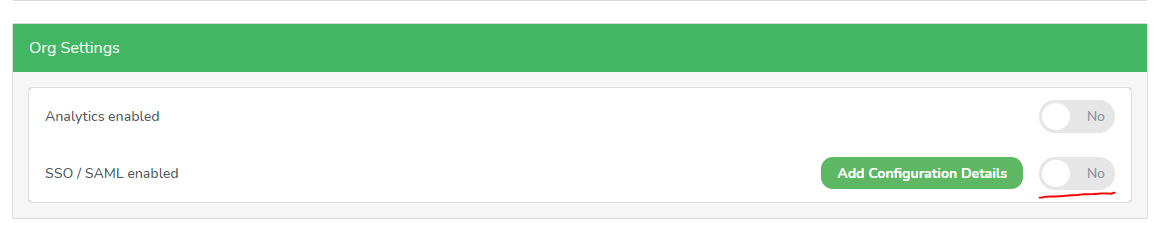
In Tallyfy, go to your organization profile.
Open the Org Settings tab.
Click Add Configuration Details.
Scroll down to find the default SAML values.
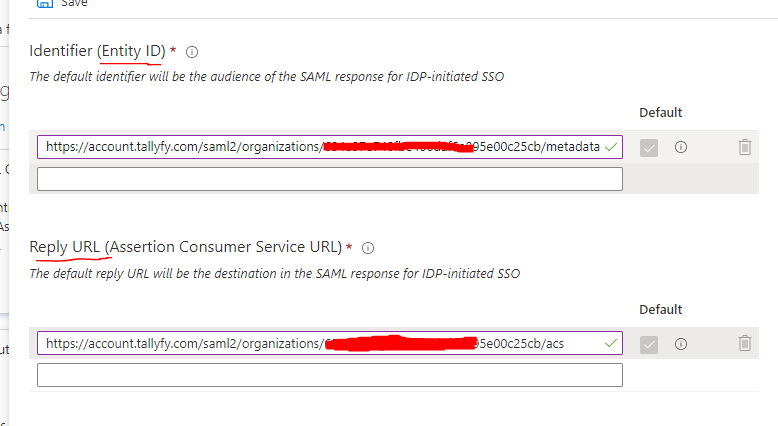
Copy Tallyfy’s SP ACS URL to Microsoft Entra ID’s Reply URL (Assertion Consumer Service URL) field.
Copy Tallyfy’s SP Entity ID to Microsoft Entra ID’s Identifier (Entity ID) field.
Click Save.
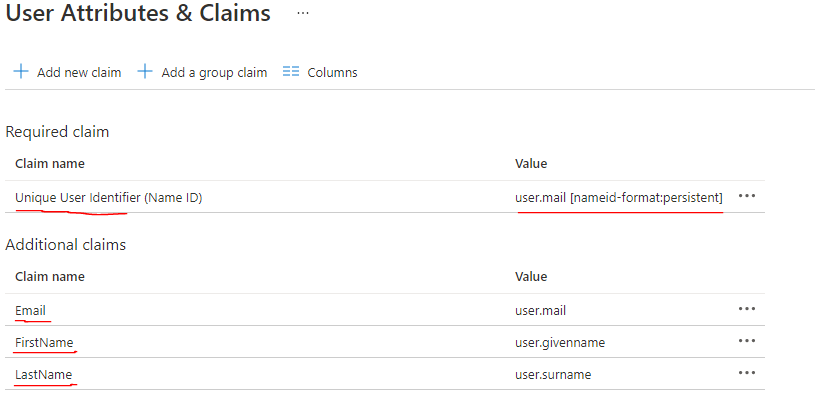
Configure user attributes
These must be exact - wrong names or capitalization will break user sync.
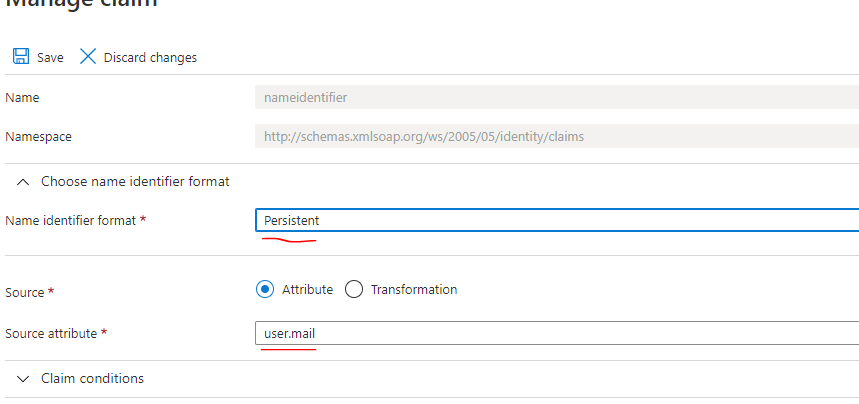
Configure Name Identifier (User ID): Click the Unique User Identifier (Name ID) row.
Select Persistent for Name identifier format.
Choose user.mail for Source attribute.
Click Save.
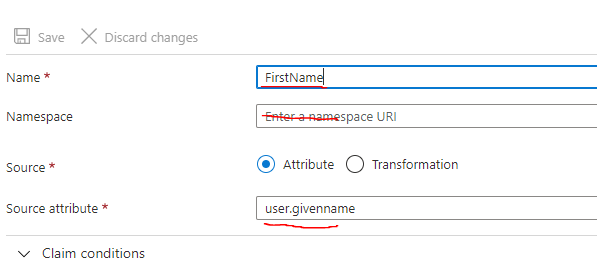
Configure First Name Attribute: Click the attribute row (typically user.givenname).
Set Name to: FirstName (capitalization matters).
Clear the Namespace field.
Set Source attribute to: user.givenname.
Click Save.
Configure Email attribute: Set Name to Email, clear Namespace, set Source attribute to user.mail. Click Save.
Configure Last Name attribute: Set Name to LastName, clear Namespace, set Source attribute to user.surname. Click Save.
Your final attribute config should look like this:
Phase 3: Complete the integration
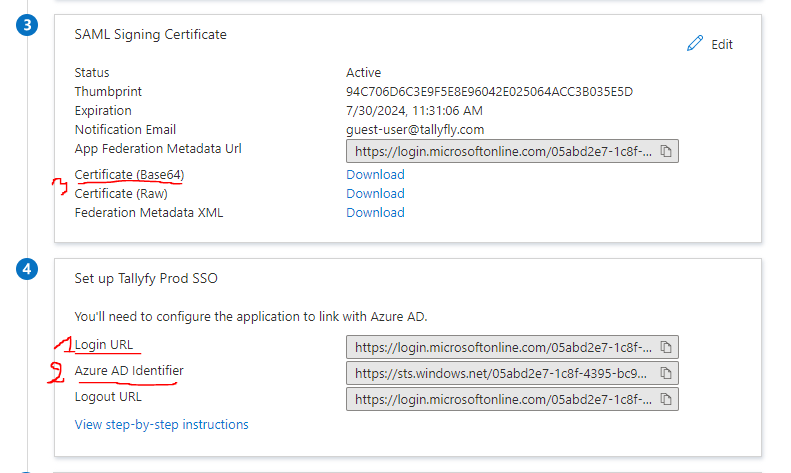
Get Microsoft Entra ID SAML information
You need three things from Microsoft Entra ID:
Go to the Set up section.
Copy the Login URL.
Copy the Microsoft Entra ID Identifier.
Download the Certificate (Base64) from the SAML Signing Certificate section.
Send information to Tallyfy Support
Send these three items to Tallyfy Support
Tallyfy Support configures your SAML settings on their end
Turn on SAML authentication
After Tallyfy Support confirms everything’s ready:
Turn on the SAML activation toggle
User access
Get your organization’s SSO login URL from the SAML setup modal (Tallyfy Support provides this)
Share this URL with your Microsoft Entra ID users
When users visit this URL:
Existing Tallyfy users log in automatically
New users get an account created on first login
Troubleshooting
Users can’t log in? Check these:
User is assigned to the Microsoft Entra ID application
Attribute mappings are exact (names and capitalization)
Tallyfy integrates with Okta through SAML 2.0 SSO by creating an Okta SAML app and exchanging configuration details with Tallyfy Support so users can authenticate automatically and get accounts provisioned on first login in about 30 minutes.
Tallyfy offers free SSO on all paid plans with support for Microsoft Entra ID and Google Workspace and Okta and OneLogin and JumpCloud and any SAML 2.0 provider — letting teams log in with existing corporate credentials while also enabling SSO-based approval audit trails that can replace costly e-signature tools for internal use cases like purchase orders and policy acknowledgments.
Tallyfy integrates with OneLogin through SAML-based Single Sign-On by having an admin create a custom SAML connector in OneLogin and exchange configuration values like ACS URLs and X.509 certificates with Tallyfy Support so that team members can authenticate through a special SSO login URL with automatic provisioning for new users on first access.
Tallyfy integrates with JumpCloud through SAML-based SSO by creating a custom SAML app in JumpCloud and exchanging identity provider metadata and service provider configuration with Tallyfy Support to enable automatic login and just-in-time user account creation for assigned users.