Exporting a running process gives you a CSV file with 49 columns1 covering tasks, form answers, and comments. Each row represents a single task, form field, kick-off field, or comment - the CSV flattens your process hierarchy into a flat table you can open in any spreadsheet tool.
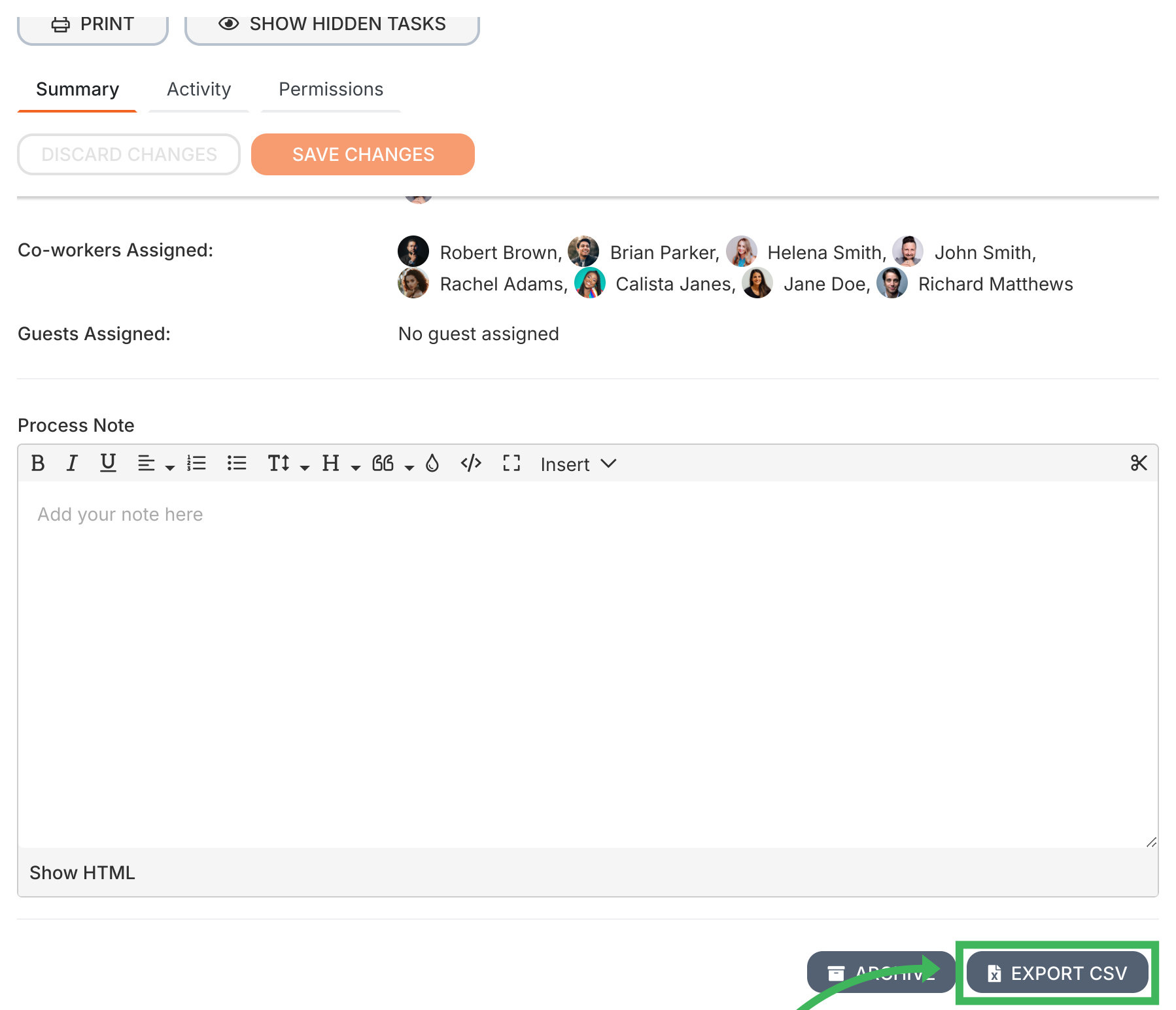
How to export a process to CSV
Open the running process you want to export.
Click Settings (top right).
Scroll to the bottom of the settings panel.
Click Export CSV.
How the data is organized
Your process has layers - template details, tasks, form fields within those tasks, comments on tasks. The CSV flattens all of this into rows. The type column tells you what each row represents: process_task, process_task_data (a form field), process_task_comment, or kick_off_task.
If you use Tallyfy Analytics, the data you query through reporting tools (via Amazon Athena) shares this same structure - just stored in Parquet2 format for faster querying.
Column reference
The 49 columns fall into five groups:
Process and template info (columns 1-13)
blueprint_id: Template’s unique ID.
blueprint_name: Template’s name.
blueprint_version: Template’s version number.
process_id: Unique ID for this specific run of the process.
process_name: Name given to this run.
process_tag: Tags added to this process run.
process_owner: Full name of the process owner.
process_owner_id: ID of the process owner.
total_tasks_in_process: Total task count in the process (including hidden tasks).
tasks_completed: Number of finished tasks.
process_status: Current status (e.g. active, problem, or complete).
process_last_modified: Date/time the process was last updated. This changes on any modification (edits, archiving, tag changes) - not just completion. For completion timing, use process_completed_at instead.
process_completed_at: Date/time when the process was marked complete. Empty for active or incomplete processes. Use this for calculating process duration and completion metrics.
Task info (columns 14-28)
type: What this row represents - process_task, process_task_data (form field), process_task_comment, or kick_off_task (kick-off form field).
has_form_fields: Always Yes in the current export format.
kick_off_task_id: ID of the kick-off form field (populated only for kick_off_task rows).
kick_off_task_name: Label of the kick-off form field.
process_task_id: Unique ID for this task instance.
process_task_status: Either shown or hidden. Hidden tasks were auto-skipped by automation rules. Task completion is tracked via completed_on instead.
process_task_name: Name of the task.
process_task_alias: Stable step ID from the template - useful for comparing the same step across different process runs.
process_task_data_id: ID of the form field (populated only for process_task_data rows).
process_task_data_name: Name of the parent task this form field belongs to.
process_task_comment_id: ID of the comment (populated only for process_task_comment rows).
process_task_comment_name: Name of the task this comment belongs to.
milestone_id: ID of the milestone attached to this task (if any).
milestone_name: Name of the milestone (if any).
milestone_position: Position of the milestone in the process sequence.
Assignment and timing info (columns 29-37)
user_assigned: Comma-separated names of assigned members. Group assignments appear as GROUP_{id}_{name}.
assigned_user_id: Comma-separated IDs of assigned members.
guest_assigned: Comma-separated emails of assigned guests.
total_users_assigned: Number of members assigned.
total_guests_assigned: Number of guests assigned.
total_assignees: Total people assigned (members + guests).
completed_by: ID of the person who completed the task. Shows 0 if not yet completed.
assigned_or_shown_on: Date/time the task appeared or was assigned. Empty for hidden (auto-skipped) tasks.
due_by: Task deadline date/time.
completed_on: Date/time the task was completed.
Form field info (columns 38-41)
(These columns only have data when the row type is process_task_data or kick_off_task)
no_of_form_fields: Number of form fields in the parent task (or kick-off form).
form_field_type: Field type (text, date, dropdown, radio, file, etc.).
question_in_form_field: The label/question for this field.
answer_in_form_field: The answer entered into this field. Only populated if the task has been completed.
Comments and issues info (columns 42-49)
(These columns are populated on process_task_comment rows)
issue_reported: Was this comment reporting an issue? (Yes/No).
no_of_issue_reported: Total issues reported on the parent task.
issue_resolved: Was the reported issue resolved? (Yes/No).
no_of_issue_resolved: Total resolved issues on the parent task.
total_comments: Number of comments on the parent task.
comment: The text content of the comment.
last_modified: When this row’s data was last updated.
Dates and reporting tools
If you’re querying Tallyfy Analytics with Power BI or Tableau, you’ll format date columns using Amazon Athena / Presto SQL functions.
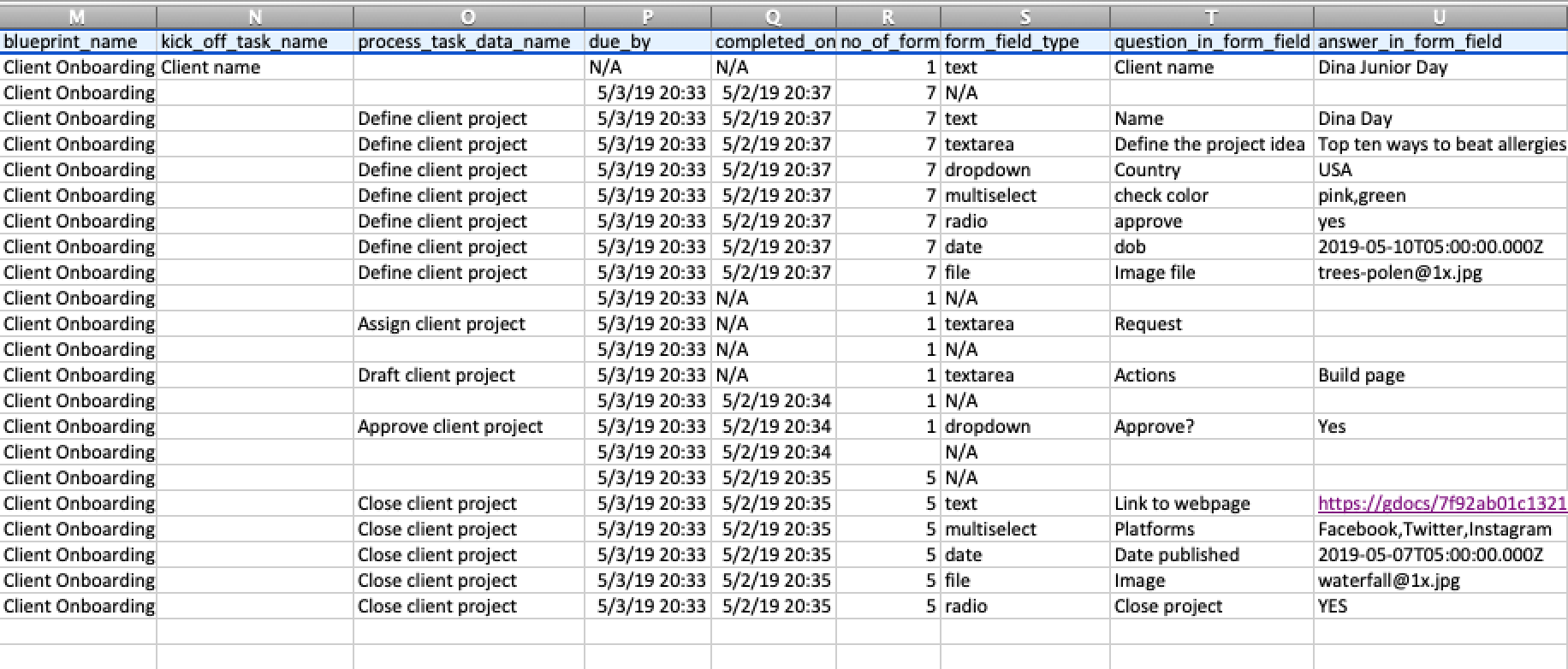
Example CSV view
Here’s what the exported data looks like in a spreadsheet:
Tallyfy lets you export any running process to a 49-column CSV file containing tasks and form answers and comments and timestamps through a simple menu click and also supports bulk exports of multiple processes via an open-source Python script for analysis reporting auditing and integration with tools like Excel or Power BI.
Tallyfy Analytics transforms workflow data through a five-step pipeline—detecting events and extracting process snapshots then converting them to Apache Parquet format and storing them securely in Amazon S3—so you can connect BI tools like Power BI or Tableau using standard SQL queries through Amazon Athena without managing any database infrastructure.
Tallyfy’s glossary defines every key platform term from Administrator roles and automation rules to webhooks and workflow templates so users can quickly understand concepts like templates (reusable process blueprints) and processes (running instances of those templates) along with features such as kick-off forms and conditional logic and guest access and API integrations.
Tallyfy’s Tracker view serves as a real-time organizational dashboard for monitoring all running processes through board or table formats with built-in filtering presets and sorting options that let you spot bottlenecks and manage work across your entire organization from a single screen.
Footnotes
Each column represents a specific data point like process ID, task status, or form field answer ↩
Columnar storage format optimized for analytics, typically 10x smaller than CSV with faster query performance ↩
Standard datetime format like YYYY-MM-DDTHH:MM:SS, ensures consistent parsing across systems ↩