Skip to content

Print or export templates

How to output templates from Tallyfy

You can get templates out of Tallyfy three ways - print on paper, save as PDF, or export raw data through the API1.

Prerequisites

  • Read permission on the template
  • A printer (for physical copies)
  • Technical or developer help (for API export)

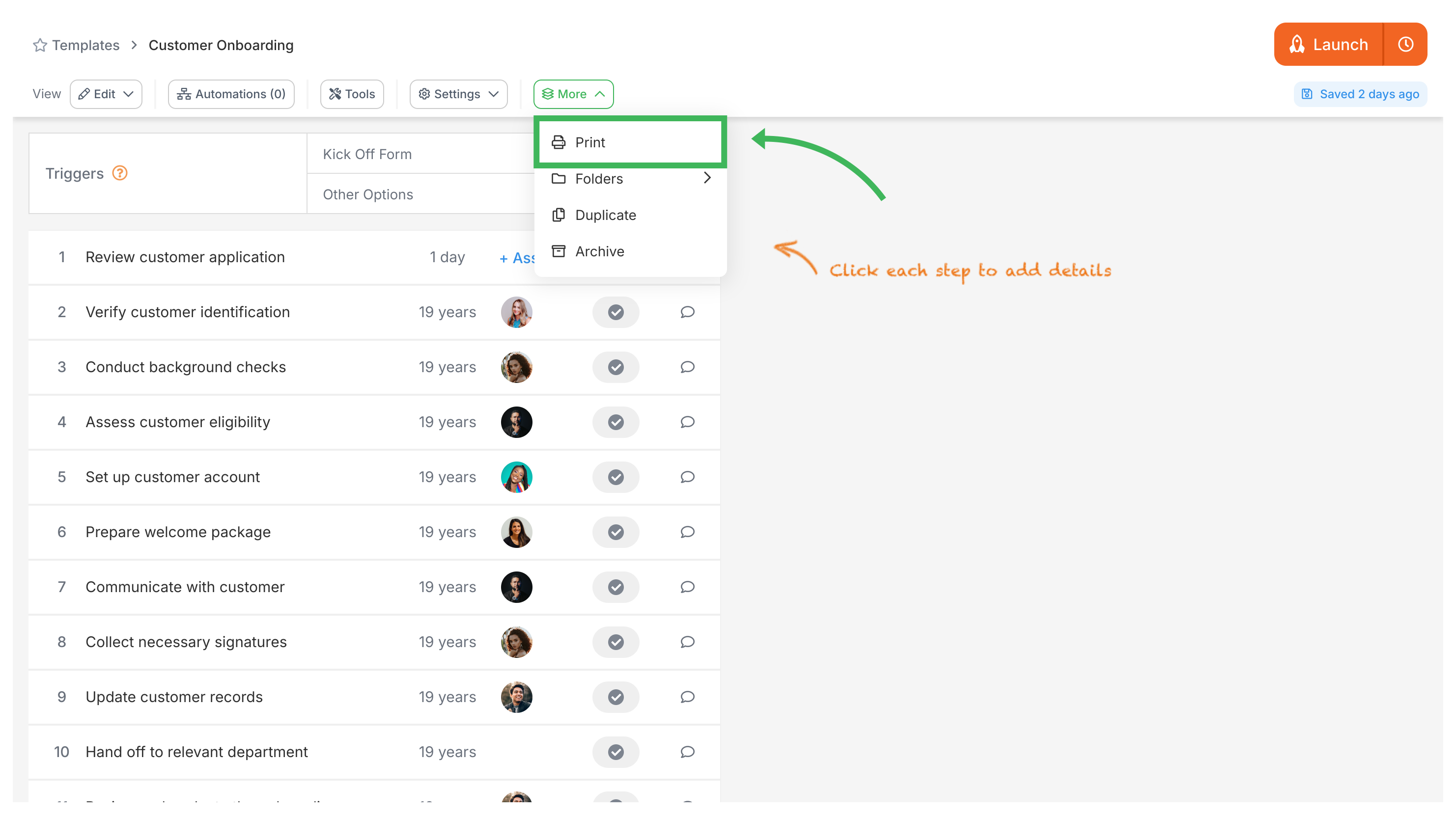
Click More in the template toolbar, then choose Print. Tallyfy automatically switches to read mode before opening your browser’s print dialog.

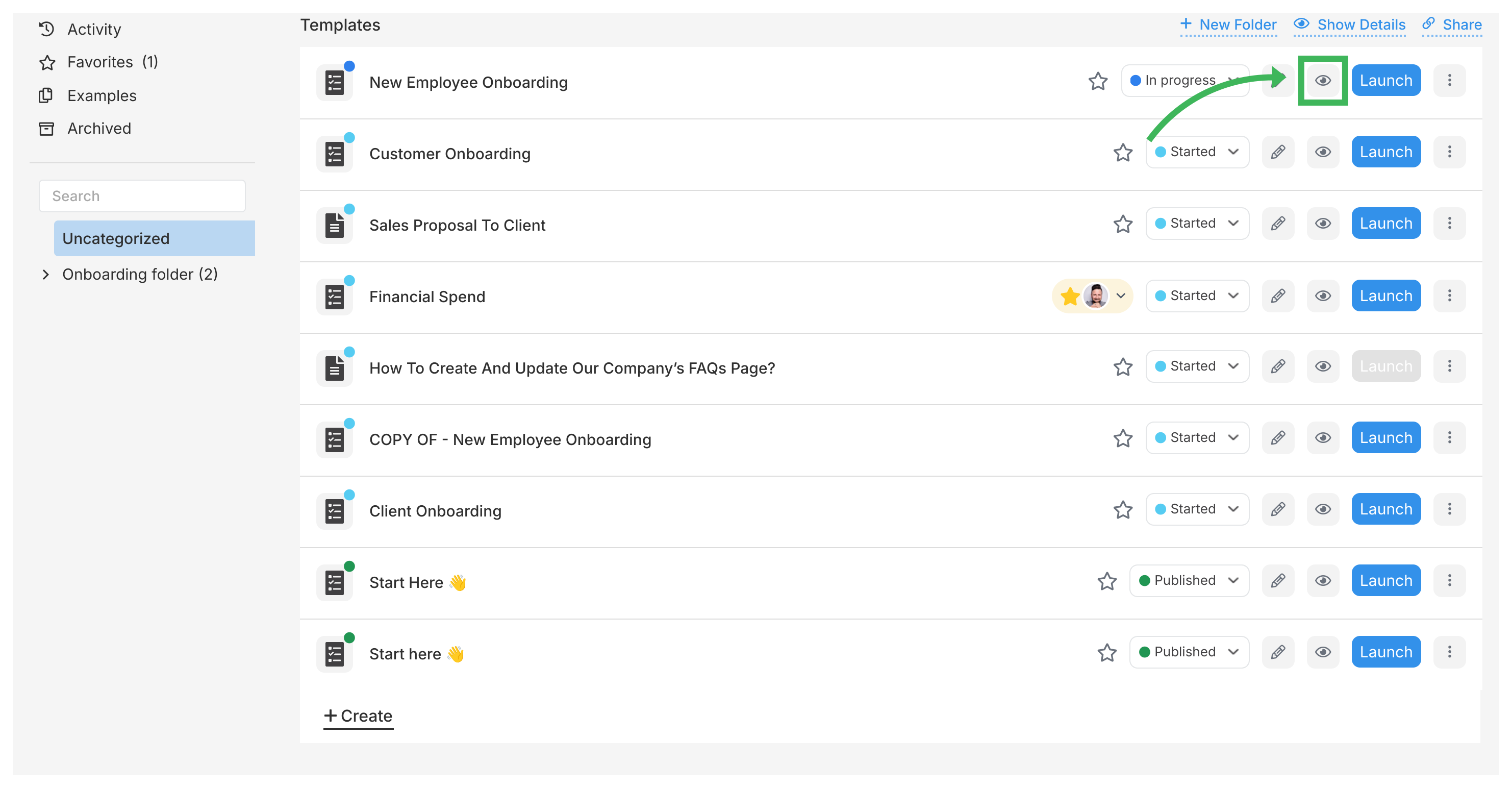
  1. Go to the Templates section in the library
  2. Click the View icon for the template you want Templates list with view icon highlighted on first template (59 chars)
  3. Click More in the top toolbar, then choose Print Print menu dropdown with template and process printing options
  4. Select your printer under Destination and adjust paper size or margins if needed
  5. Click Print

Save as PDF

The PDF option uses the same print flow - you just change the destination.

  1. Open the template and click More > Print in the top toolbar
  2. Change the Destination to Save as PDF (or “Microsoft Print to PDF”)
  3. Adjust paper size or margins if needed
  4. Click Save, choose a location, name the file, and click Save again

API export for technical users

The API lets you pull template data programmatically as JSON2 - useful for backups or moving many templates at once.

What API export gives you

  • Your full template structure and settings as a JSON file
  • Reliable backups you can restore from
  • The ability to automate bulk operations - back up hundreds of templates on a schedule

How to set it up

  1. Go to the API Support GitHub repository
  2. Download the Python script for exporting templates (“blueprints”)
  3. Configure the script with your Tallyfy API key and secret
  4. Run the script (requires Python) - it downloads template data as JSON files

Choosing the right method

MethodBest forFormatYou’ll need
PrintPaper copies for meetings, offline usePaperPrinter access
Save as PDFSharing digitally, documentationPDF filePDF viewer
API ExportBackups, bulk moves, automationJSON fileCoding skills

Sharing with non-technical people? Use PDF. Doing anything programmatic? Use the API.

Templates > Configure your template

Tallyfy’s template settings let you control general options like duplicating and archiving along with summary details and permissions and export IDs so you can organize and restrict who can view or launch processes from any template.

Templates > Publish a template

Tallyfy lets you publish any template publicly by toggling a single setting so anyone with the link can view your process structure and steps without needing a login or account while keeping all actual run data and form responses completely private.

Code Samples > Managing templates (blueprints)

Tallyfy’s API lets you manage process templates through standard CRUD operations but uses the term “Checklists” in endpoint paths and “Blueprints” in some method names instead of “Templates” as shown in the UI.

Documenting > Templates

Tallyfy templates are reusable process blueprints that you create once and launch repeatedly to assign tasks and track progress automatically while solving problems like inconsistent quality and lost knowledge through three types: procedure templates for multi-step workflows with conditional logic and document templates for reference materials and form templates for standalone data collection.

Footnotes

  1. API term ‘blueprints’ refers to templates in JSON format with all configuration data preserved

  2. JavaScript Object Notation - a structured text format that preserves all template relationships and settings