Skip to content

Insert media

Adding media to tasks

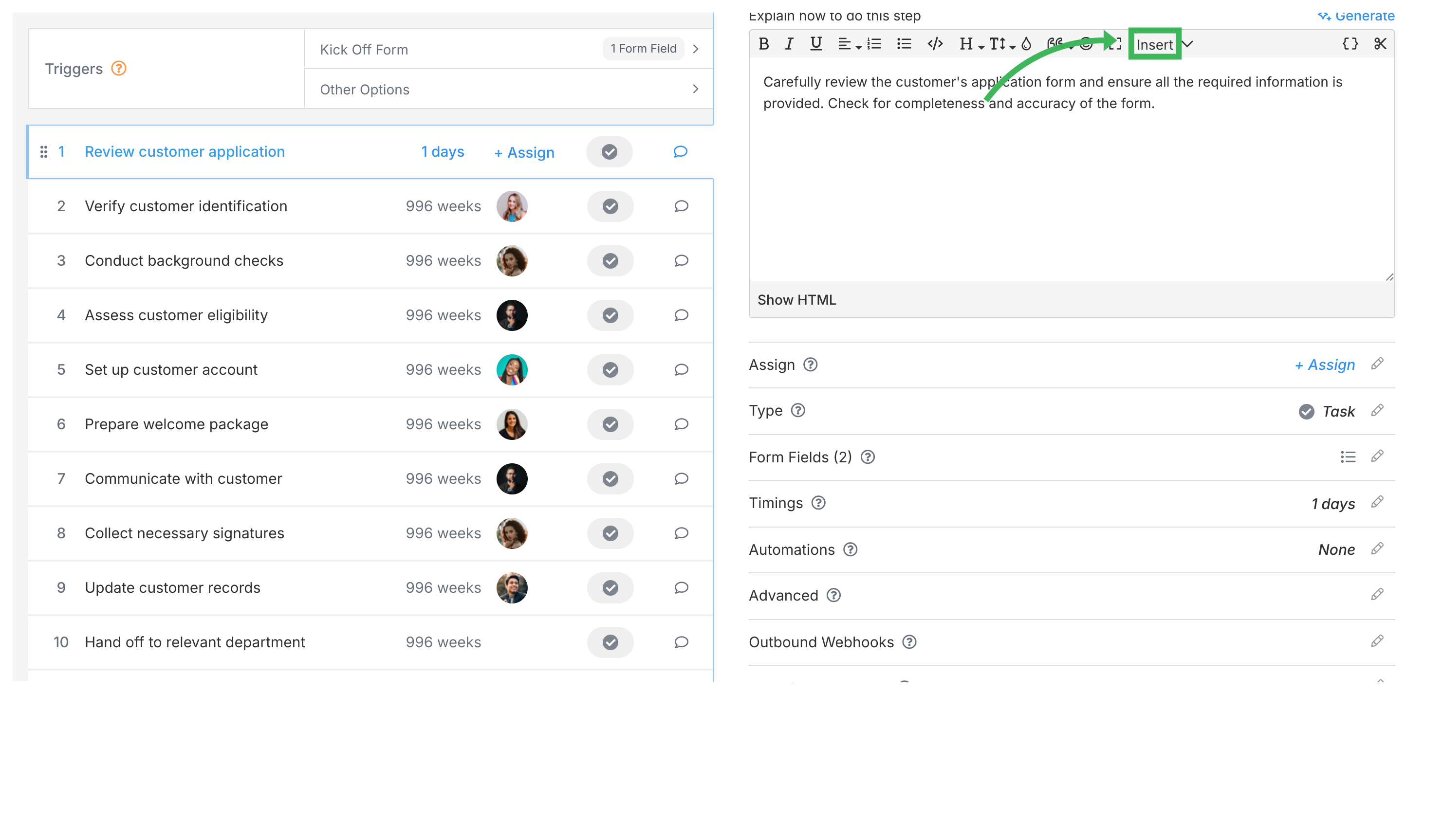
Click the Insert button in the editor toolbar to add images, videos, files, tables, and links directly into task descriptions in Tallyfy templates. This makes instructions clearer - especially for visual or complex steps.

Supported media types

Media TypeWhat it doesUpload limit
ImageDisplays inline (JPG, PNG, GIF)100MB
FileShows a download link (Docs, PDFs, etc.)100MB
VideoPlays inline (uploaded or linked)100MB
LinkClickable web linkN/A
TableRows and columns for structured dataN/A
Embed URLLive preview of external content (YouTube, Twitter, etc.)N/A
Page BreakControls page breaks for printing/PDFN/A

How to insert media

  1. Open the template in Edit mode
  2. Click the task step where you want to add media
  3. Click inside the description box
  4. Click Insert in the editor toolbar
  5. Choose the media type from the dropdown Add media to tasks interface view view view

Instructions by media type

Images

  1. Choose Image from the Insert menu
  2. Either:
    • Upload an image file from your computer
    • URL - paste the web address of an image online
  3. (Recommended) Add alt text1 for screen reader accessibility
  4. Click Insert

Files

  1. Choose File from the Insert menu
  2. Click Upload and pick a file from your computer
  3. A download link appears in the description once uploaded

Videos

  1. Choose Video from the Insert menu
  2. Either:
    • Upload a video file (MP4, WebM) from your computer - max 100MB
    • URL - paste a link from YouTube, Vimeo, or another video site
  3. Click Insert

Tables

  1. Choose Table from the Insert menu
  2. Select how many rows and columns you need
  3. Click Insert
  4. Click inside cells to type your data
  1. Choose Link from the Insert menu
  2. Paste the web address in the URL box
  3. (Optional) Type display text in the Text to display box - if left blank, the full URL shows
  4. Click Insert

Page breaks

Add page breaks to control where new pages start when printing or saving as PDF.

  1. Click where you want the page break
  2. Choose Page Break from the Insert menu
  3. A line appears showing the break location

Embed URL

Embed URL pulls in a live preview of external content instead of just showing a link.

  1. Choose Embed URL from the Insert menu
  2. Paste the URL (e.g., a YouTube video, Tweet, or Google Map)
  3. Click Insert

Tips for using media

  • Use images to show steps that are hard to explain in words
  • Attach files people need while doing the task
  • Use videos to demonstrate how something works
  • Keep uploaded files under 20MB2 when possible - they’ll load faster
  • Add alt text to images for accessibility
  • Use tables to organize structured data

Edit Task > Add videos to a task

Tallyfy lets you add videos to tasks either by embedding links from YouTube or Vimeo through the Insert > Embed URL option or by uploading MP4/WebM/OGG files up to 100MB directly through Insert > Video with embedding being the preferred method for faster loading and zero storage usage.

Edit Task > The rich text editor

Tallyfy’s built-in rich text editor lets you format text and add images and videos and dynamic variables and reusable snippets across task descriptions and comments while also supporting mailto: links and Gmail compose URLs in HTML mode to let users send pre-filled emails directly from workflow steps.

Tasks > Edit tasks

Tallyfy lets you edit any task on the fly — reassign people and update descriptions with rich text and media and adjust due dates for both standalone tasks and tasks inside running processes.

Document Management > File request links

File request links let you collect documents from external people by generating unique upload URLs in your document management system and embedding them into Tallyfy workflow tasks so recipients can upload files directly without needing accounts or seeing other files while your team maintains full control over storage and compliance.

Footnotes

  1. Alt text is required for WCAG 2.1 AA compliance and improves SEO ranking

  2. Files larger than 20MB may cause timeout errors on slower connections (under 10 Mbps)