Tallyfy lets you create reusable process templates in three ways—from scratch for full control or via AI-generated drafts from a typed description or an uploaded Word/PDF document—and also supports an exact HTML import method for compliance-critical SOPs that must preserve every word without AI interpretation.
Import a template
Import templates into Tallyfy from Word docs, PowerPoint files, flowchart images, or other Tallyfy accounts. Minutes, not hours.
Upload a Word doc or PDF, and Tallyfy’s AI converts it into a working template. A 50-page SOP? Ready in seconds.
- Upload your file (Word or PDF)
- The AI reads through the content
- Choose your output:
- Document: Creates a Tallyfy document with proper formatting
- Procedure: Builds a step-by-step process template
- Review the result and tweak as needed
Time savings: Converting a 35-slide PowerPoint takes roughly 10 seconds via AI import vs. 2+ hours of manual copy-paste. Convert the file to PDF first.
Convert PowerPoint playbooks and training materials into Tallyfy templates. Especially useful for enterprises with dozens or hundreds of PowerPoint files acting as operational playbooks.
Quick migration steps:
- Export your PowerPoint as PDF
- Upload the PDF to Tallyfy’s AI import
- Choose “Procedure” for an interactive workflow template
- Review and add dynamic features like conditional logic
What gets converted:
- Slide content becomes template steps or sections
- Text boxes and tables keep their structure
- Hyperlinks are preserved as references
- Visual elements like Harvey balls2 are interpreted into text
- Slide titles become step headings
- Speaker notes can become step instructions
Post-import improvements:
- Add conditional visibility for different scenarios
- Convert static text to dynamic dropdown fields
- Use snippets for reusable content blocks
- Set up automation rules for task assignments
- Add form fields to capture data that was previously written on printed slides
Enterprise migration strategy:
- List all operational playbooks and their variations
- Find sections that appear across multiple files
- Convert common content to snippets for consistency
- Import the most complete version first as a master template
- Add conditional logic to replace multiple files with smart branching
- Test with users to confirm all scenarios are covered
- Archive originals for reference but stop updating them
Got flowcharts in Visio, Lucidchart, or on a whiteboard? Take a picture and Tallyfy turns it into a live template.
- Upload a clear image of your flowchart (PNG, JPG, or PDF)
- The AI reads the shapes and text
- Pick your output:
- Document: Creates a Tallyfy document
- Procedure: Converts each shape into a workflow step
- Review and adjust as needed
Copy a template from one Tallyfy account to another using two IDs.
- Login access to both accounts (source and destination)
- Administrator permissions in the destination account
- In the source account, open the template you want to copy
- Click Settings > Export
- Copy the Organization ID and Template ID shown
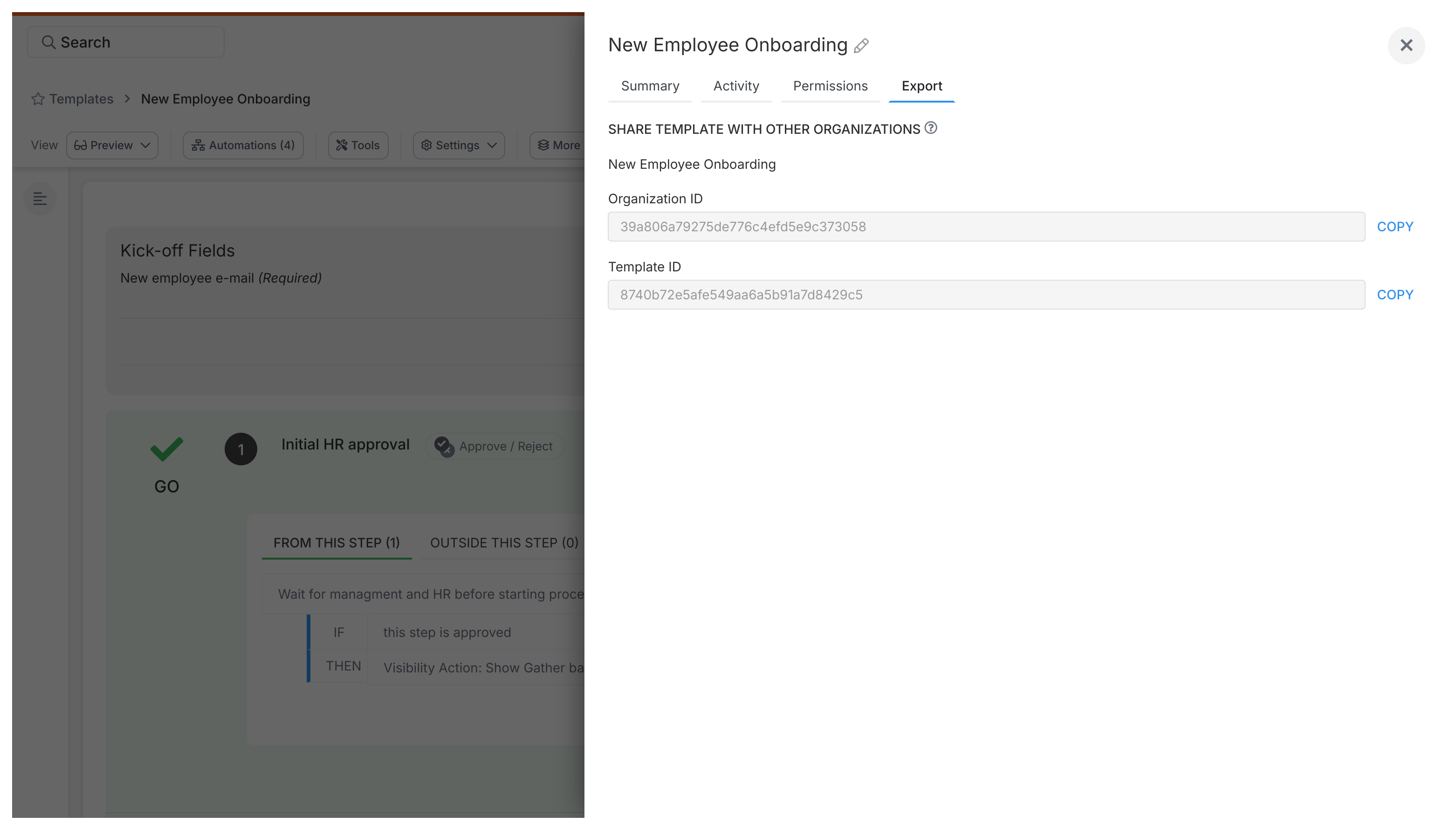
- Log into the destination account
- Go to Settings > Integrations > Import and Export
- Paste the Organization ID and Template ID from the source account
- Click Import
- Verify the imported template looks correct
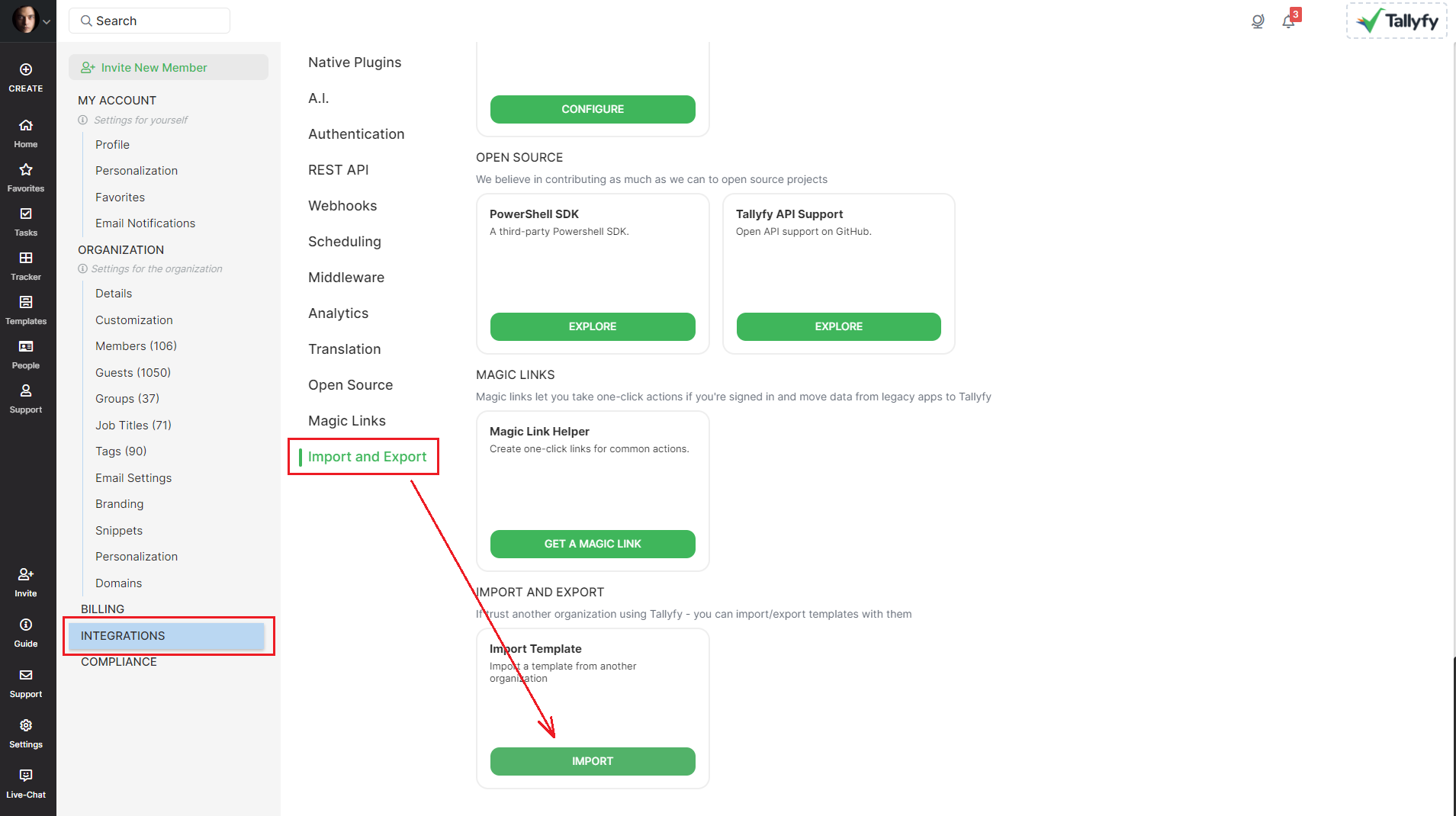
- Consultants moving templates to a client’s account
- Sharing standard processes between departments or branches
- Copying templates between a test account and production
The Tallyfy API lets you manage templates programmatically - useful for bulk operations or custom integrations.
- Export templates as JSON (good for backups)
- Import templates from JSON for bulk operations
- Script template creation and management
See the GitHub repository ↗ for code examples and details.
- Purpose: Tallyfy creates online workflows, not print-ready documents. It’s built for doing, not filing.
- Formatting: Fancy Word formatting gets stripped on purpose. You’ll reformat using Tallyfy’s tools - it’s better this way.
- Structure: Use headings (H1, H2, H3) to organize content. Tallyfy builds a clickable table of contents from them automatically.
- Branding: Your company branding gets applied automatically across all templates.
- Images: Pictures from Office files might need resizing after import.
- Versions: Tallyfy keeps one master template with a full history log - no more “v2_final_FINAL” file names.
- Dynamic content: Multiple PowerPoint versions become one template with smart branching via conditional logic
You can merge two Tallyfy procedure templates by exporting both as documents and uploading them to an AI tool with a prompt to combine all steps and details into one unified process and then importing the resulting Word or PDF file back into Tallyfy as a new template.
Tallyfy’s public template library offers ready-made workflow blueprints across departments like HR and sales and marketing that you can import in one click and then customize with your own steps and assignments and deadlines before launching.
Tallyfy templates are reusable process blueprints that you create once and launch repeatedly to assign tasks and track progress automatically while solving problems like inconsistent quality and lost knowledge through three types: procedure templates for multi-step workflows with conditional logic and document templates for reference materials and form templates for standalone data collection.
Was this helpful?
About Tallyfy
- 2025 Tallyfy, Inc.
- Privacy Policy
- Terms of Use
- Report Issue
- Trademarks