Tallyfy lets you edit template steps by adding new ones or modifying existing step details including descriptions with rich media and assignments to specific people or groups or guests along with step types and form fields and deadlines set relative to launch or other steps and advanced settings like webhooks and mandatory flags and auto-assignment rules.
Template tools
Template Tools let you change multiple parts of a template at once - bulk-create steps, assign people, adjust deadlines, and manage favorites. No more clicking through each step individually.
- Edit access to the template
- Standard role with edit permission, or Administrator role
- Open a template in edit mode.
- Click Tools in the toolbar at the top of the editor.
- The Tools modal opens with tabs: Build Steps, Assign, Deadlines, and (for Administrators) Favorites.
Add many steps at once instead of creating them one by one.
- Copy/paste friendly - got your process in a Word doc? Paste the whole list
- Fast - go from blank template to fully structured in minutes
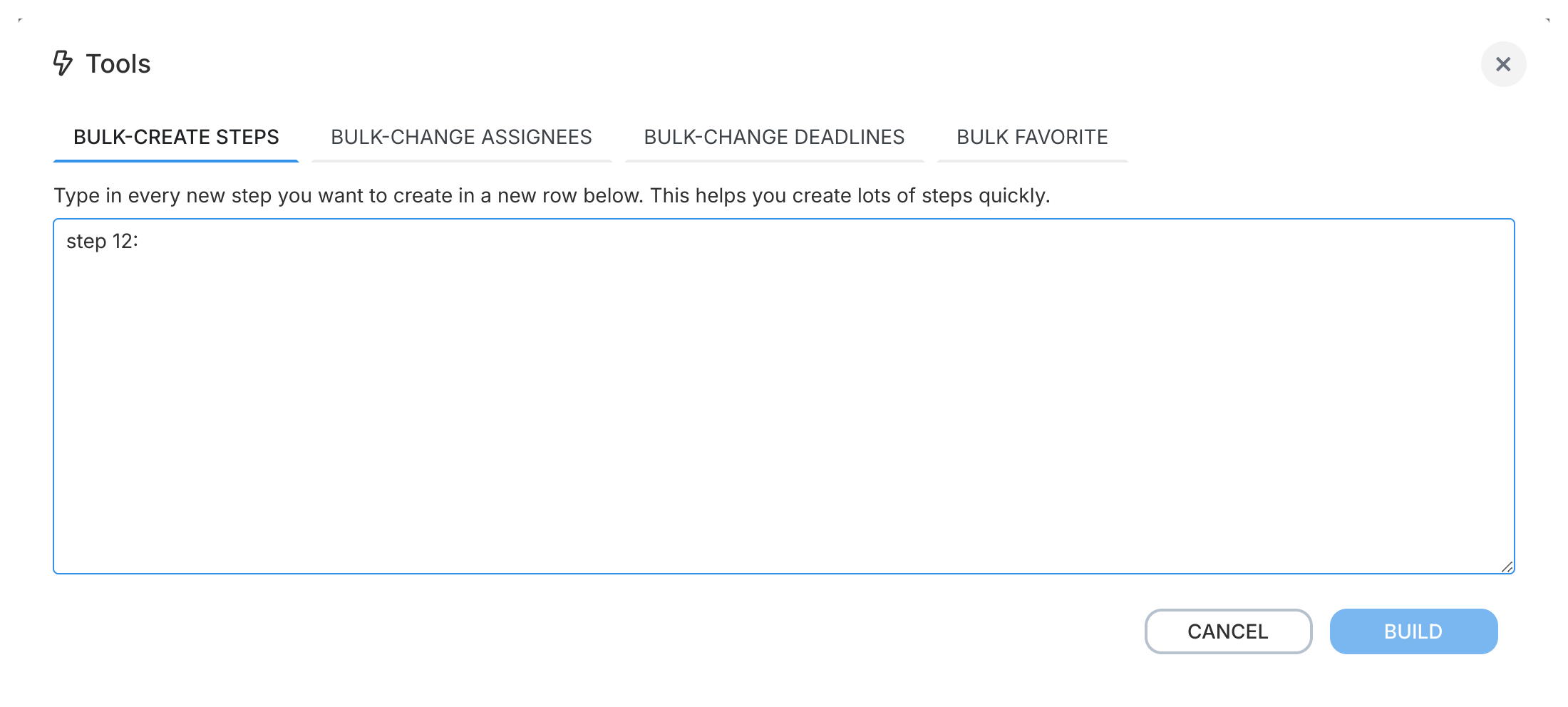
- Open the Build Steps tab in Template Tools.
- Type or paste your step names into the text box. Put each step name on its own line.
- Click BUILD. Tallyfy adds all steps to your template in the order you listed them.
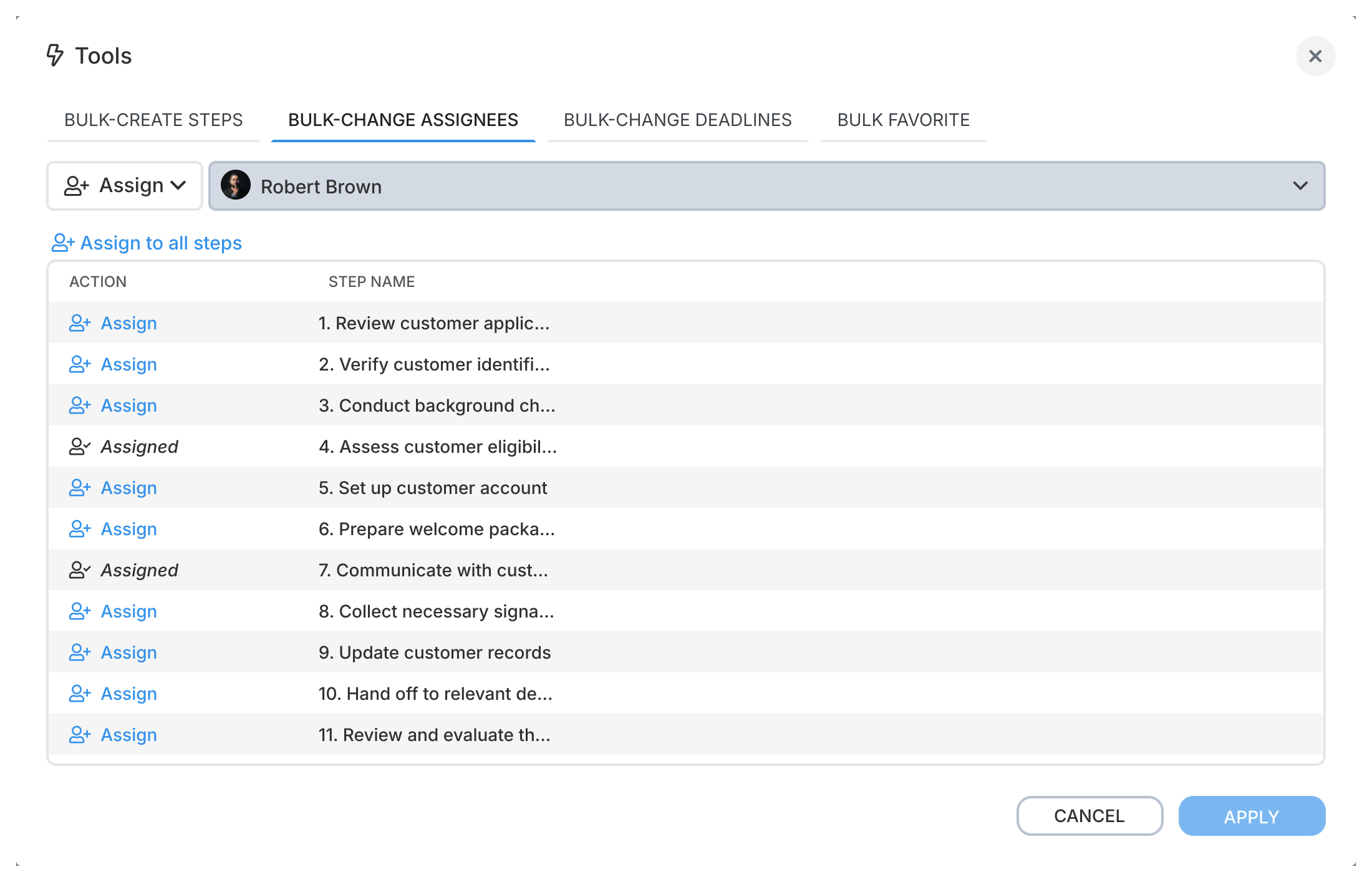
Assign (or unassign) one person or group to many steps at once.
- Consistency - when the finance team owns all budget approvals, they actually get assigned to all of them
- Fewer mistakes - can’t forget step 17 when you’re assigning in bulk
- Open the Assign tab in Template Tools.
- Choose the person or group (assignee) from the dropdown.
- Toggle Assign or Unassign on each step you want to change.
- Click APPLY to save.
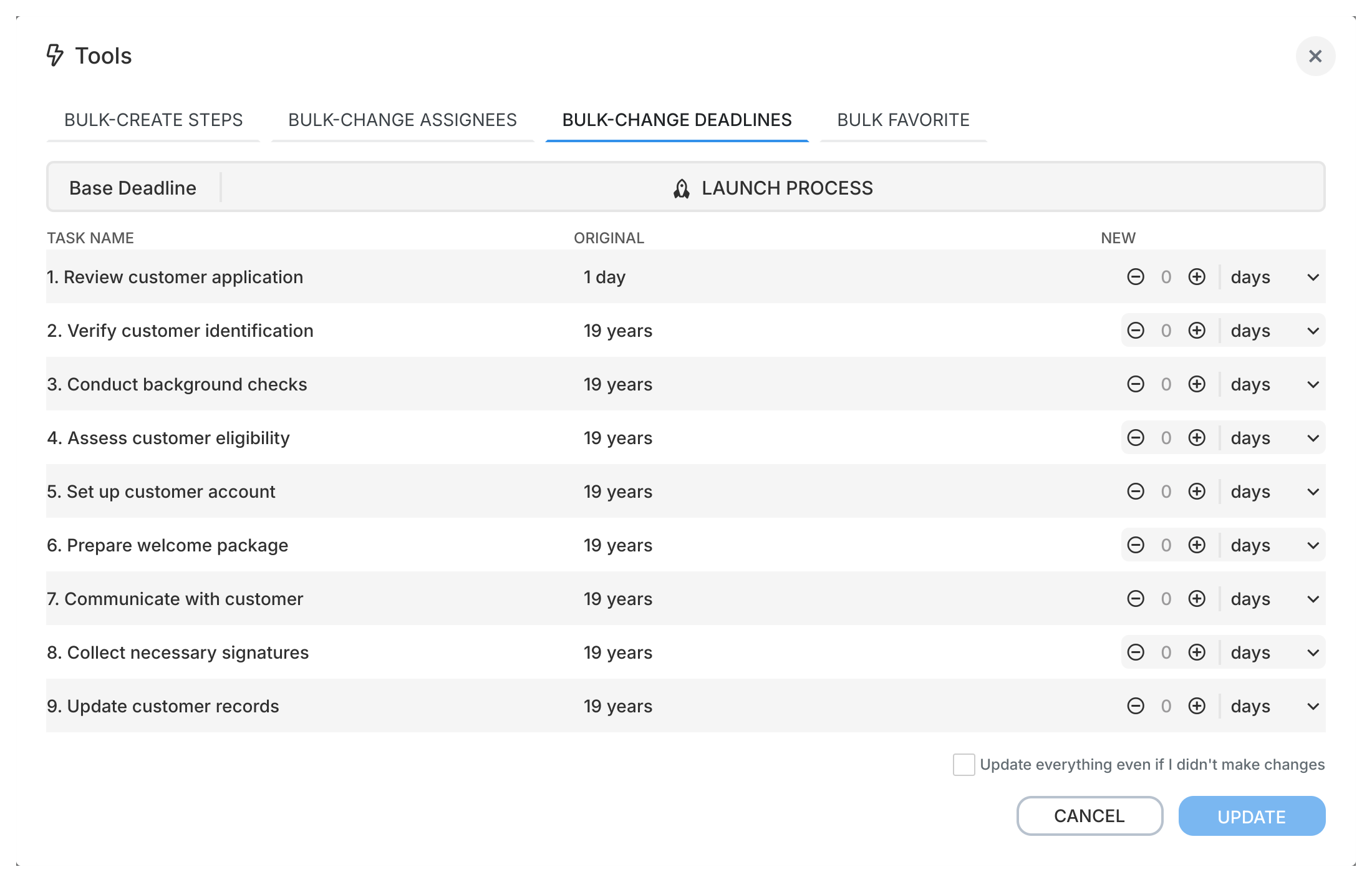
Adjust deadlines across multiple steps without editing each one.
- Quick updates - contract terms changed? Adjust every deadline in seconds
- Consistent SLAs - set the same timing across all review steps at once
- Open the Deadlines tab in Template Tools.
- For each step, use the increment (+) and decrement (-) buttons to adjust the deadline value.
- Choose the time unit per step (minutes, hours, days, weeks, months)1.
- Click UPDATE.
Note: For templates, deadlines are relative to when the process is launched. You can’t set deadlines based on when other steps complete.
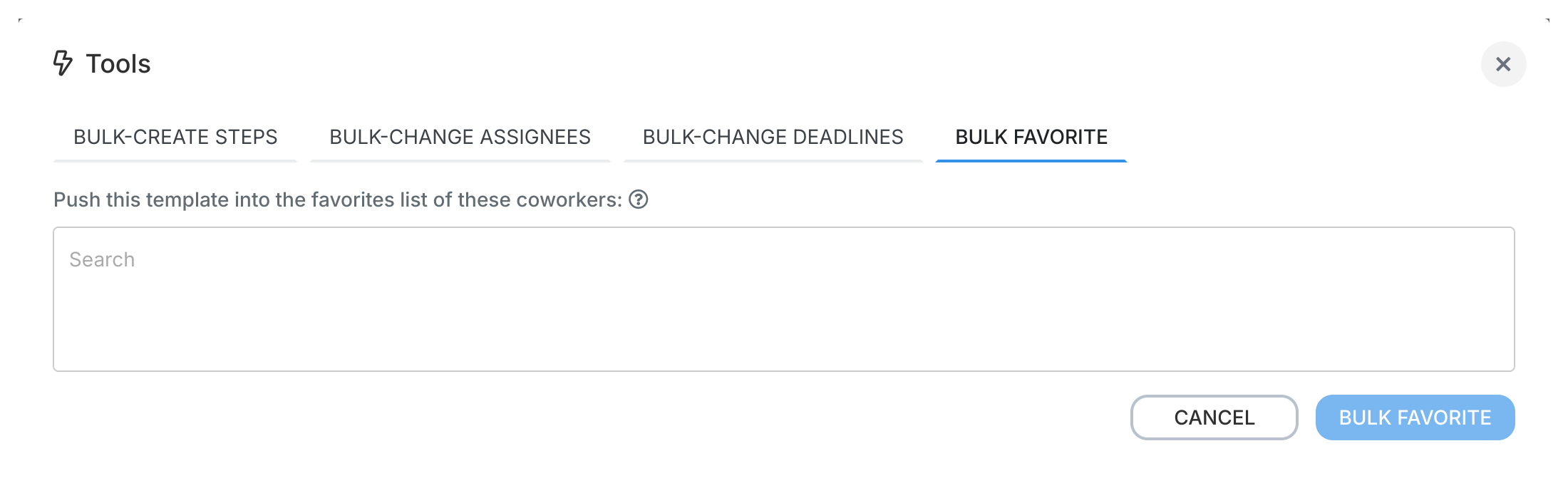
Add a template to other users’ favorites so they can find and use it quickly.
- Visibility - put the right templates front and center for your team
- New hires - day one, they’ve got essential processes starred and ready
- Notifications - watchers get notified when a favorited template is updated2
- Open the Favorites tab in Template Tools (visible only to Administrators).
- Search for and select the team members you want to add this template as a favorite for.
- Click Favorites to save.
- The template appears in those users’ Favorites section.
Learn more about favorites in the Favorite section guide.
- Double-check your work after bulk changes
- Use bulk step creation when building templates with 10+ steps
- Use batch assignment for role-based workflows where one person handles multiple steps
- Adjust deadlines in bulk when timing requirements change
Tallyfy templates are reusable process blueprints that you create once and launch repeatedly to assign tasks and track progress automatically while solving problems like inconsistent quality and lost knowledge through three types: procedure templates for multi-step workflows with conditional logic and document templates for reference materials and form templates for standalone data collection.
Edit Templates > Assign steps in the Tallyfy template builder
Tallyfy lets you assign template steps to specific members or groups or job titles or guests through the Assign tab and also supports unassigned steps with dynamic automation rules that route tasks based on form answers or conditions like dollar amounts or priority levels.
Templates > Configure your template
Tallyfy’s template settings let you control general options like duplicating and archiving along with summary details and permissions and export IDs so you can organize and restrict who can view or launch processes from any template.
Was this helpful?
About Tallyfy
- 2025 Tallyfy, Inc.
- Privacy Policy
- Terms of Use
- Report Issue
- Trademarks