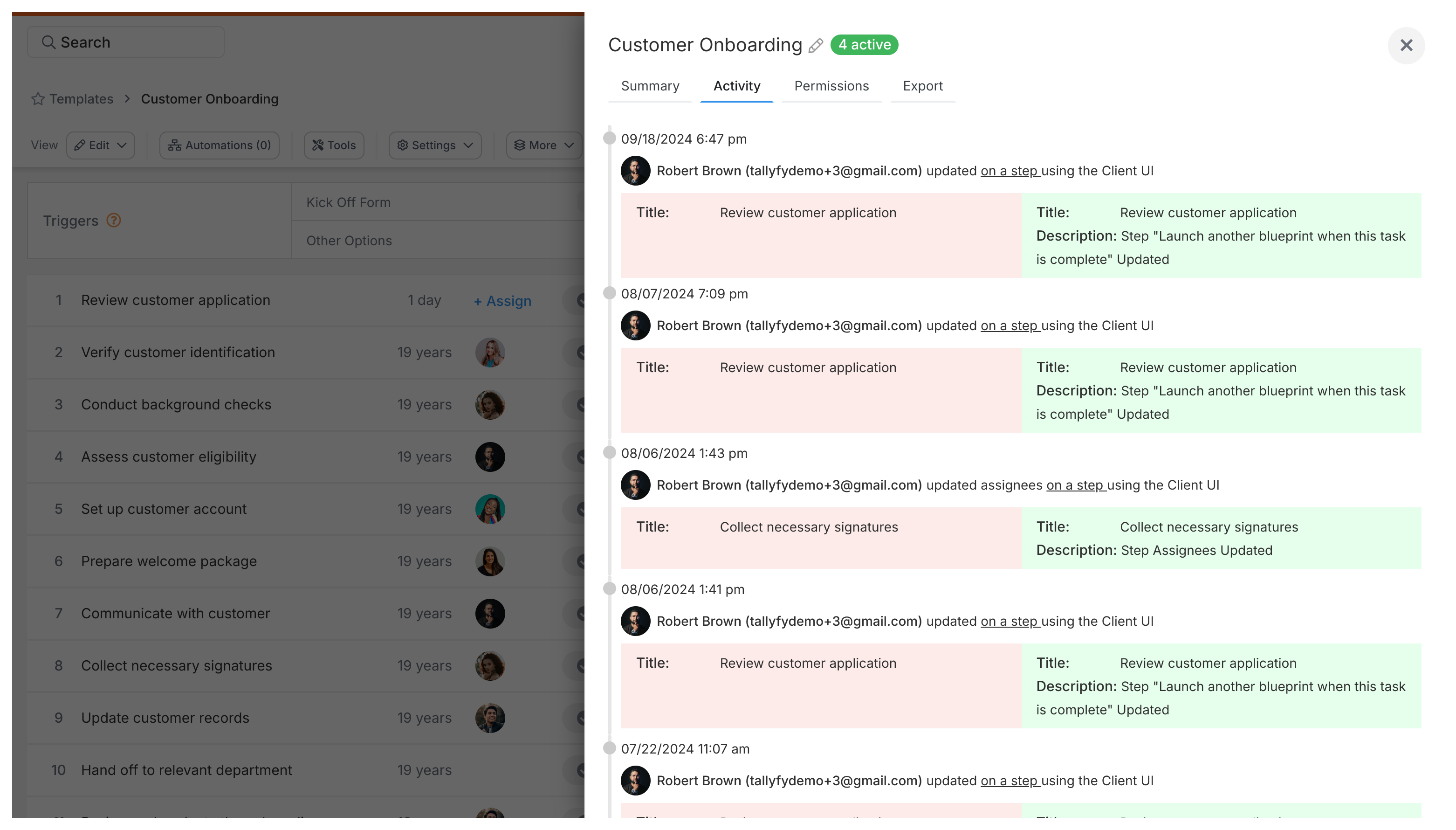
Click the Activity tab when viewing any template in Tallyfy to see a full history of who changed what and when. Every modification - from title edits to automation updates - gets recorded automatically.
Who can view template activity logs?
Tallyfy restricts activity log access to:
Administrators
Standard members with read or edit permission on that template
The template creator
Why activity tracking matters
Think someone accidentally broke your workflow? The activity log shows exactly when things changed.
Change history - every modification gets recorded, perfect for audits
Accountability - you’ll know exactly who made each change
Troubleshooting - check when the last changes were made and undo if needed
Compliance - prove how your processes are controlled and who’s responsible
What gets tracked?
Tallyfy records four main categories of template changes:
Content changes
Template title and summary updates
Step creation, deletion, and reordering
Step descriptions, deadlines, and assignee changes
Guidance text added, updated, or removed
Form field updates
Kick-off form field descriptions added or changed
Form field values added or updated
Configuration changes
Tags added or removed
Permission changes
Webhook updates on steps
Automation rules created, updated, or deleted
Template archiving and unarchiving
Folder assignment changes
Other tracked actions
Template creation and deletion
Auto-naming configuration changes
Owner changes
How to check the activity log
Go to your Templates library
Open the template you want to check
Click View
Select the Activity tab
Reading the activity log
The newest changes appear at the top. Each entry shows:
When - exact date and time
Who - which team member made the change
What - the type of change (created, updated, deleted, archived, etc.)
Details - what specifically was modified
For example: “March 15, 2025 at 2:47 PM - Sarah Johnson - Step Deadline Updated - Changed ‘Review proposal’ deadline from 2 days to 3 days.”
How long do logs last?
Activity logs persist as long as the template exists. Archive a template? The history stays intact.
Copied templates start fresh with a blank activity log - they’re treated as new templates.
You can’t edit or delete log entries. This keeps the audit trail2 trustworthy.
Access control
Activity logs are only visible to administrators, members with template read/edit permissions, and the template creator.
Every running process in Tallyfy includes a built-in activity log that records task completions and re-opens along with deadline changes and comments and assignment updates so you can open any process and click the Settings gear icon then the Activity tab to see a chronological record of who did what and when.
Organizing your Tallyfy template library through smart folder structures and naming conventions and tags and proper step grouping ensures teams can instantly find and run the right process while maintaining clean version control and regular audit cycles to keep everything accurate and up to date.
Tallyfy’s glossary defines every key platform term from Administrator roles and automation rules to webhooks and workflow templates so users can quickly understand concepts like templates (reusable process blueprints) and processes (running instances of those templates) along with features such as kick-off forms and conditional logic and guest access and API integrations.
Tallyfy templates are reusable process blueprints that you create once and launch repeatedly to assign tasks and track progress automatically while solving problems like inconsistent quality and lost knowledge through three types: procedure templates for multi-step workflows with conditional logic and document templates for reference materials and form templates for standalone data collection.
Footnotes
Standard datetime format like YYYY-MM-DDTHH:mm:ss used for consistent timestamp storage ↩
Immutable record of all changes required for compliance tracking and SOC 2 certification ↩