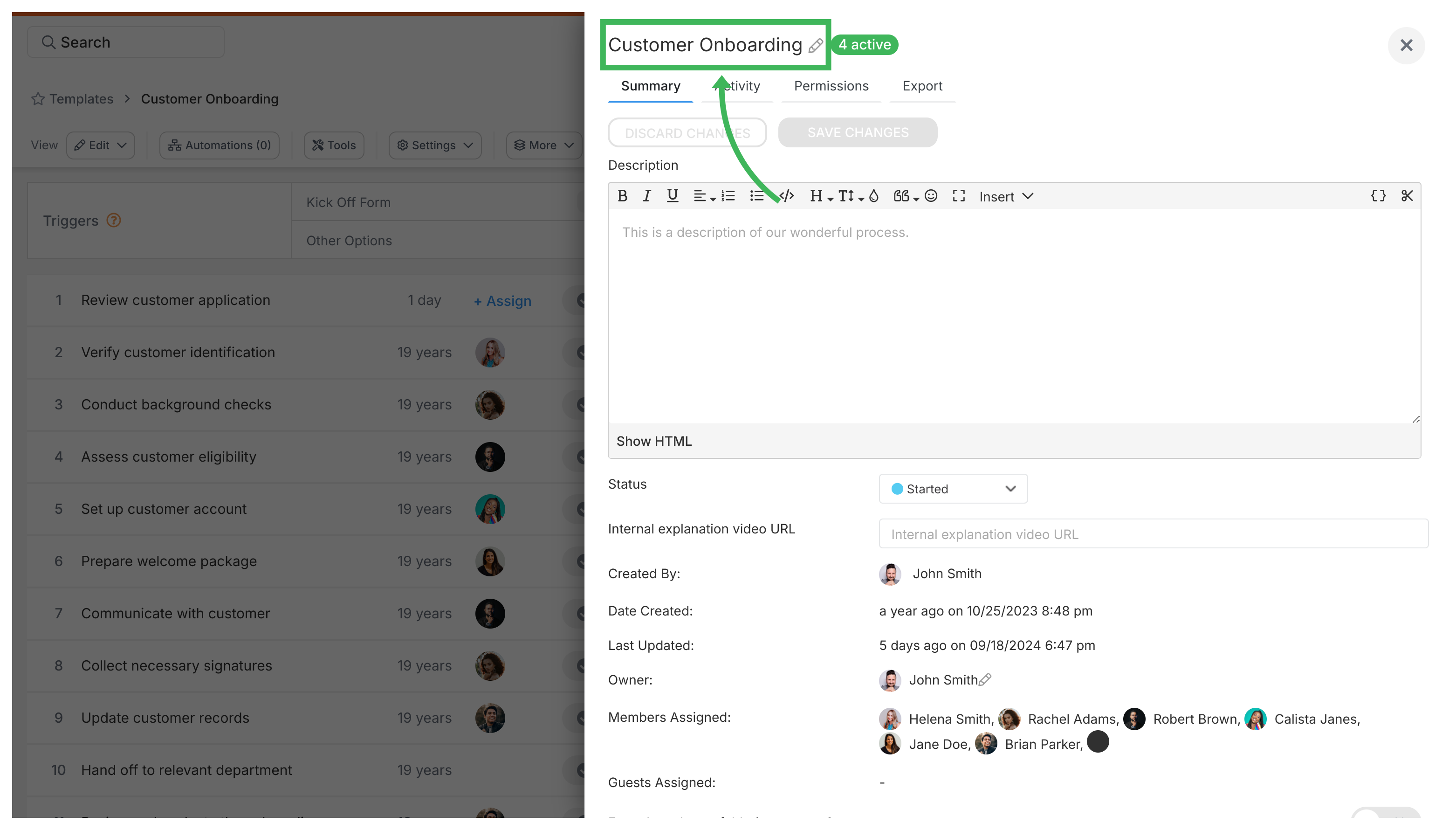
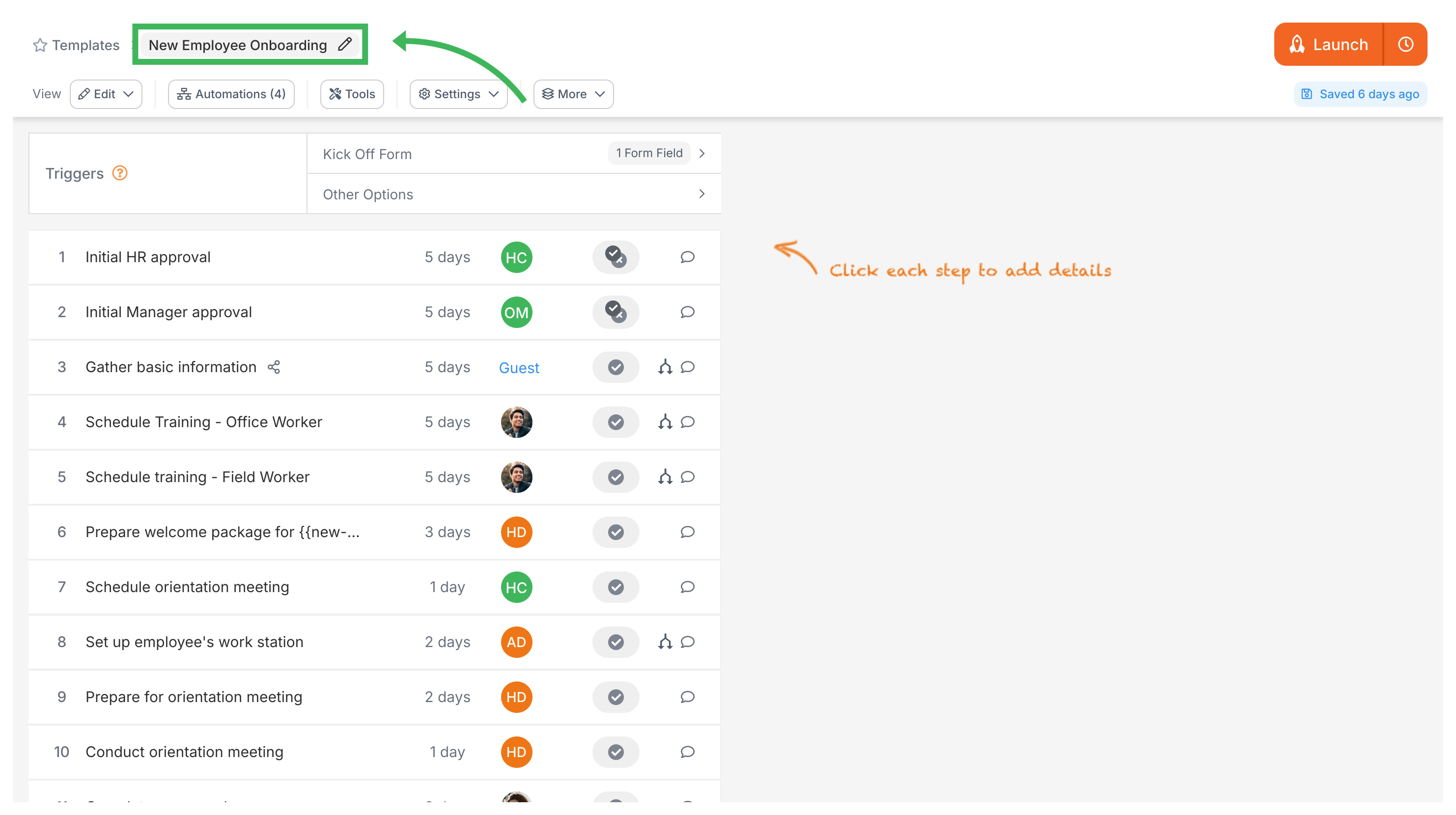
Rename any template in Tallyfy using either the Settings panel or the pencil icon in the Edit view. Both methods open a rename dialog where you type the new name and save.
Method 1: Via the Settings panel
Open the template in Edit mode.
Click Settings in the top toolbar.
Click the template name at the top of the settings panel.
Type the new name in the rename dialog and click Save.
Method 2: Via the Edit view header
Open the template in Edit mode.
Click the pencil icon next to the template name at the top of the editor.
Type the new name in the rename dialog and click Save.
Tallyfy lets you rename any running process at any time by clicking its name at the top of the process view and typing a new name up to 300 characters long.
Tallyfy lets you modify a running process without restarting it by opening the process from Tracker view and clicking the Settings gear icon to rename it and reassign the owner and add notes or export data.
Tallyfy’s template settings let you control general options like duplicating and archiving along with summary details and permissions and export IDs so you can organize and restrict who can view or launch processes from any template.