Click the Edit icon on any template card in Tallyfy to modify steps, descriptions, settings, and permissions in the Edit view.
Add a description to a template
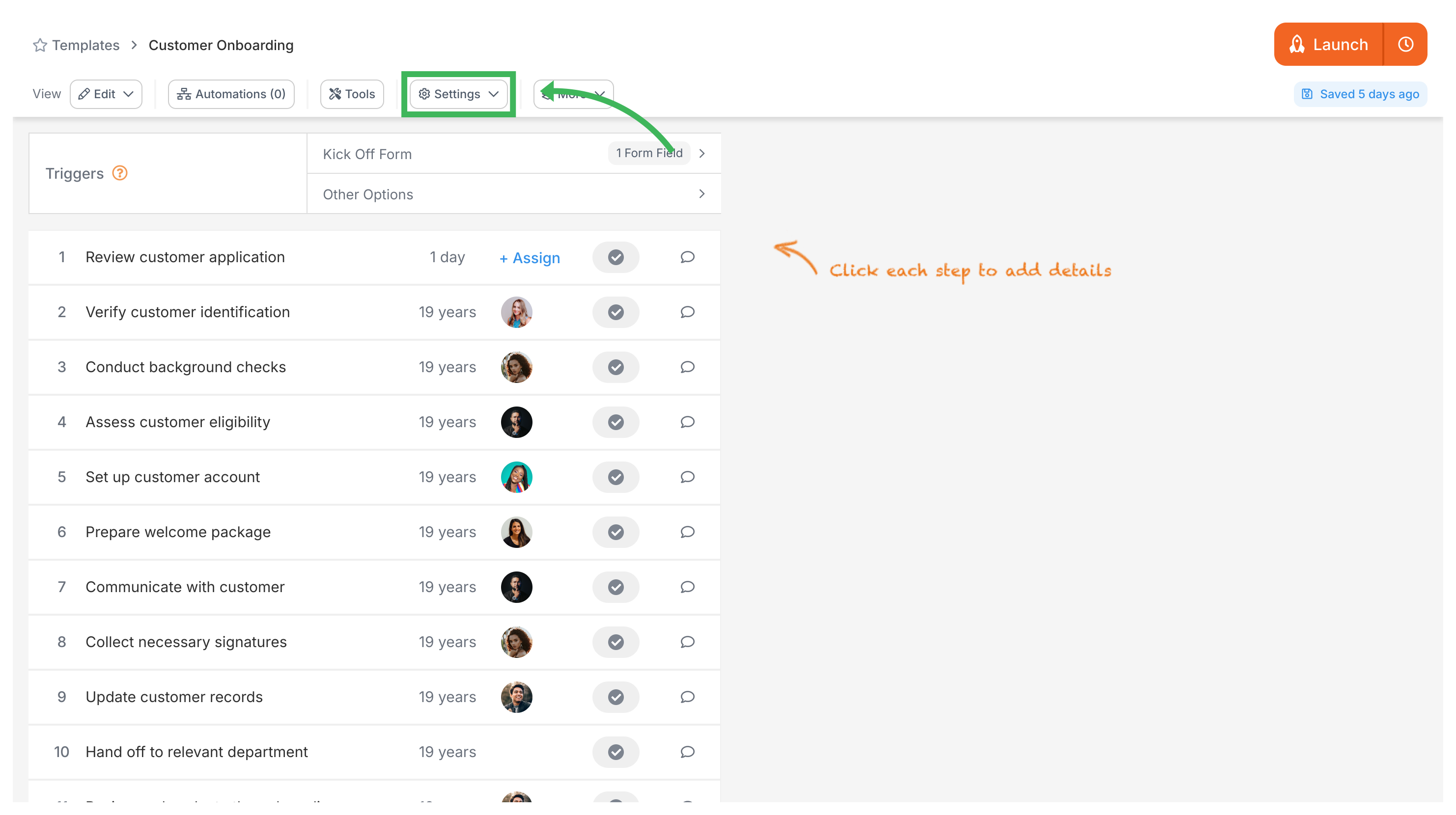
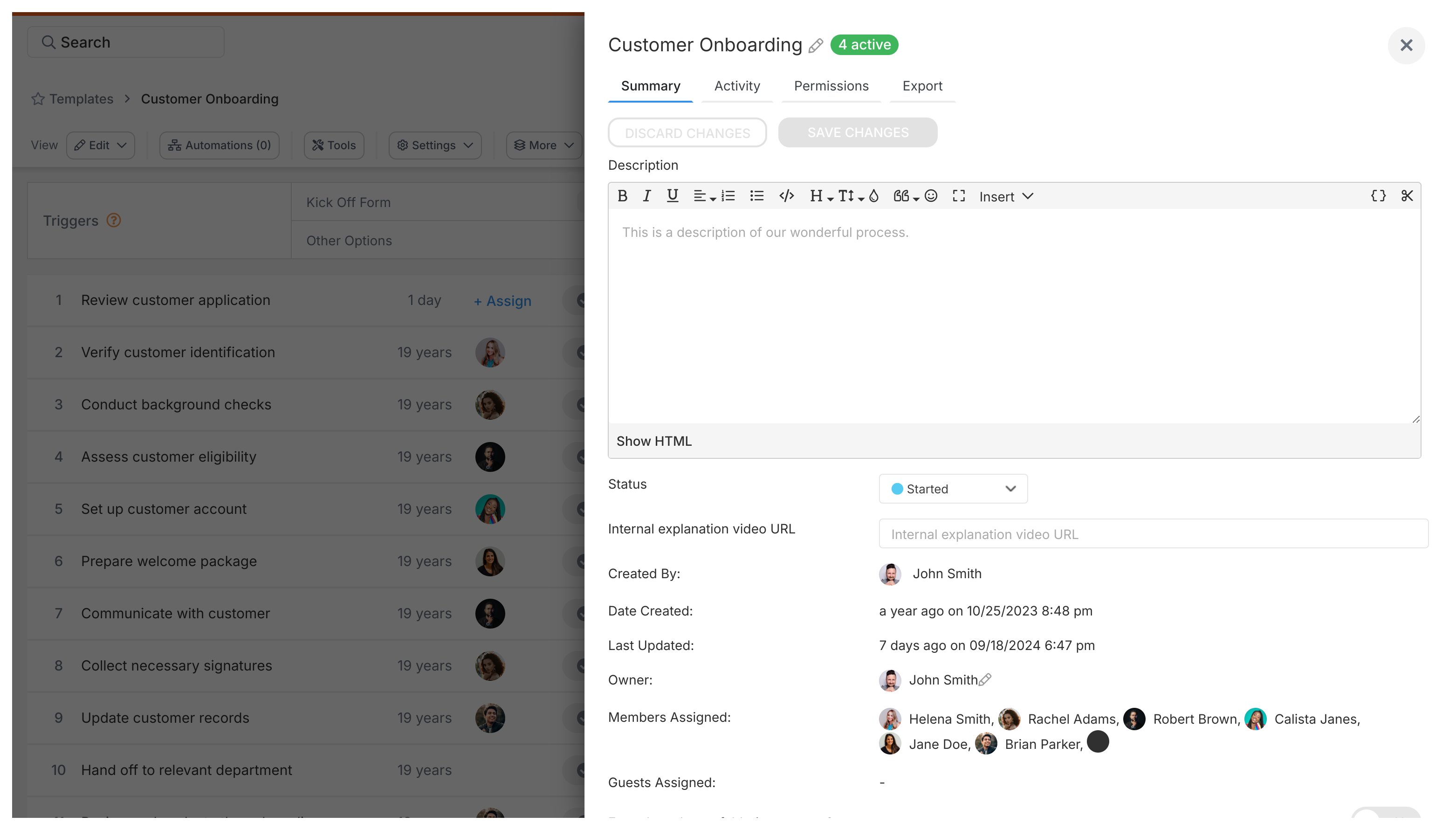
Open your template in Edit mode, then click Settings (gear icon in the sub-nav bar) for the overall template description - or click directly on any step for step-specific descriptions.
- Open the template in Edit mode.
- Where you add the description depends on what you’re describing:
- Overall template description: Click the Settings button (gear icon) in the sub-nav bar, then open the Summary tab. You’ll see a rich text Description box.
- Step description (Procedure templates): Click directly on the step you want to describe. A panel opens on the right with the description editor.
- Document templates: The main content area is your editing canvas for the primary text.
- Overall template description: Click the Settings button (gear icon) in the sub-nav bar, then open the Summary tab. You’ll see a rich text Description box.
- Type your description into the text box.
- For step descriptions, Tallyfy auto-saves as you type. For the template-level description in Settings, click Save when you’re done.
Edit Processes > Add process notes
Process notes in Tallyfy let you attach rich text context to any running process and that information automatically appears on every task so all participants stay aligned without hunting through emails or chat threads.
Edit Templates > Add guidance text to a step
Tallyfy lets you add rich-text guidance instructions directly below any form field label in a template step so that people filling out forms see helpful context like format examples or resource links right where they need them.
Templates > Configure your template
Tallyfy’s template settings let you control general options like duplicating and archiving along with summary details and permissions and export IDs so you can organize and restrict who can view or launch processes from any template.
Was this helpful?
About Tallyfy
- 2025 Tallyfy, Inc.
- Privacy Policy
- Terms of Use
- Report Issue
- Trademarks