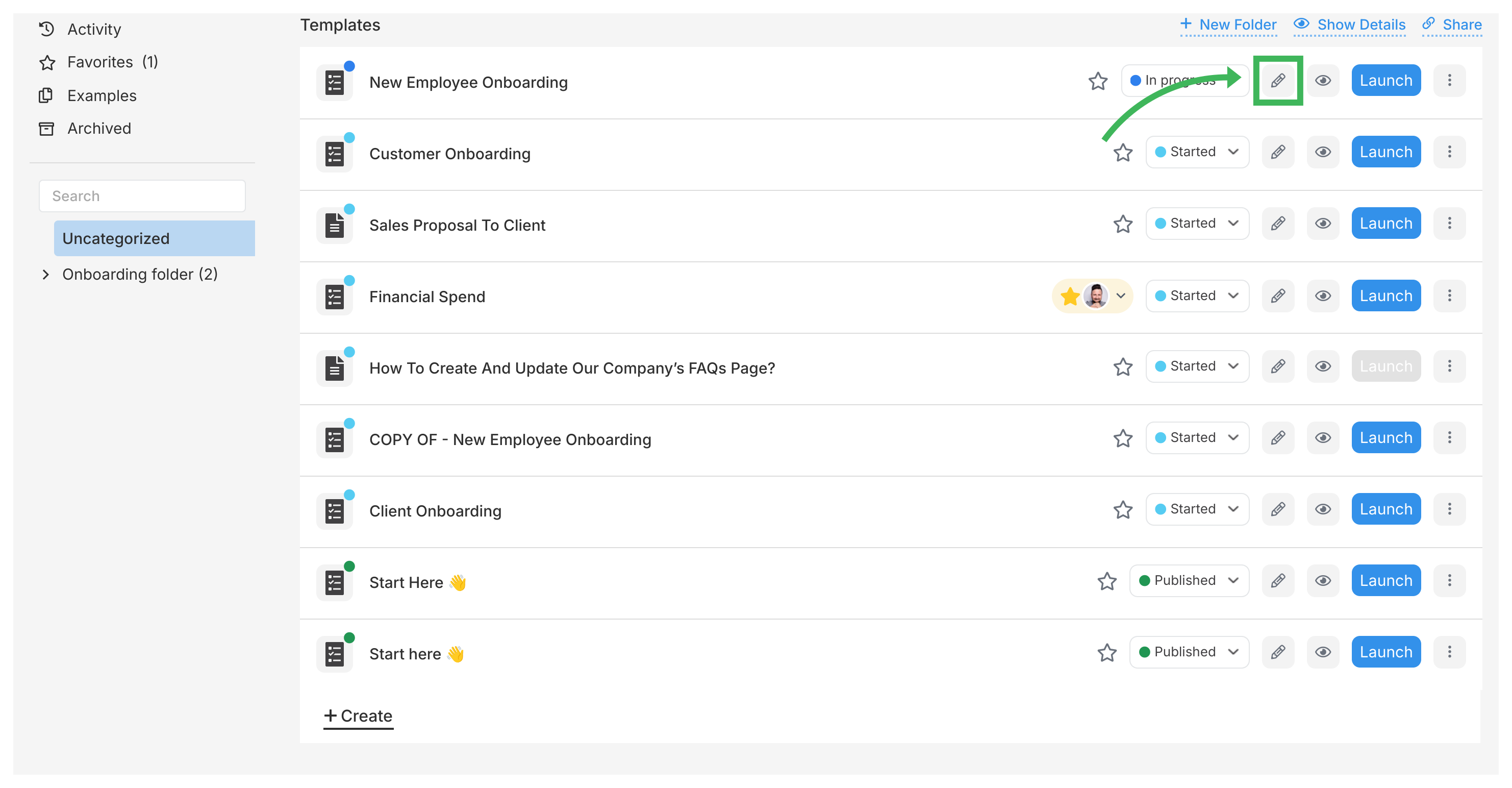
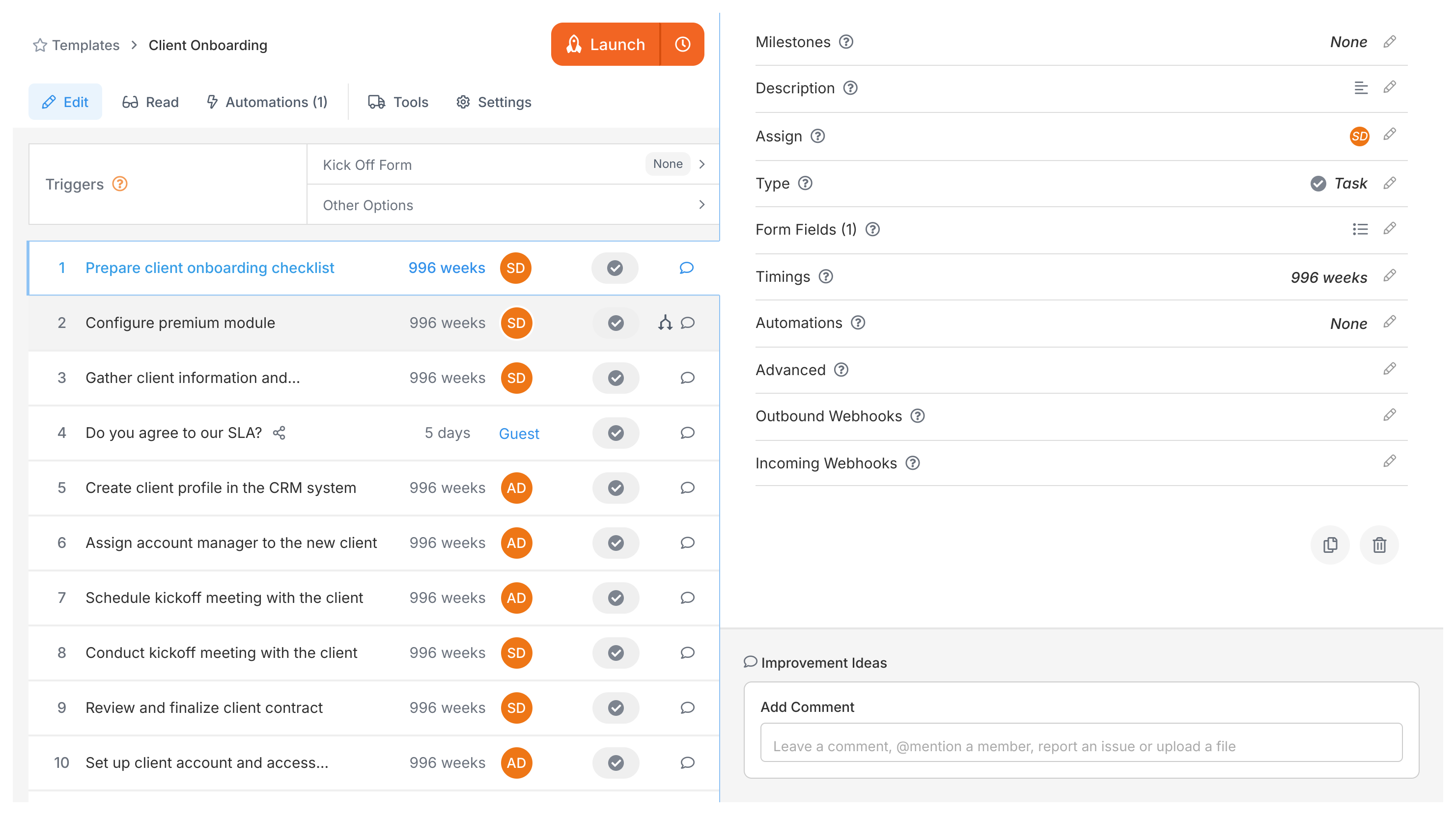
Click the Edit icon (pencil) on any template card to open the Edit view. From there, you can modify steps, descriptions, settings - everything about your template.
Go to the Templates library.
Find the template you want to change.
Click the Edit icon (pencil) on the template card.
This opens the Edit view where you can change steps, descriptions, and settings.
The articles below cover each type of edit in detail.
Rename a Tallyfy template through the Settings panel or by clicking the pencil icon next to the template name in Edit view - changes only apply to new processes.
Tallyfy’s template settings let you control general options like duplicating and archiving along with summary details and permissions and export IDs so you can organize and restrict who can view or launch processes from any template.
Tallyfy uses four template statuses (Started; In progress; Finishing; Published) to indicate readiness and any member can update status from the Templates list while editing within the Template Editor requires appropriate role permissions.