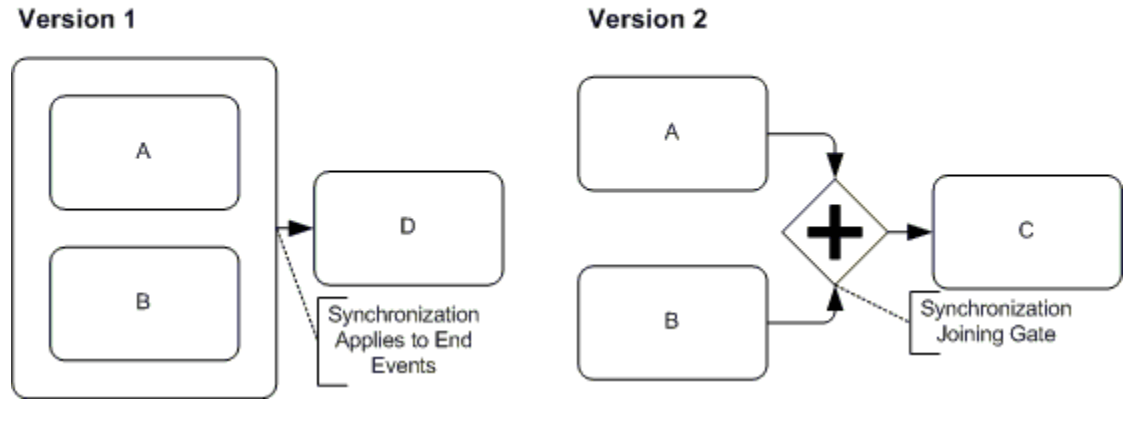
Automation example - synchronization (wait for multiple things)
Use the AND operator in Tallyfy automations to make your process wait for several approvals before moving forward. When you connect conditions with AND, all of them must be true before anything happens.
Think of it like needing two keys to open a vault - you can’t proceed with just one.
Example - wait for HR and manager approval
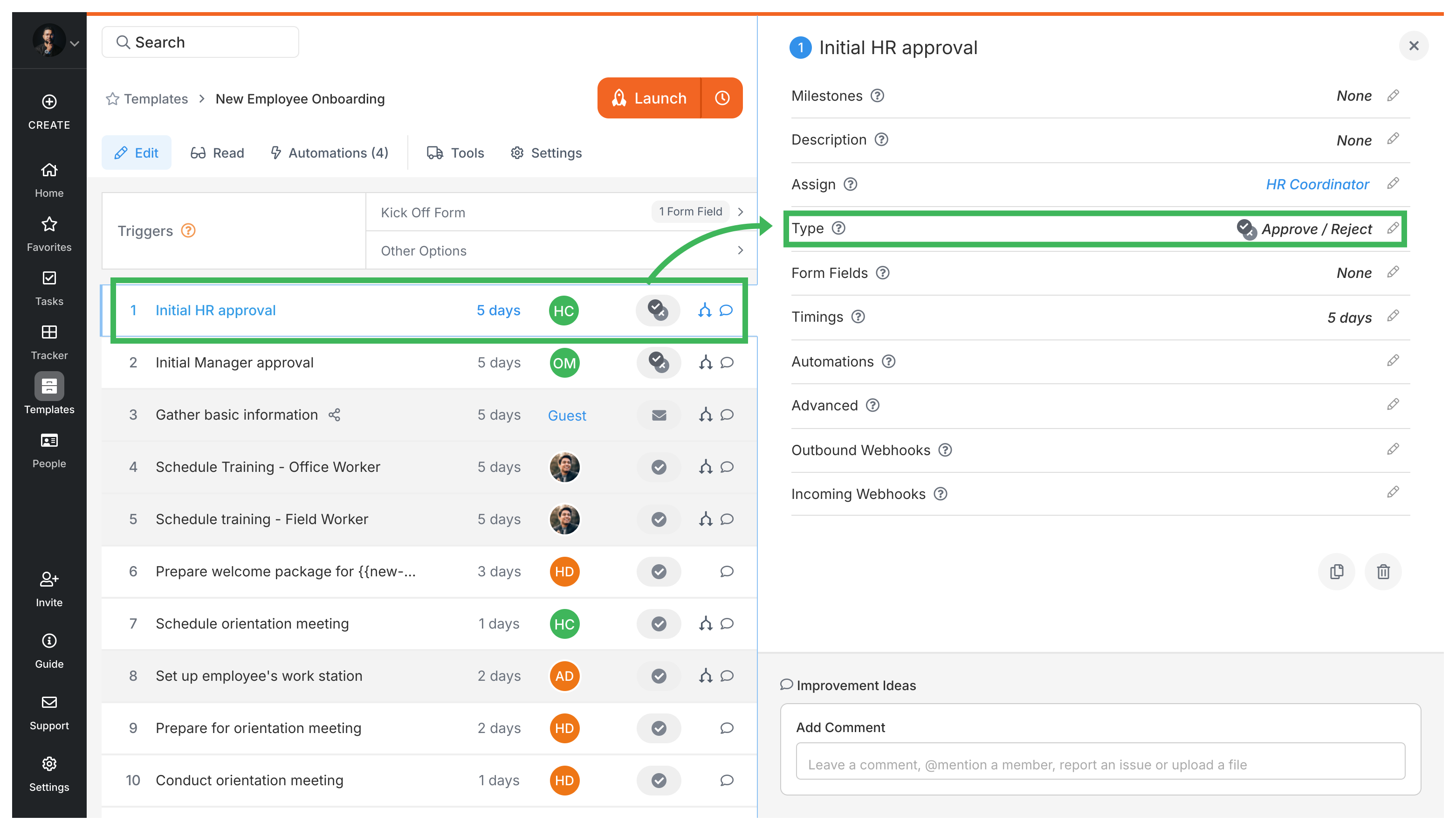
Say you’re setting up an Employee Onboarding process, and new hires can’t start until both HR and their direct manager approve. Create two Approve/Reject tasks - one assigned to HR, another to the manager.
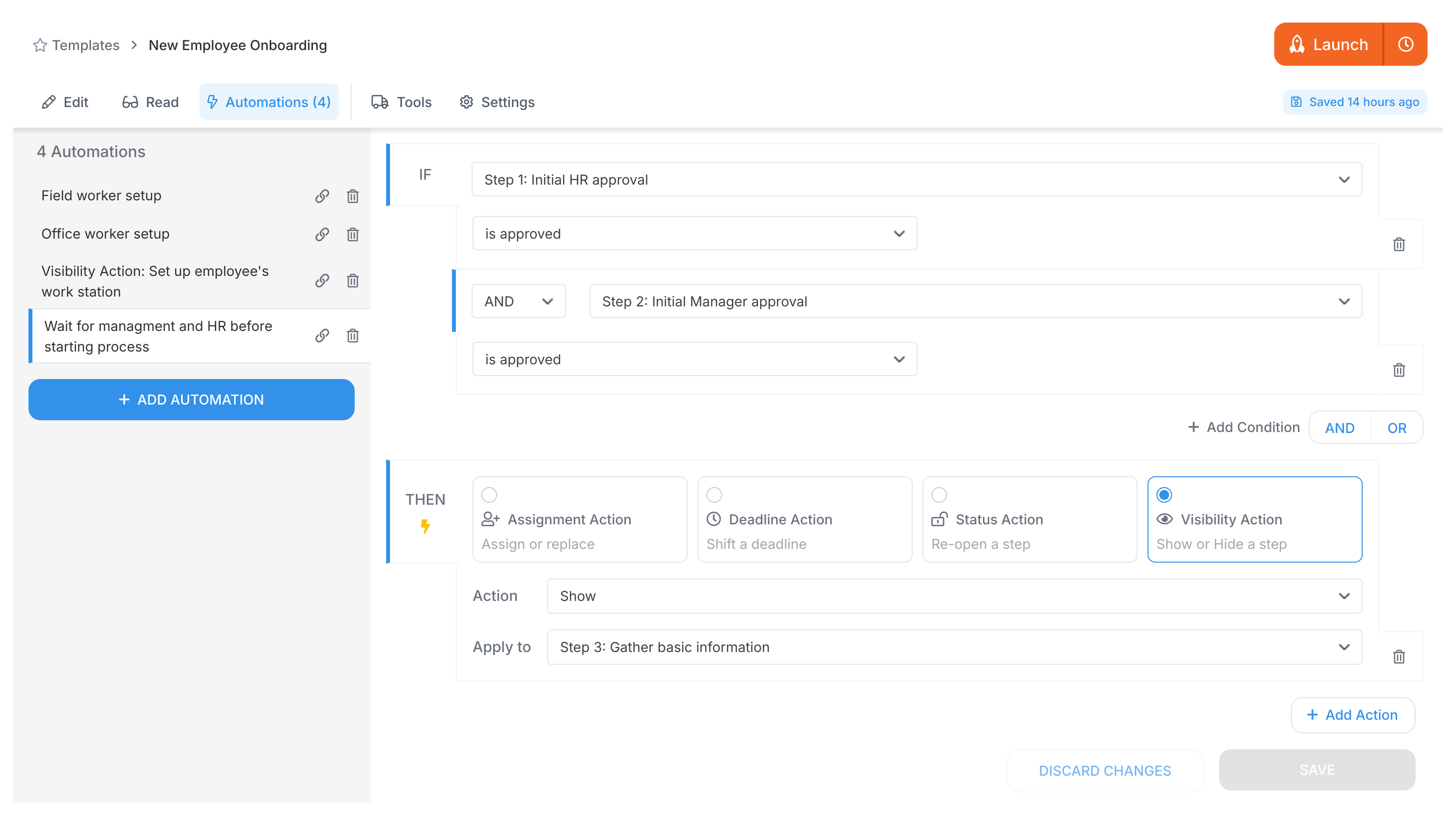
Then create a single automation rule that checks if both tasks show “Approved” status:
Rule:
IF (HR Approval task) is "Approved"
AND (Manager Approval task) is "Approved"
THEN SHOW steps [List of next onboarding steps]
The AND between conditions is your synchronization point. Onboarding steps stay hidden until both approvals come through. No more chasing people or wondering who approved what.
Tallyfy automations use simple IF-THEN rules instead of complex flowcharts to watch user inputs and automatically adjust workflows by showing or hiding steps and reassigning tasks and changing deadlines based on conditions that can be combined with AND/OR logic and evaluated left to right in the order you add them.
Power Automate’s formal approval actions can wrap around Tallyfy processes to handle conditional sign-offs like budget thresholds and route decisions through managers or external stakeholders before updating results back into the originating Tallyfy task automatically.
Tallyfy lets you build multi-level approval chains where rejections at any stage automatically reopen earlier steps for corrections using approve/reject task types and status action rules that handle sequential sign-offs through managers and executives while also supporting conditional routing based on field values and parallel approvals across multiple teams simultaneously.
Tallyfy’s exclusive choice pattern lets you branch a single process into one of several paths based on a form field condition — like using a radio button to select an employee role and then automatically showing only the relevant onboarding steps for that role while hiding all others.