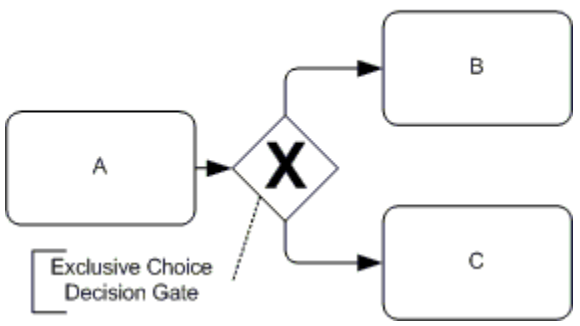
Exclusive choice automation sends your process down exactly one path from multiple options based on a condition. It’s the “pick A or B, never both” pattern.
You set up multiple automation rules, each with its own condition. When someone fills out a form or completes a task, Tallyfy checks which condition matches and runs only that rule. One path. That’s it.
Example - different onboarding steps by role
Say you’re onboarding new employees. Field workers need safety training and equipment setup. Office workers need IT access and desk assignments. Same process - completely different steps.
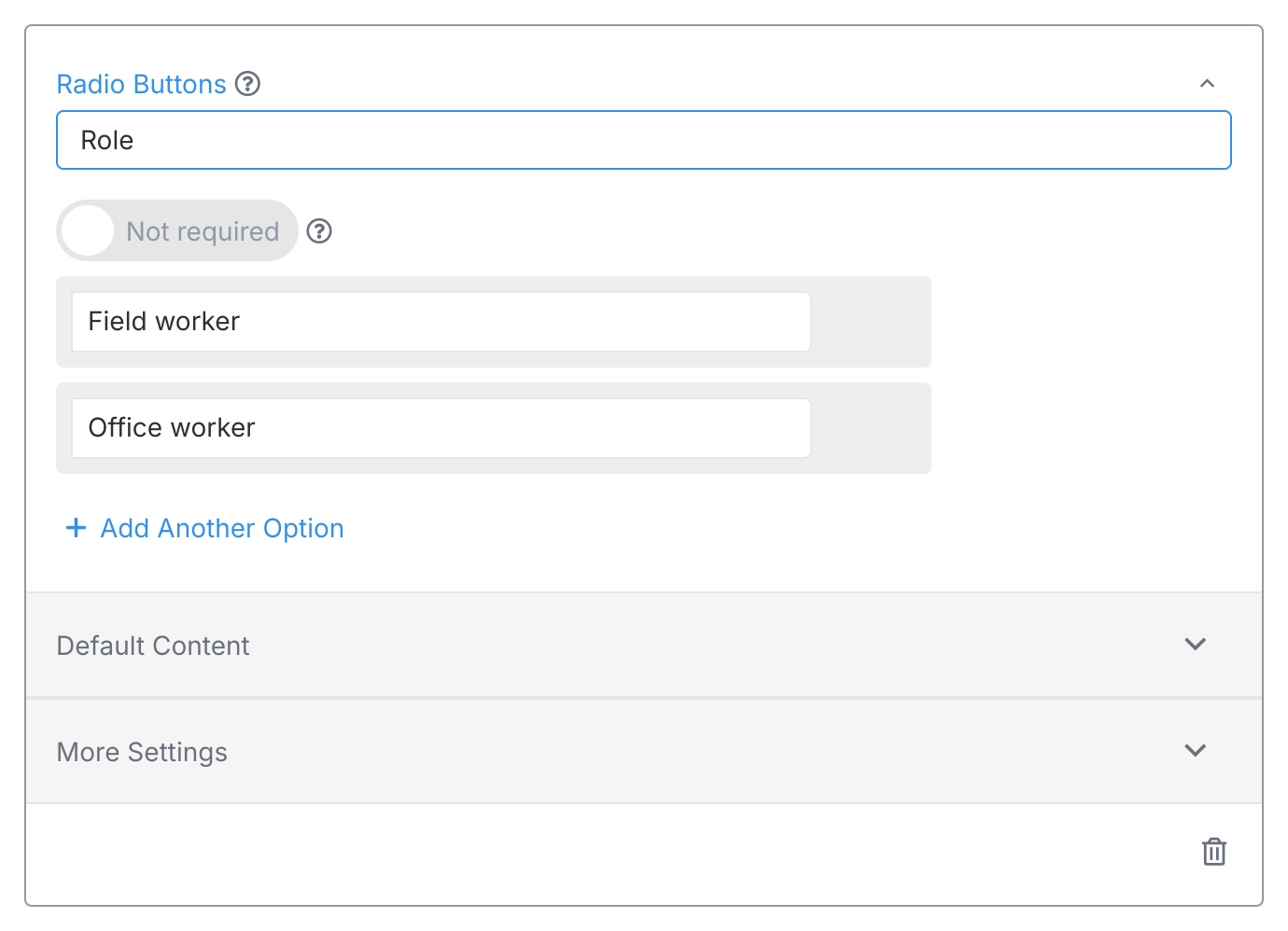
Add a step asking for the employee’s role using a Radio Buttonform field (radio buttons only allow one selection).
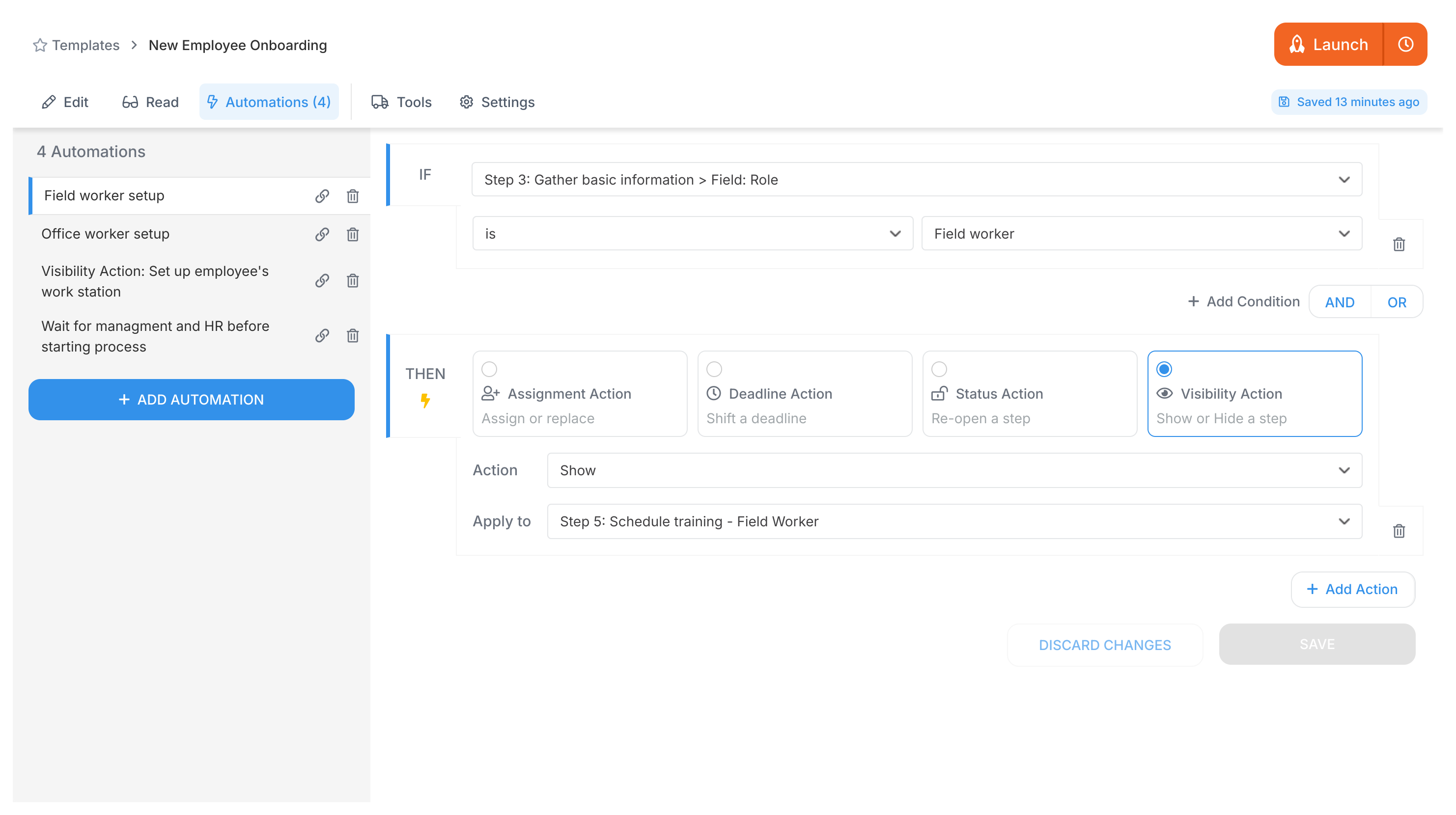
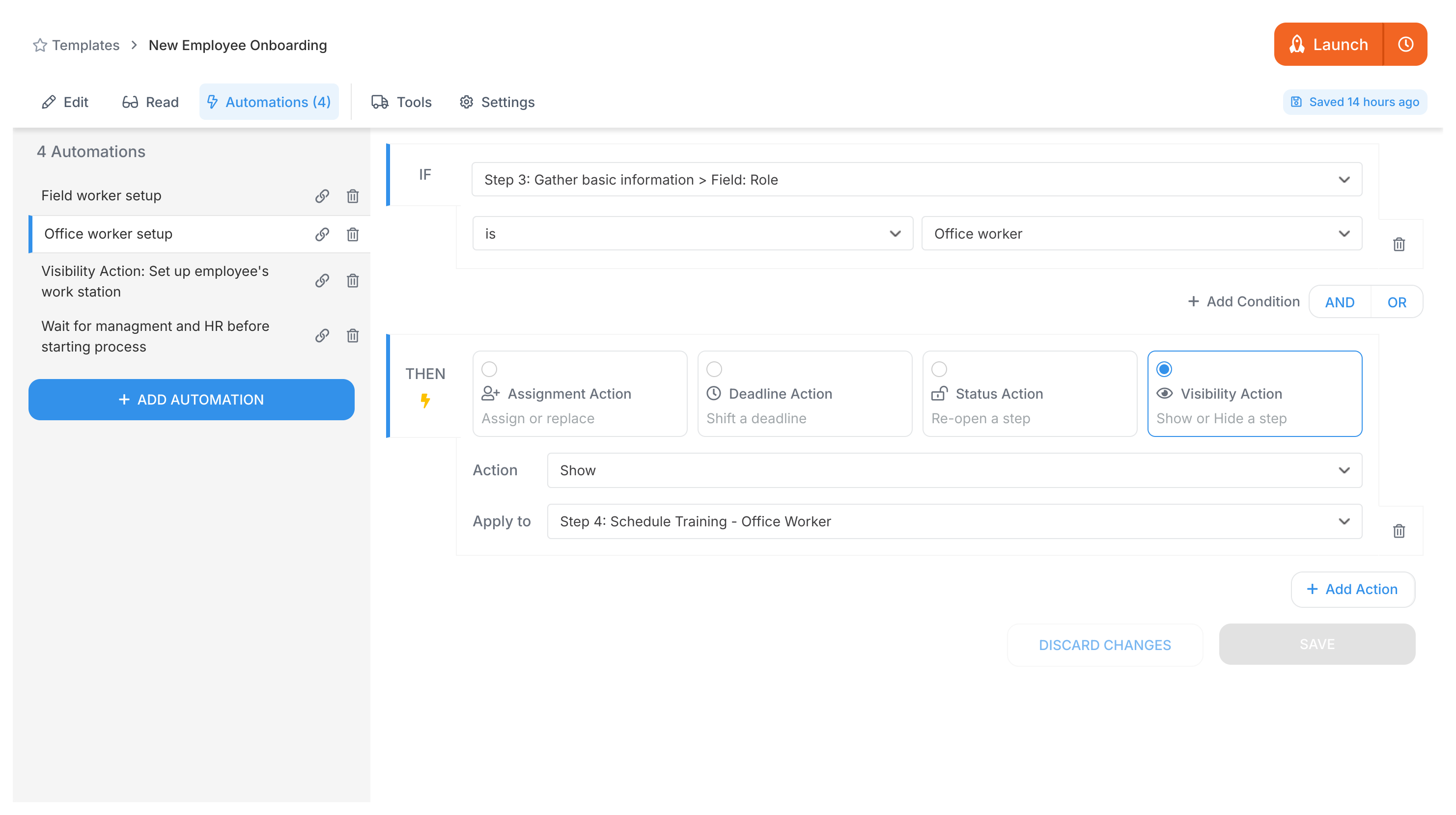
Then create two automation rules using Visibility Actions1:
Rule 1:
IF (Role field) is "Field worker"
THEN SHOW steps [List of steps specific to Field workers]
Rule 2:
IF (Role field) is "Office worker"
THEN SHOW steps [List of steps specific to Office workers]
The Role field can only hold one value - so only one rule fires. Field workers see safety protocols and equipment checklists. Office workers see IT setup and workspace prep. Never both.
The key: use conditions that can’t be true at the same time (like radio button options). Tallyfy picks the right path automatically.
Tallyfy’s automation rules use simple IF-THEN logic to dynamically adapt workflows at runtime — such as hiding and revealing onboarding steps based on a new hire’s role selection in a form field — so processes self-adjust without any manual intervention.
Tallyfy lets you show or hide entire tasks in a workflow based on form field values using IF-THEN automation rules with AND/OR logic so that only relevant steps appear for each unique process path instead of maintaining separate templates for every variation.
Tallyfy automations use simple IF-THEN rules instead of complex flowcharts to watch user inputs and automatically adjust workflows by showing or hiding steps and reassigning tasks and changing deadlines based on conditions that can be combined with AND/OR logic and evaluated left to right in the order you add them.
Tallyfy offers ready-to-use automation patterns covering task assignment routing and dynamic member selection and service-level-based delegation along with workflow controls like exclusive branching and synchronization gates and multi-level approval loops plus time-based rules for countdown deadlines and combined visibility conditions.
Footnotes
Actions that show/hide steps based on conditions, part of Tallyfy’s automation engine ↩