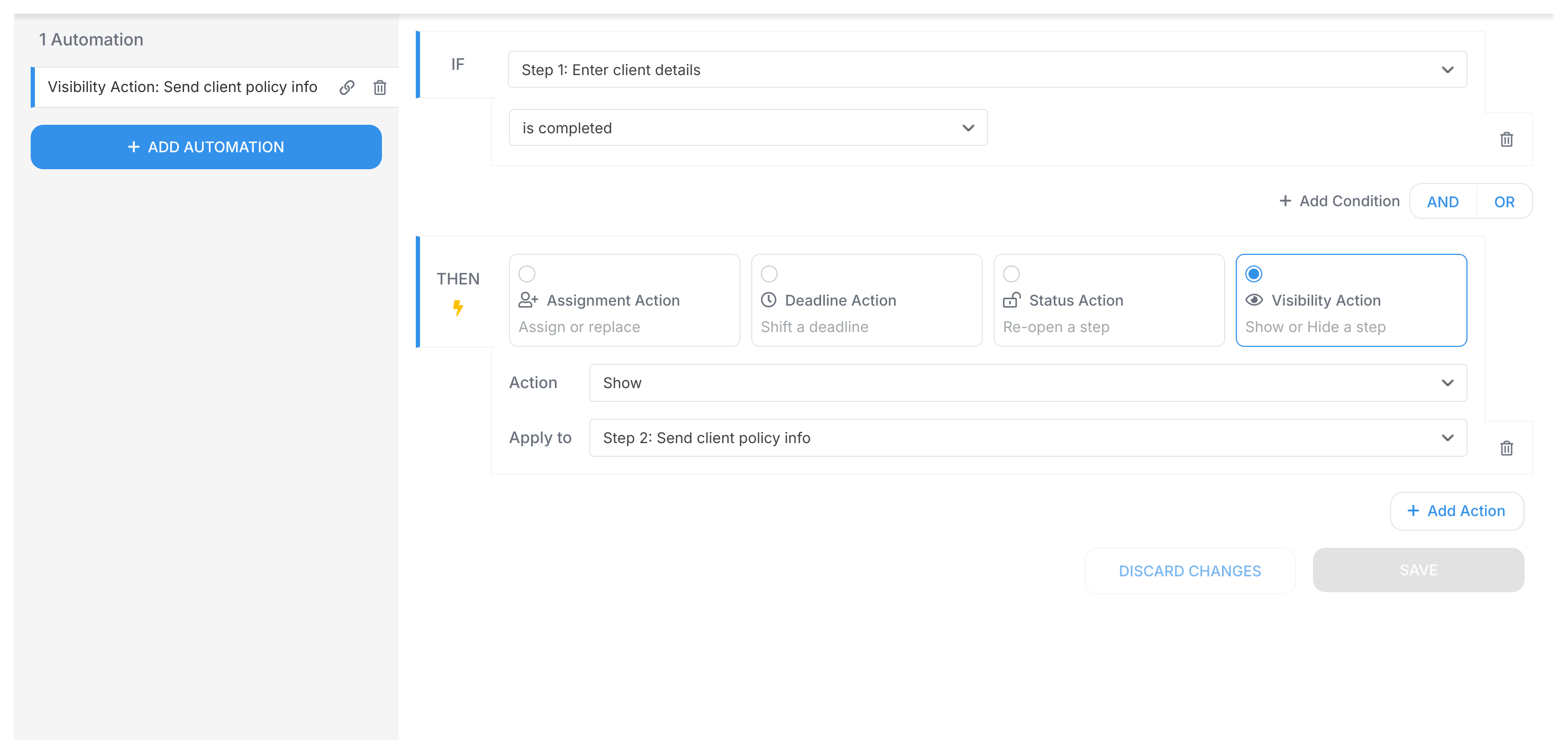
Visibility actions let you Show or Hide specific steps based on conditions. They’re smart switches - users see exactly what they need, when they need it.
Examples
Example 1 - CFO approval for big purchases:
IF (Purchase Amount field) is ">$10,000"
THEN SHOW step "Approval by CFO"
The CFO approval step appears automatically for purchases over $10k.
Example 2 - Skip irrelevant reviews:
IF (Customer Type field) is "Small Business"
THEN HIDE step "Enterprise Security Review"
Small business customers skip the enterprise security review entirely.
Example 3 - Adapt to user input:
IF (Application Type field) is "Mortgage"
THEN SHOW steps "Credit Check", "Property Valuation", and "Underwriting"
Selecting “Mortgage” reveals all mortgage-specific steps at once.
Here’s what it looks like in action:
Completing one step makes the next one appear. That’s visibility automation at work.
Hidden steps can’t be completed
Hidden steps have an internal status of auto-skipped and can’t be completed. Any automation checking “if step is complete” on a hidden step won’t trigger - unless another rule makes that step visible first.
Only create completion-based automations for steps users can actually see. You can also manually show or hide steps using the three-dot menu on any task.
Hiding tasks by default in a template
All tasks show up when someone launches a procedure template. To keep certain tasks hidden until the right moment:
Open your procedure template in the editor.
Click on the step you want to hide initially.
In the step’s settings panel, toggle Hide by default to Yes.
Save the step.
Hidden steps stay out of sight until a Show automation brings them back.
Enforcing sequential task order
Sometimes Task B shouldn’t start until Task A is done. You can force tasks to appear in sequence using hidden tasks and Show visibility actions in your automations2.
Tallyfy lets you show or hide entire tasks in a workflow based on form field values using IF-THEN automation rules with AND/OR logic so that only relevant steps appear for each unique process path instead of maintaining separate templates for every variation.
Tallyfy lets you manually hide or show incomplete tasks in a running process using the three-dot menu on any task card which is especially useful when mid-process changes like a client switching business types leave irrelevant tasks visible that automation rules did not account for.
Tallyfy’s automation rules use simple IF-THEN logic to dynamically adapt workflows at runtime — such as hiding and revealing onboarding steps based on a new hire’s role selection in a form field — so processes self-adjust without any manual intervention.
Tallyfy’s automation actions are the “THEN” part of IF-THEN rules that automatically assign tasks to the right people adjust deadlines reopen completed steps for approval loops show or hide steps based on form answers and fire webhooks to external systems — eliminating manual work and ensuring processes run consistently every time.
Footnotes
All visible tasks can be completed simultaneously by different assignees without waiting ↩