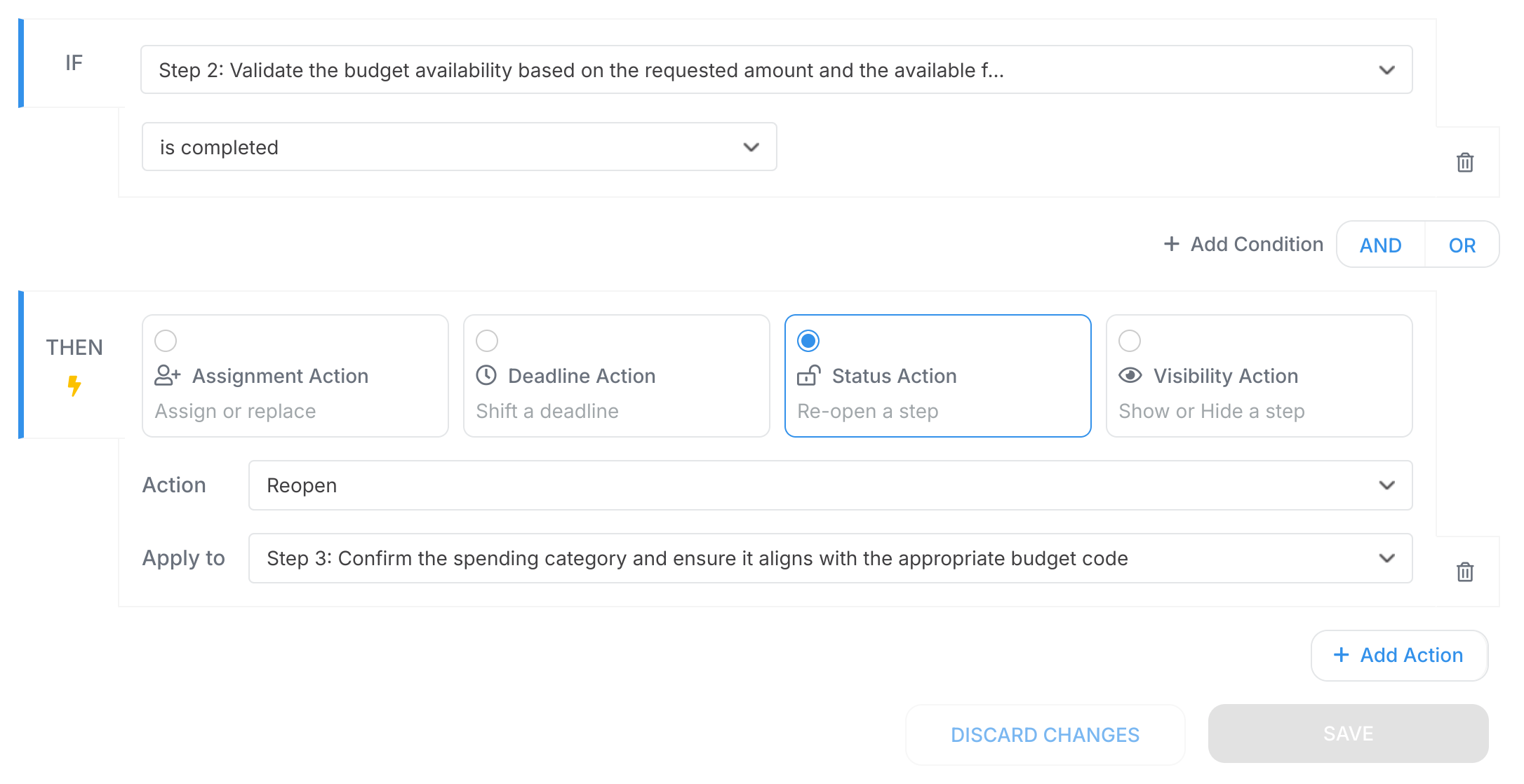
Status actions in Tallyfy do one thing - they automatically re-open a step (task) that was already marked as complete. The target task must already be complete for this to work. If it’s still open or hasn’t started yet, nothing happens.
They’re particularly handy for:
Approval/rejection steps - when something gets rejected, the previous step automatically re-opens so corrections can be made.
Feedback loops - need to send a process back for revisions? Status actions handle the return trip.
Examples of status actions
Example 1: Re-open task after rejection
IF (Approval Decision field) is "Requires changes"
THEN re-open task "Make changes for next draft"
When reviewers request changes, that draft task opens right back up.
Example 2: Loop back if quality check fails
IF (Quality Check field) is "Failed"
THEN re-open task "Review product specifications"
This sends the process back to specification review whenever quality doesn’t pass.
Example 3: Handle document corrections
IF (Manager Approval field) is "Rejected"
THEN re-open task "Update documentation"
Manager says no? The documentation task re-opens automatically.
Completing step 2 automatically re-opens step 3 - that’s your process loop in action.
Tallyfy lets you build multi-level approval chains where rejections at any stage automatically reopen earlier steps for corrections using approve/reject task types and status action rules that handle sequential sign-offs through managers and executives while also supporting conditional routing based on field values and parallel approvals across multiple teams simultaneously.
Tallyfy’s automation actions are the “THEN” part of IF-THEN rules that automatically assign tasks to the right people adjust deadlines reopen completed steps for approval loops show or hide steps based on form answers and fire webhooks to external systems — eliminating manual work and ensuring processes run consistently every time.
Tallyfy lets you complete tasks by clicking a checkmark icon or hitting the Complete button and reopen them with a Re-Open button while also offering settings to restrict completion to assigned members only and enforcing checklist and required field rules before a task can be marked done.
Tallyfy automations are IF-THEN rules added to templates that automatically adapt running processes based on form field entries and task events by showing or hiding steps and assigning tasks and setting deadlines without any manual routing.