Examples > Countdown deadline automation
Automate deadline shifts on tasks
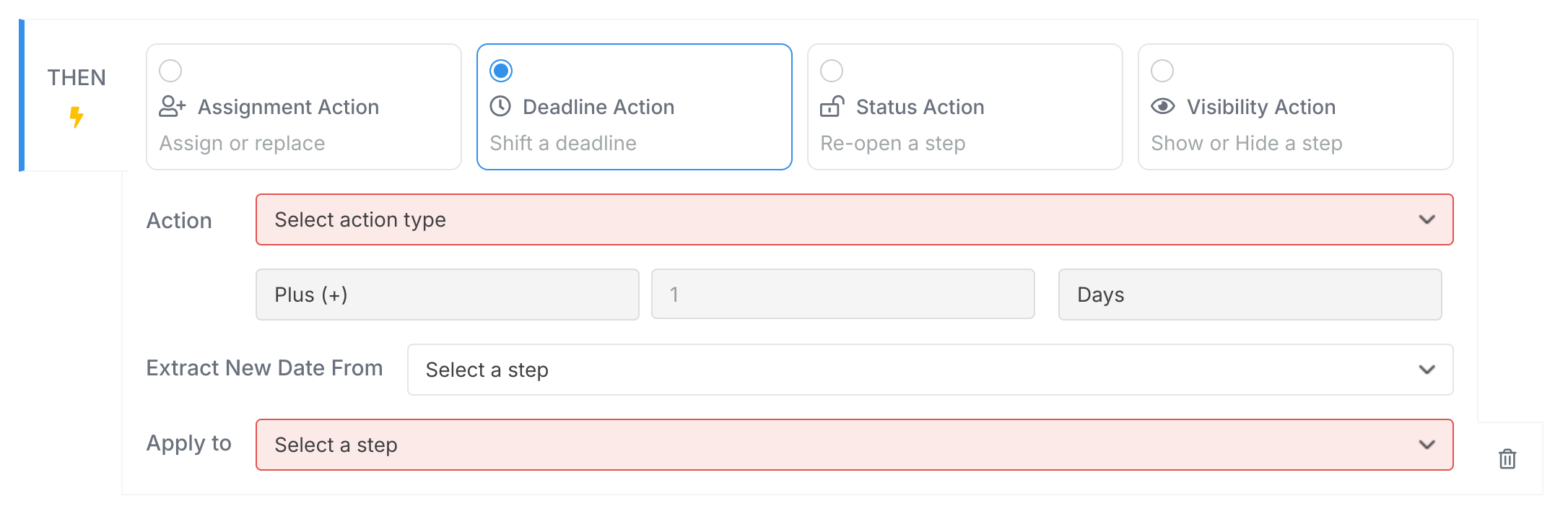
Deadline actions adjust task due dates automatically when conditions in your automation rules are met. You can:
- Shift a deadline forward or backward by a set amount (e.g. +3 days)
- Base a deadline on another step’s due date
- Set a deadline from a date entered in a form field
Use the Apply To dropdown in your automation rule to pick which step’s deadline changes.
Example 1: Make deadline earlier for premium service
IF (Package Purchased field) is "Premium"THEN shift deadline for step "Send First Draft" 3 days earlier than its defaultExample 2: Set deadline from a form field date
IF (Project Scope field) is "Complex"THEN set deadline for step "Review Meeting" to (Client Kick-off Date field) + 5 daysThe review meeting deadline lands 5 days1 after whatever date was entered in the “Client Kick-off Date” field.
Example 3: Link deadlines between tasks
IF (Initial Review task) is completedTHEN set deadline for task "Final Approval" to 2 days after the deadline of step "Client Feedback"Final approval falls 2 days after the client feedback step was due.

Step 13’s deadline gets pushed 1 day later when the condition is met.
Set up automated countdown deadlines that work backwards from important dates so preparation tasks are always completed on time.
Tallyfy automations are IF-THEN rules added to templates that automatically adapt running processes based on form field entries and task events by showing or hiding steps and assigning tasks and setting deadlines without any manual routing.
Tallyfy’s automation actions are the “THEN” part of IF-THEN rules that automatically assign tasks to the right people adjust deadlines reopen completed steps for approval loops show or hide steps based on form answers and fire webhooks to external systems — eliminating manual work and ensuring processes run consistently every time.
Tutorials > Create an automation
Tallyfy’s automation rules use simple IF-THEN logic to dynamically adapt workflows at runtime — such as hiding and revealing onboarding steps based on a new hire’s role selection in a form field — so processes self-adjust without any manual intervention.
Was this helpful?
About Tallyfy
- 2025 Tallyfy, Inc.
- Privacy Policy
- Terms of Use
- Report Issue
- Trademarks