Examples > Dynamic member assignment from kick-off forms
Use assignee picker fields in kick-off forms so process launchers can pick who handles each task - then automation rules assign the right people.
Assignment actions change who’s responsible for a task when conditions are met in your workflow. You’ve got three options:
You can assign specific members, guests, or groups. You can also use an Assignee Picker1 form field so someone picks the assignee while filling out the form. If the picker field is empty, Tallyfy falls back to any manually specified assignees in the same action.
Watch out for unintended assignees
Tasks without assignees default to the process launcher2 unless the step’s auto-assign launcher setting is turned off. If your automation uses Add assignees, the launcher stays assigned alongside your new people. Use Replace assignees to assign only who you want.
Example 1: Assign based on location
IF (Office Location field) is "Toronto"THEN Add assignee "Jane Doe" to task "Mentor Meeting"Jane gets added when someone selects Toronto. The original assignee stays on too.
Example 2: Replace assignees by department
IF (Department field) is "Legal"THEN Replace all assignees for task "Contract Review" with "Legal Team" groupThis completely replaces whoever was assigned. Only the Legal Team handles contract reviews for legal requests.
Example 3: Using an Assignee Picker field
IF (Project Type field) is "Urgent"THEN Replace all assignees for task "Approval" with (Project Manager field)Someone picks the project manager in a form field. For urgent projects, that person becomes the sole approver.
Example 4: Fixing unintended launcher assignment
Problem: Task has no assignees → launcher gets it → automation adds Kassie → both assignedSolution: Use "Replace assignees" instead of "Add assignees" to assign only KassieUnassigned tasks default to the launcher. “Add” keeps the launcher; “Replace” removes them.
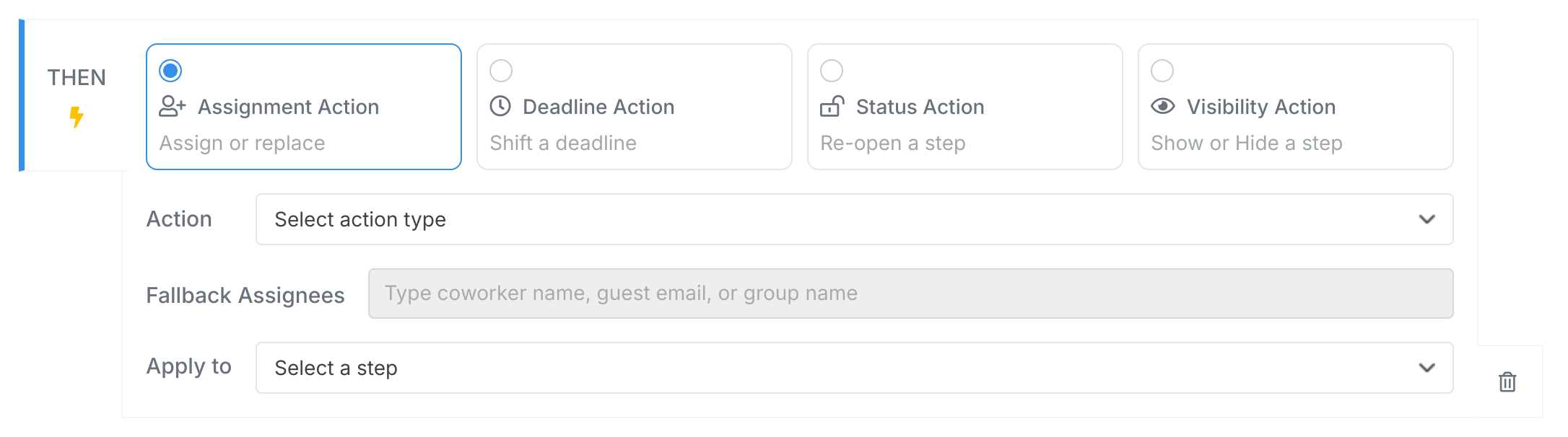
Every assignment action needs the Apply to setting - it tells Tallyfy which step should get the new assignments. Assignment actions won’t apply to already-completed tasks.
Examples > Dynamic member assignment from kick-off forms
Tasks > Task assignment options
Edit Templates > Assign steps in the Tallyfy template builder