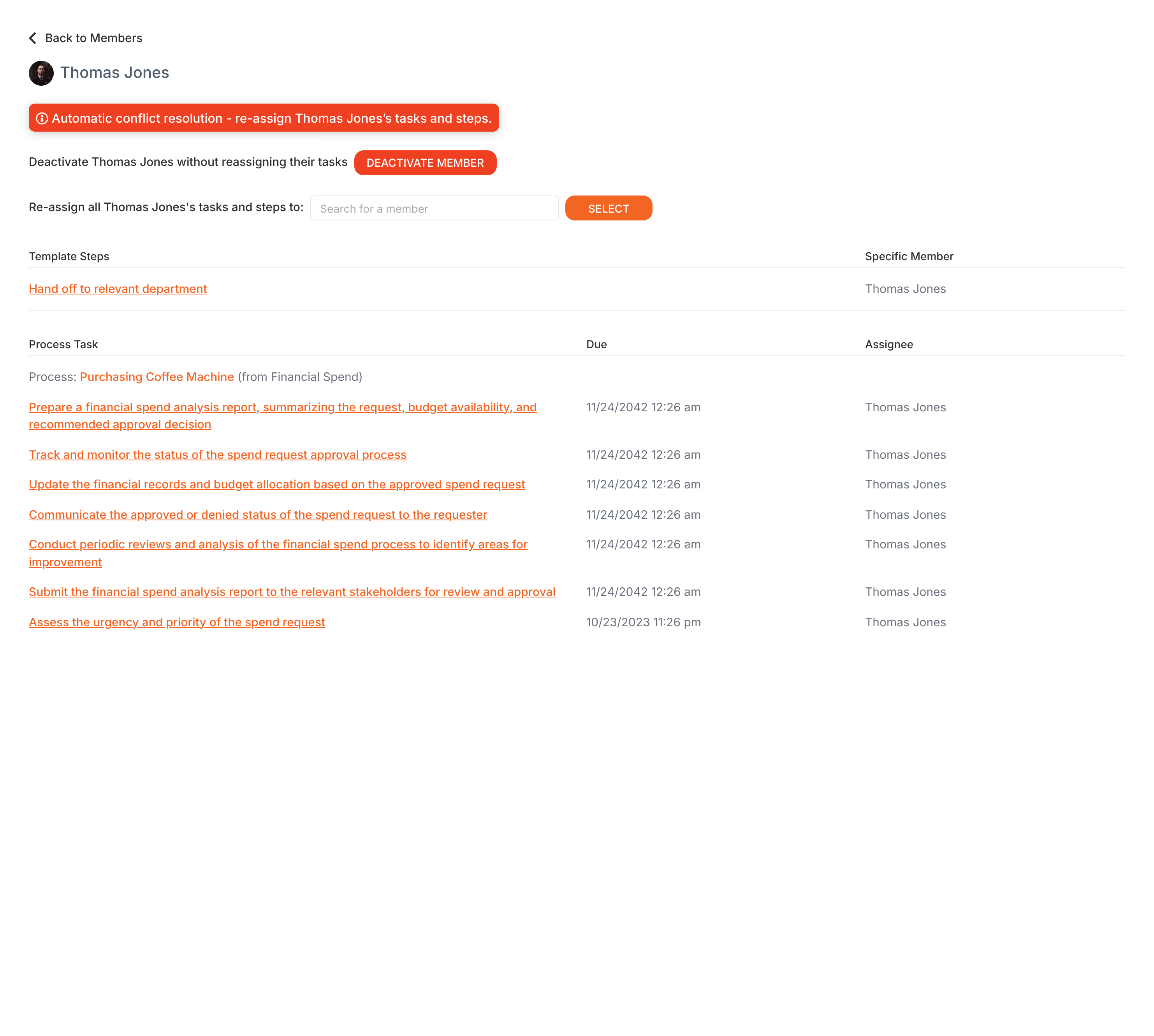
To remove a member from Tallyfy, go to Settings > Organization > Members, click their name, and select Deactivate Account at the bottom of their profile. Access is revoked immediately, and you’ll decide what happens to their current tasks.
Tallyfy records who performed the deactivation and when (visible in the member’s Activity section)
Check public kick-off forms first
Before deactivating anyone, check if they’re the inviter or creator for any templates used in public kick-off forms2.
Member was the inviter (but didn’t create the template) - Tallyfy automatically switches the inviter to the template creator. Public sharing stays ON.
Member was the creator of the template - Tallyfy may turn OFF public sharing for that form, breaking the public link immediately. An Administrator would need to turn public sharing back ON and pick a new member to associate with the form.
Checking deactivation history
Go to Settings > Organization > Members
Find the deactivated member’s name (you may need to filter the list)
Check the Activity section at the bottom of their profile page
The activity log shows who deactivated the member and when.
Tallyfy requires admins to deactivate a member before deleting them and prompts reassignment of all pending tasks and template steps to another active member during removal while also protecting against accidental deletion of the last admin or default administrator account.
Deleting a member in Tallyfy requires first disabling them and then permanently removing them while handling common blockers like default admin restrictions and bot user limitations along with proper task reassignment and data retention for compliance.
Tallyfy’s API lets you deactivate a member from your organization using a DELETE request with optional task reassignment to another user and also supports a separate two-step flow for permanent deletion that requires disabling the member first.
In Tallyfy you can convert a member to a guest by first deactivating their account through the Members settings and then clicking “Convert to guest” on the disabled account which immediately switches them to guest-only access through email task links and frees up a paid member seat.
Footnotes
Tallyfy bills per active member monthly or yearly. Deactivated members don’t count toward billing. ↩
External submission forms that don’t require login. Links can break if the form creator is deactivated. ↩