Skip to content

Change the role of a member

How to change a member’s role

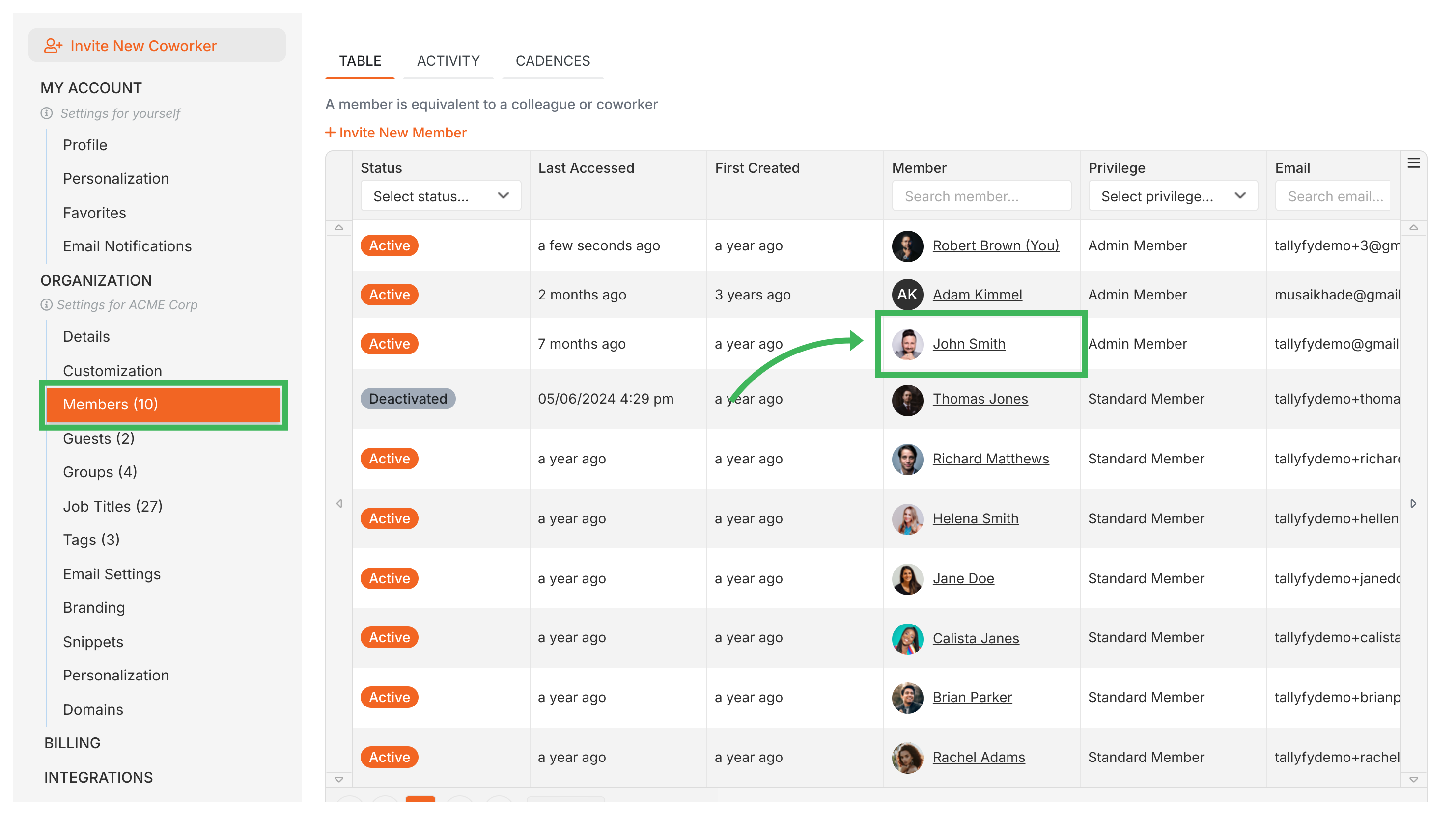
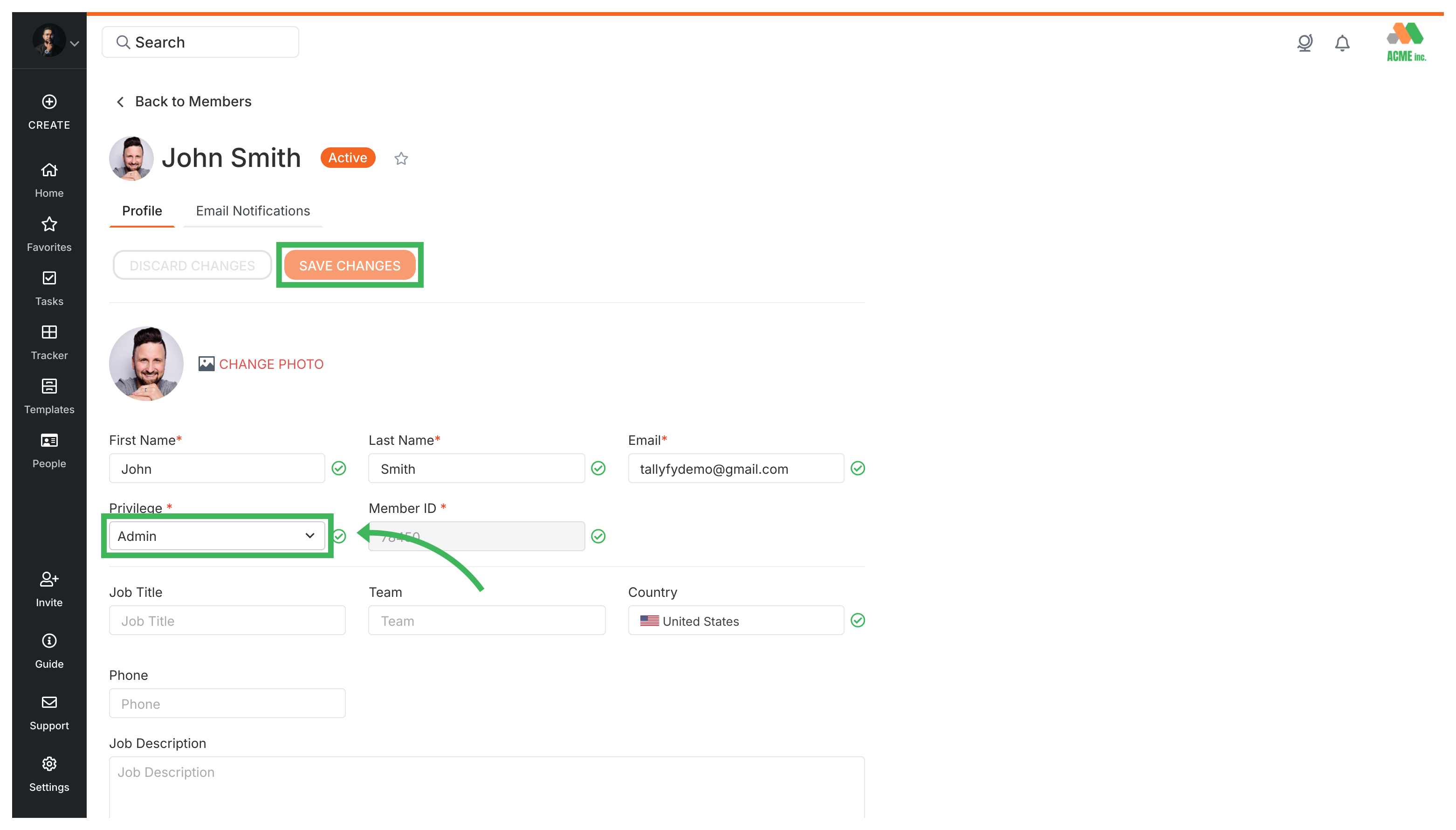
Go to Settings > Organization > Members, click a member’s name, and pick a new role from the dropdown. Only Administrators can do this - Standard and Light members can’t modify roles.

What you need

  • Administrator permission level
  • At least one other member whose role you want to change

Available roles

Tallyfy has three member roles:

  • Administrator - Full control over templates, processes, settings, and member management
  • Standard - Can work with processes and templates based on permissions you set
  • Light - For occasional users who only need to complete assigned tasks

Steps to change a role

  1. Go to Settings > Organization > Members
  2. Click the member’s name - you’ll see their current role displayed Team member table with row selection feature
  3. Select the new role (Administrator, Standard, or Light) from the dropdown User permissions dialog showing role selection options
  4. Click Save to apply the change

The change takes effect immediately.

When to change roles

  • Promoting someone to manage the whole Tallyfy setup? Give them Administrator access
  • Have a contractor who only works on specific tasks occasionally? Switch them to Light
  • Team member switching departments? Update their role to match new responsibilities

You can change roles anytime. If someone needs temporary higher access, switch them back later.

Removing members from your organization

You can’t directly delete members, but you can deactivate them:

  1. Go to Settings > Organization > Members
  2. Click on the member’s name
  3. Click the button to disable their account
  4. Confirm the action

Deactivated members:

  • Can’t log in to Tallyfy
  • Don’t count toward your member limit
  • Keep their historical data for audit trails
  • Can be reactivated anytime

Members > Standard and admin members

Tallyfy offers three member roles where Administrators have full account control including billing and settings and people management while Standard members can create templates and run processes with Admin-granted permissions and Light members serve as a lower-cost option limited to completing assigned tasks only.

Members > Update member role

Tallyfy’s API lets administrators change any organization member’s role to admin or standard or light by sending a PUT request with the new role value to the member’s role endpoint and returning the updated member profile on success.

Documenting > Members

Members in Tallyfy are your organization’s users (employees or contractors) who hold one of three roles — Administrator for full control and Standard for daily workflow tasks and Light for task-only access — with each role determining what areas and features that person can reach within the platform.

Members > How to remove a member

Administrators in Tallyfy can instantly remove a member by deactivating their account under Settings > Organization > Members and then choosing to either reassign that person’s open tasks to other team members or leave them unassigned for later handling.