Groups in Tallyfy are saved lists of team members and external guests that let you assign tasks to an entire team with one click instead of adding people individually and they automatically stay current when someone joins or leaves your organization.
Create and assign groups
Groups let you bundle people together so you can assign them to tasks as a unit instead of one by one.
- Admin or Standard member permissions
- Access to Settings
- Go to Settings > Organization > Groups.
- Click + to create a new group.
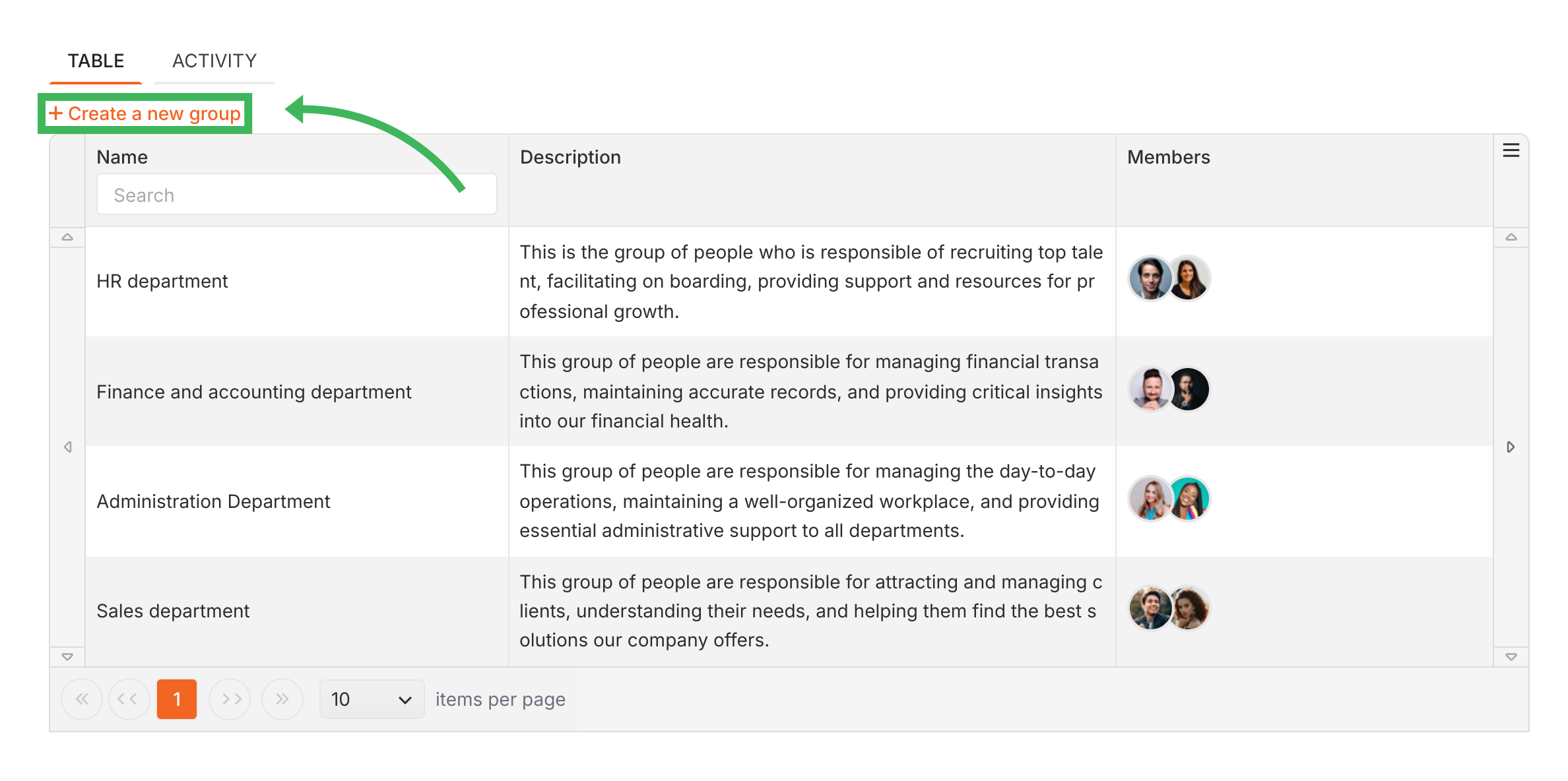
- Enter a name and description (both required).
- Add members and/or guests1.
- Click Create.
- Open a template and select the step (task) you want to assign.
- Click the assignment box labeled “Assignee”.
- Pick your group from the dropdown.
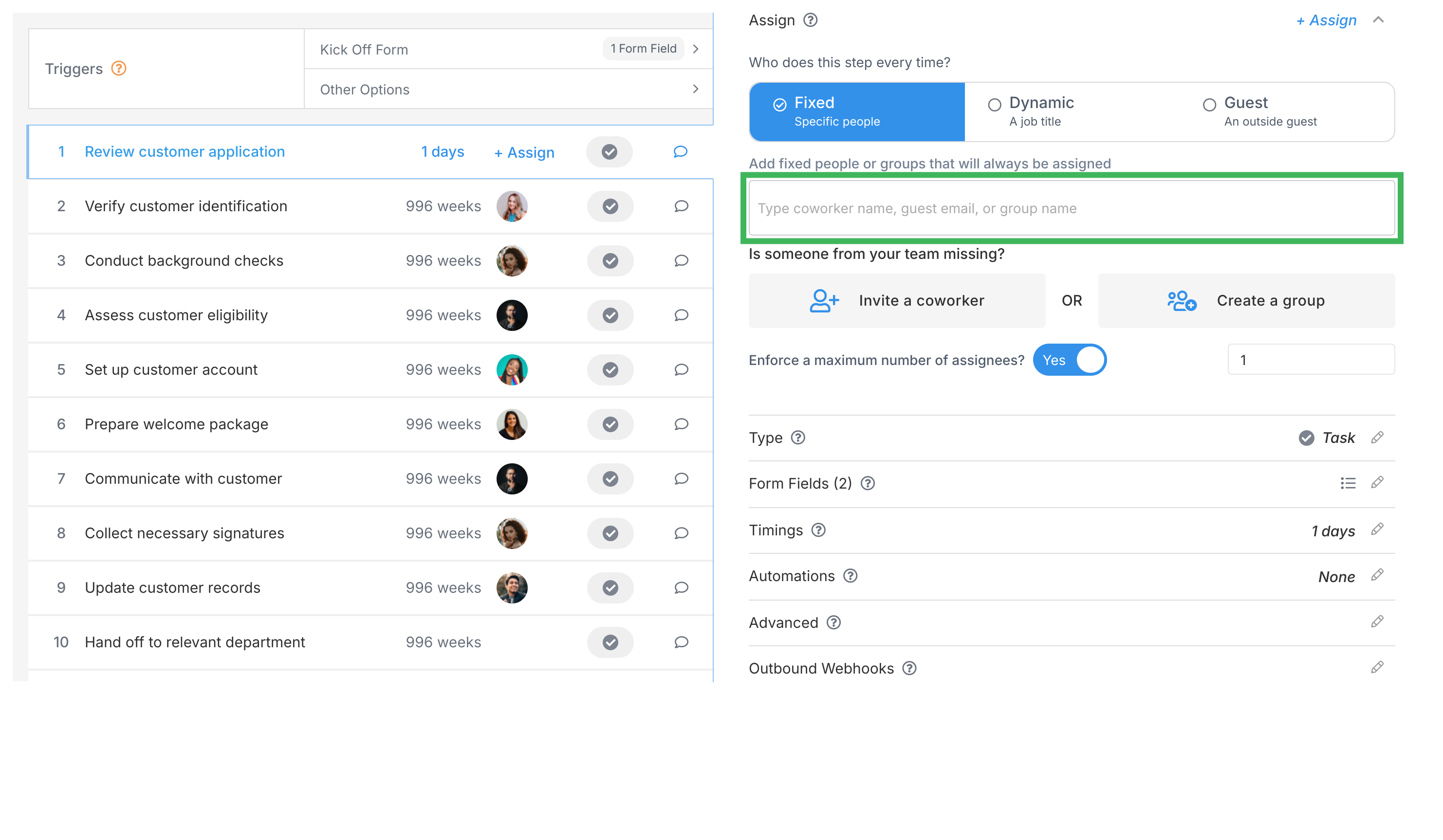
- Maximum assignees2 - limits how many people from the group can work on one task. Set this at the organization level.
- For dynamic assignments that change based on process conditions, use assignment actions.
Tasks > Task assignment options
Tallyfy lets you assign tasks to individual members or groups within your organization and to external guests via email and supports dynamic reassignment through automation rules based on form field values or step completion status.
Code Samples > Managing groups
Tallyfy’s Groups API lets you bundle members and guests into reusable groups that can be assigned to tasks and processes through standard create/list/get/update/delete operations scoped to your organization.
Edit Templates > Assign steps in the Tallyfy template builder
Tallyfy lets you assign template steps to specific members or groups or job titles or guests through the Assign tab and also supports unassigned steps with dynamic automation rules that route tasks based on form answers or conditions like dollar amounts or priority levels.
Was this helpful?
About Tallyfy
- 2025 Tallyfy, Inc.
- Privacy Policy
- Terms of Use
- Report Issue
- Trademarks