Tallyfy builds a table of contents from your headings automatically. Add headings, and the navigation appears - no manual linking or page numbers. Your documents and procedure templates1 become instantly navigable.
What you need
A document or procedure template open for editing
Text you want to organize with headings
How Tallyfy’s table of contents differs from Word
Word’s table of contents needs manual refreshing, page numbers break, and formatting fights you. Tallyfy works differently:
Instant creation - add a heading and it appears in navigation immediately
Live updates - change a heading and the table of contents updates in real-time
Screen-optimized2 - built for clicking and navigating, not printing
Zero maintenance - you’ll never manually update navigation again
Creating a table of contents in documents
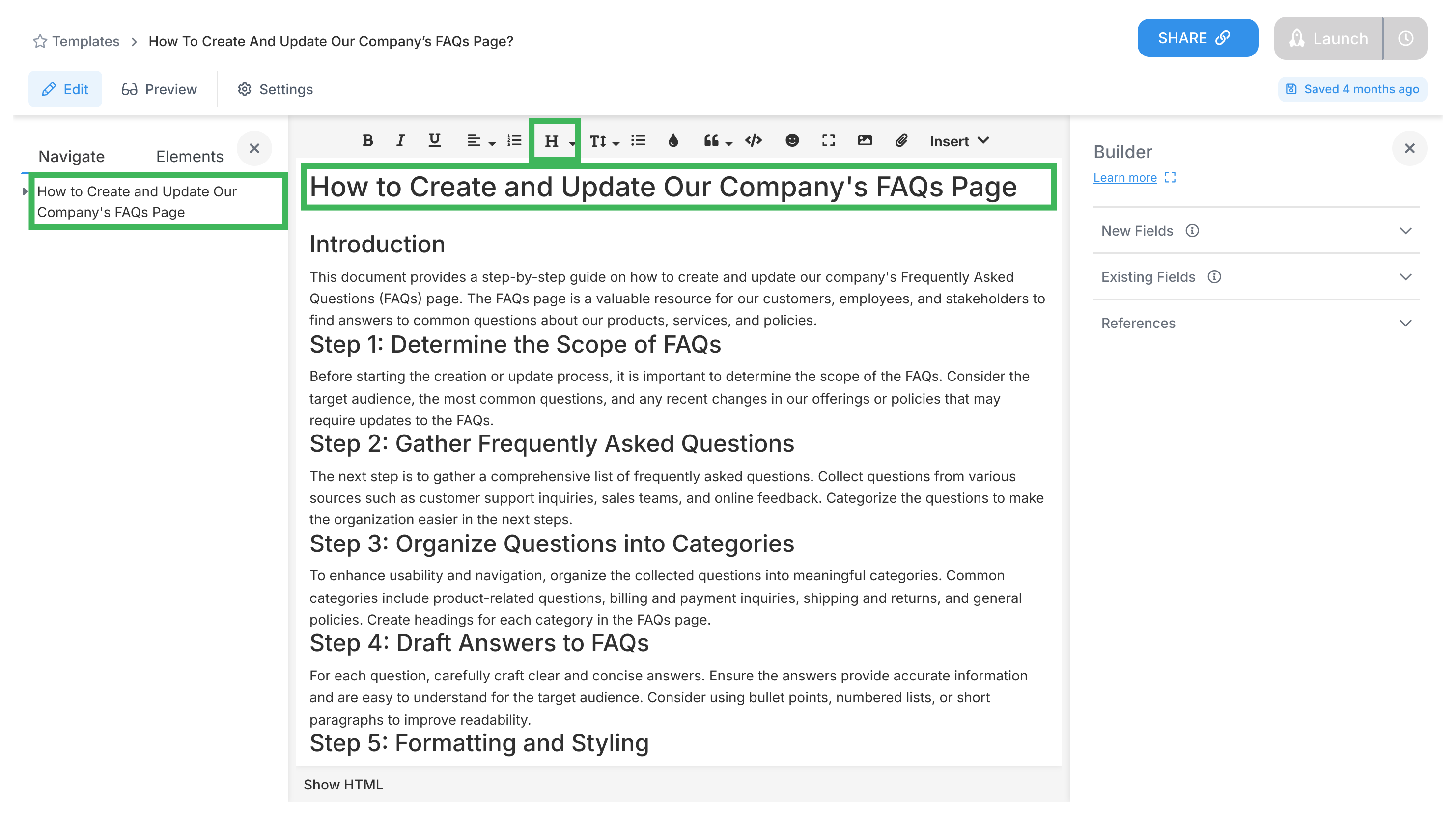
Highlight the text you want as a main section heading.
Click the formatting menu in your toolbar (it may show Normal text or heading styles).
Choose H1 to make it a main heading.
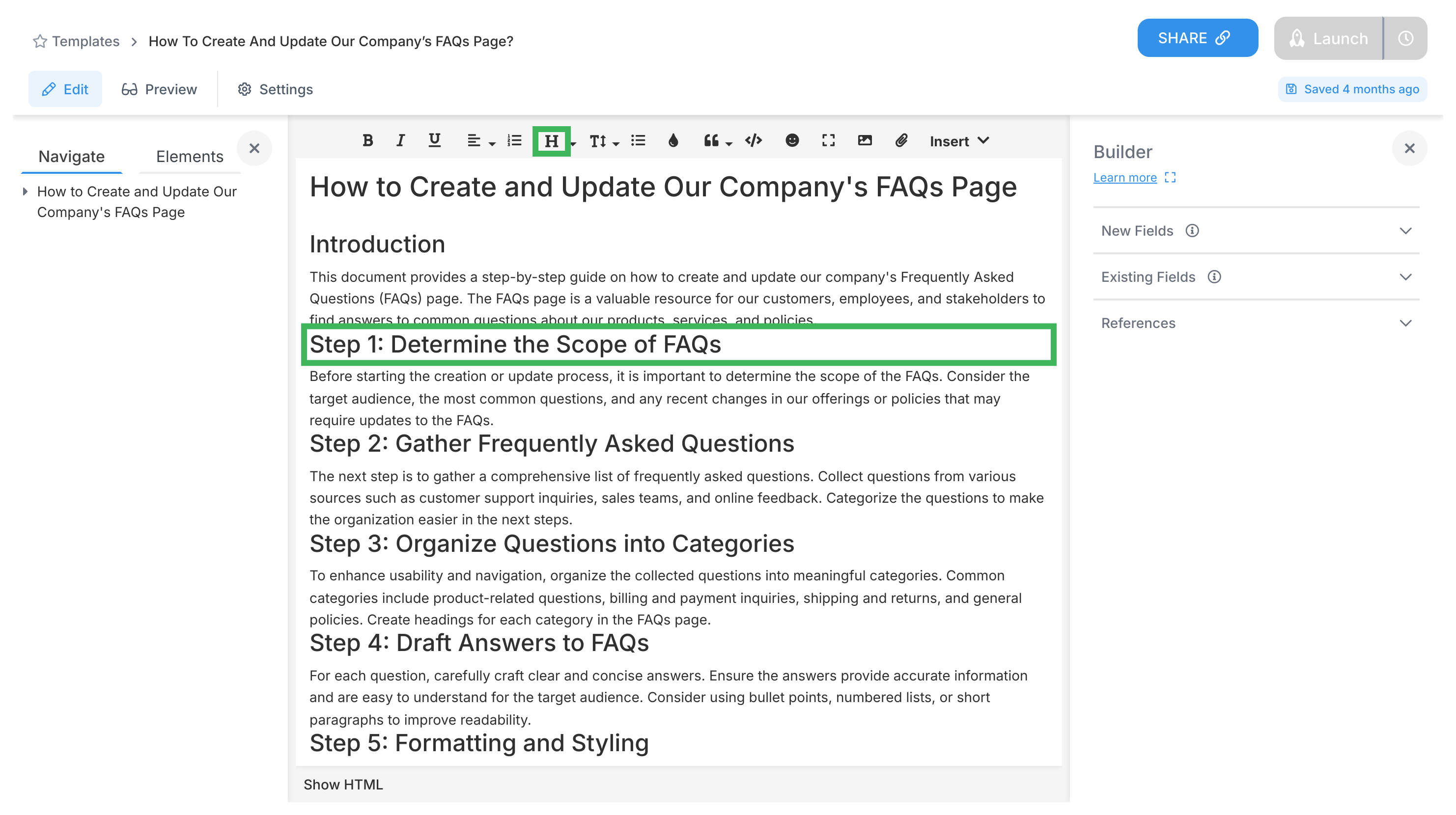
For sub-headings, highlight text in that subsection.
Pick H2 (sits under H1) or H3 (sits under H2) from the menu.
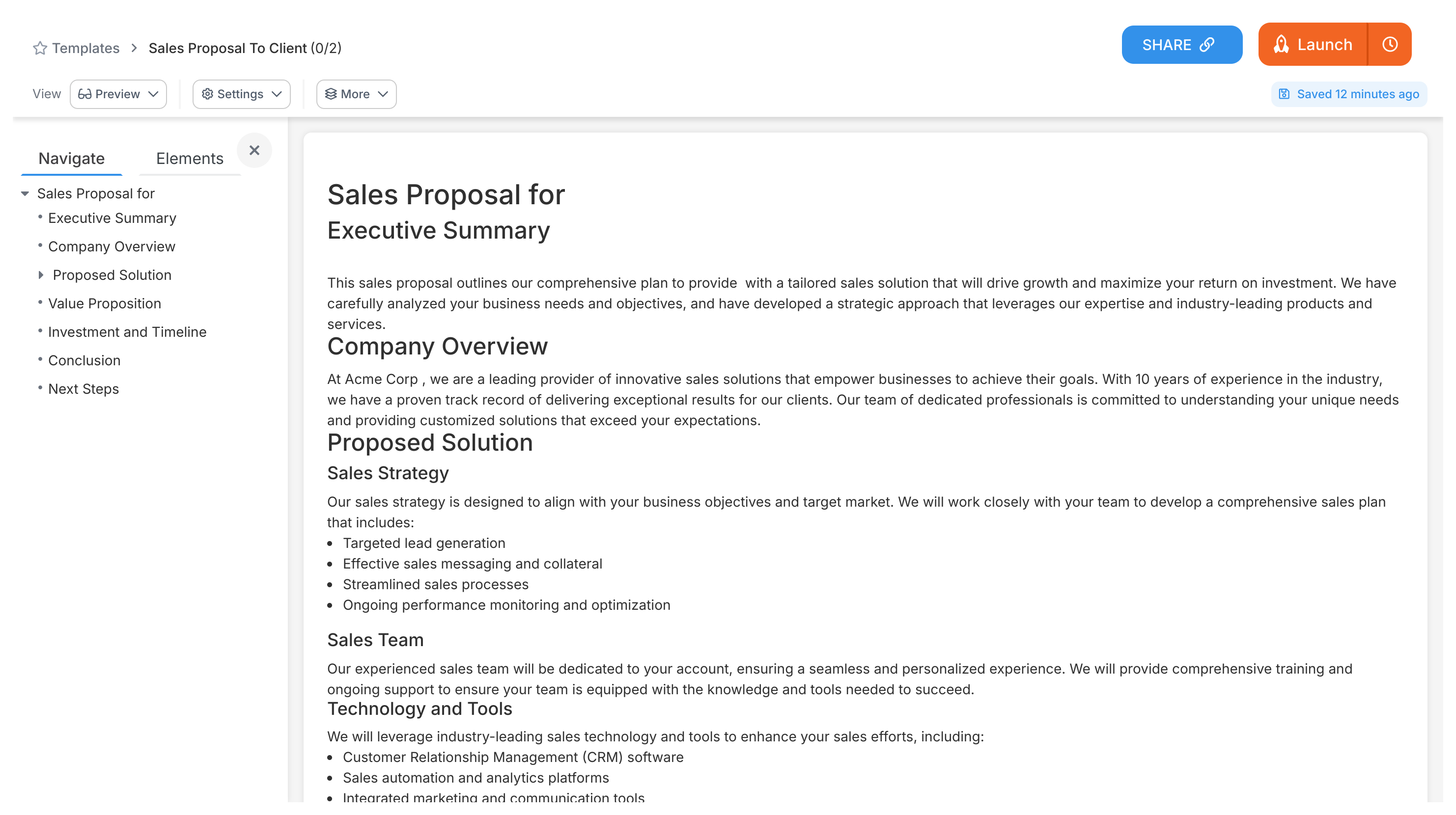
Your headings instantly appear in the table of contents panel as clickable links.
Tips for using headings well
H1 is for main sections only - think chapter titles
H2 goes inside H1 sections - your subchapters
H3 goes inside H2 sections (if you really need that level)
Don’t skip levels - no jumping from H1 to H3
Keep headings short. Really short.
Table of contents in procedure templates
Procedure templates work a bit differently. You still get automatic navigation, but you access it through preview mode:
Open your procedure template.
Click Preview to see the user view.
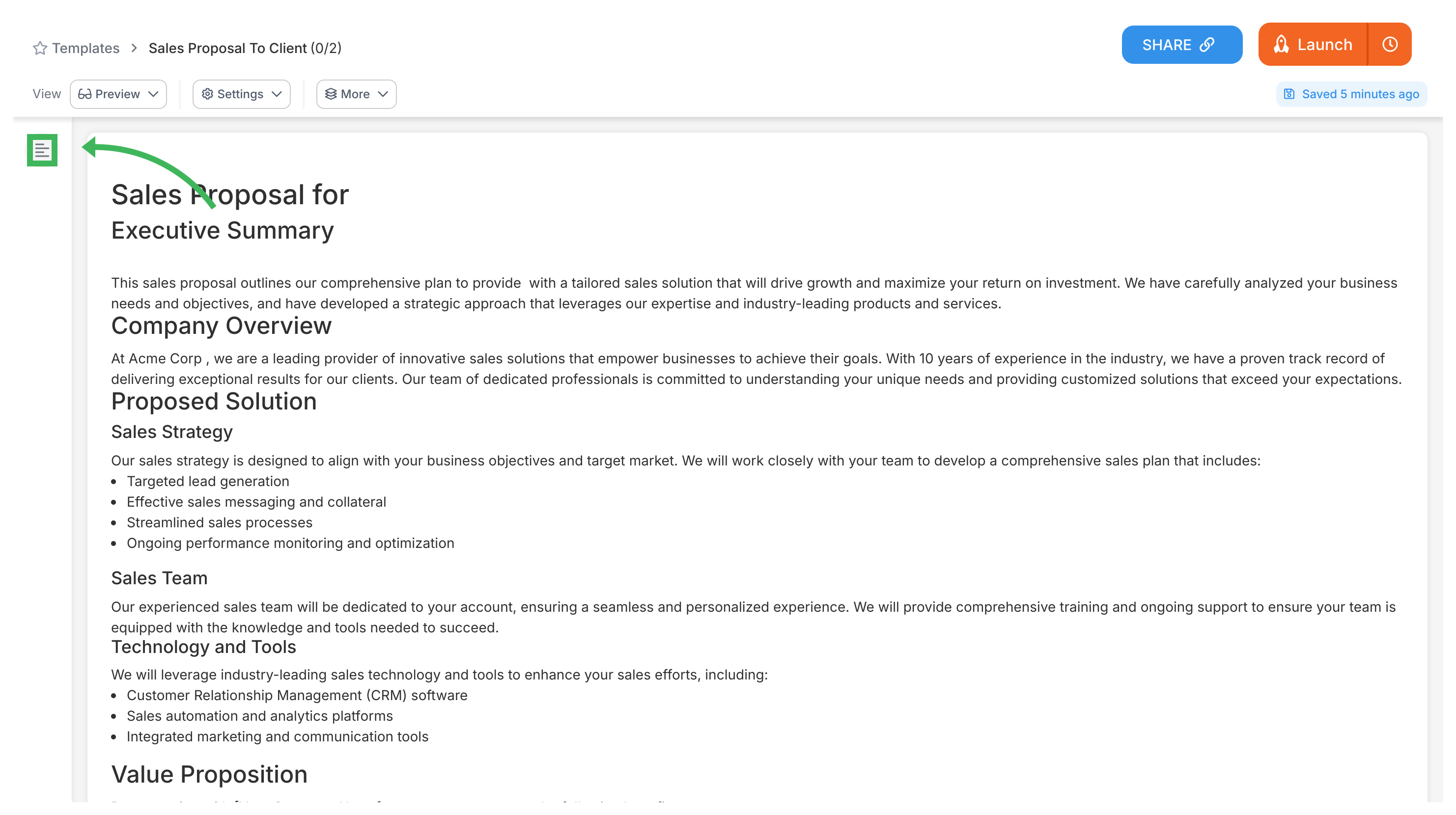
Look for the table of contents icon in the top right (looks like stacked lines).
Click any heading to jump directly to that section.
Why automatic table of contents matter
An automatic table of contents gives readers:
A clear view of your document’s structure in seconds
One-click jumps to any section - no scrolling marathons
A reason to organize content logically (this makes your docs better, too)
Equal ease of navigation whether a document is 5 or 50 pages
Tallyfy transforms traditional static operations manuals into dynamic digital workflows where procedures are tracked and executed in real time rather than forgotten in dusty binders.
Tallyfy transforms static documents into three types of living templates—Procedure Templates for tracked multi-step workflows with automation rules and task assignments; Document Templates for consistent policies and reference materials with locked sections and fillable fields; and Form Templates for structured one-shot data collection—so teams can pick the right format based on whether they need sequential task tracking or reusable document structures or simple data gathering.
Tallyfy is a no-code workflow platform that lets non-technical users turn any business process into a self-driving workflow in minutes by documenting steps as reusable templates and then launching them as trackable processes with automatic task assignments and deadlines and conditional logic and real-time progress visibility for both internal teams and external clients — saving organizations roughly 2 hours per employee per day by eliminating status meetings and follow-up emails and forgotten handoffs.
Tallyfy templates are reusable process blueprints that you create once and launch repeatedly to assign tasks and track progress automatically while solving problems like inconsistent quality and lost knowledge through three types: procedure templates for multi-step workflows with conditional logic and document templates for reference materials and form templates for standalone data collection.
Footnotes
Reusable process workflows that become active ‘runs’ when launched with assigned tasks ↩
Navigation anchors use HTML IDs instead of page numbers for instant browser-based jumping ↩